Interface layout
All cabinet screens are built from the same elements. This page describes them once so that the screen descriptions do not repeat the common rules.
General screen layout
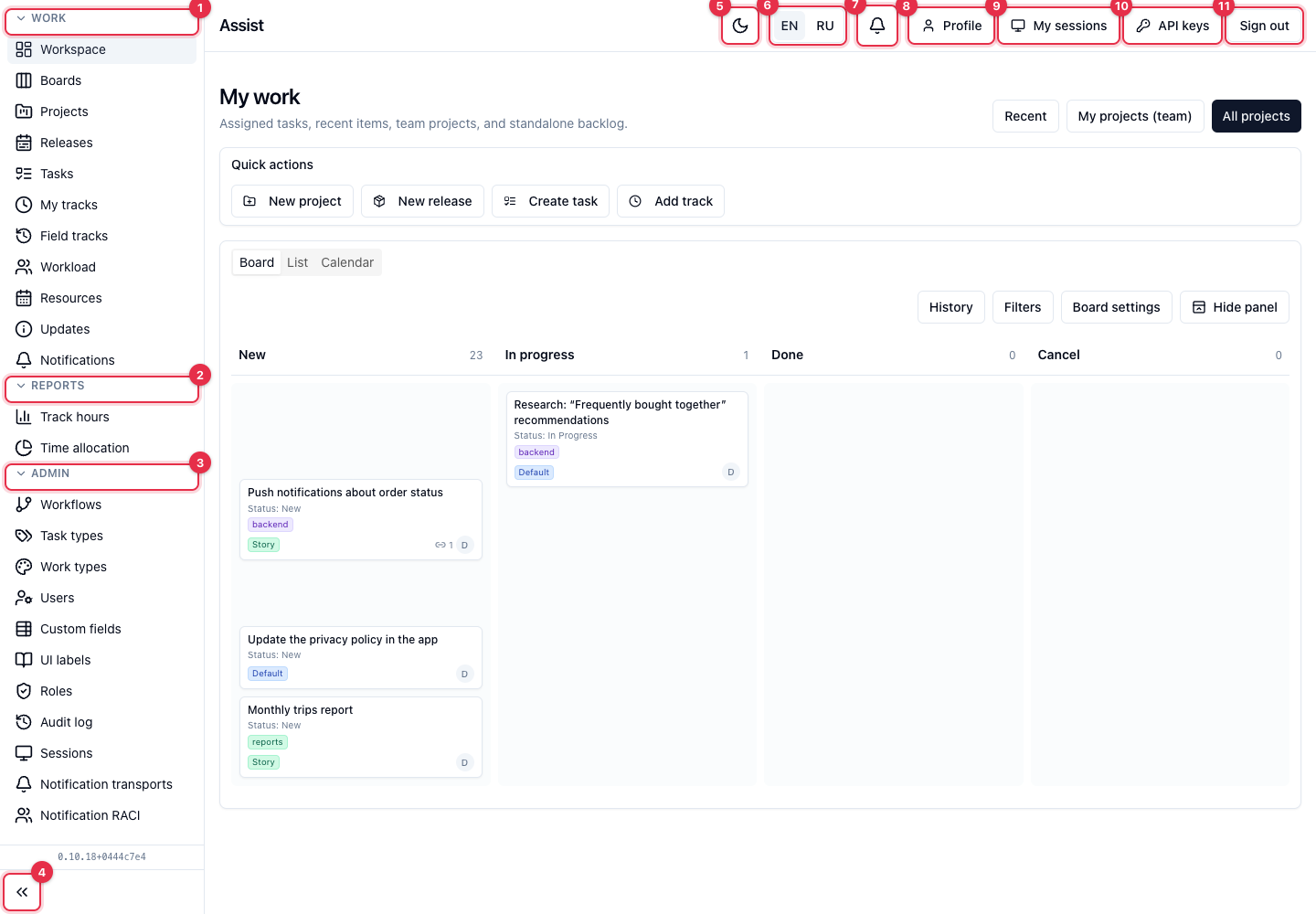
A screen consists of three parts:
- The side menu — on the left. It contains the cabinet sections.
- The header — on top. It contains personal pages, the theme and language switches, and the notification bell.
- The work area — in the center. It shows the content of the selected page.
Side menu
| № | Element | What it is | Action |
|---|---|---|---|
| 1 | The Work header | A group of working sections | Click to collapse or expand the group |
| 2 | The Reports header | A group of reports | The same |
| 3 | The Admin header | An administration group | The same |
| 4 | The button with arrows at the bottom | Collapsing the panel | Click to collapse the menu and free up space. Click again to expand |
Under the collapse button, the cabinet version number is written in small print. State it when contacting support.
The menu depends on the role. The menu is built from your role's permissions. An item for which the role has no permission is not shown in the menu. If you open a page by a direct link without permission, the cabinet redirects you to “My work”. The full list of items and addresses: menu map.
The active menu item is highlighted. When working inside a project, the Projects item is highlighted; inside a release, Projects too.
Header
| № | Element | What it is | Action |
|---|---|---|---|
| 5 | The moon or sun icon | The theme switch | Turns the dark or light theme on. The choice is remembered in the browser |
| 6 | EN / RU | Interface language | Switches the cabinet's caption language. The choice is remembered in the browser |
| 7 | The bell | Notifications | Opens notifications |
| 8 | Profile | Personal data | Opens the profile |
| 9 | My sessions | Your sign-ins | Opens the session list |
| 10 | API keys | Integration keys | Opens the keys page. The button is visible to roles with the permission for keys |
| 11 | Sign out | Ending the session | Closes the session in this browser |
Language and data. The language switch changes only the interface captions. The names of projects, tasks, people, and field values are not translated.
Dark theme
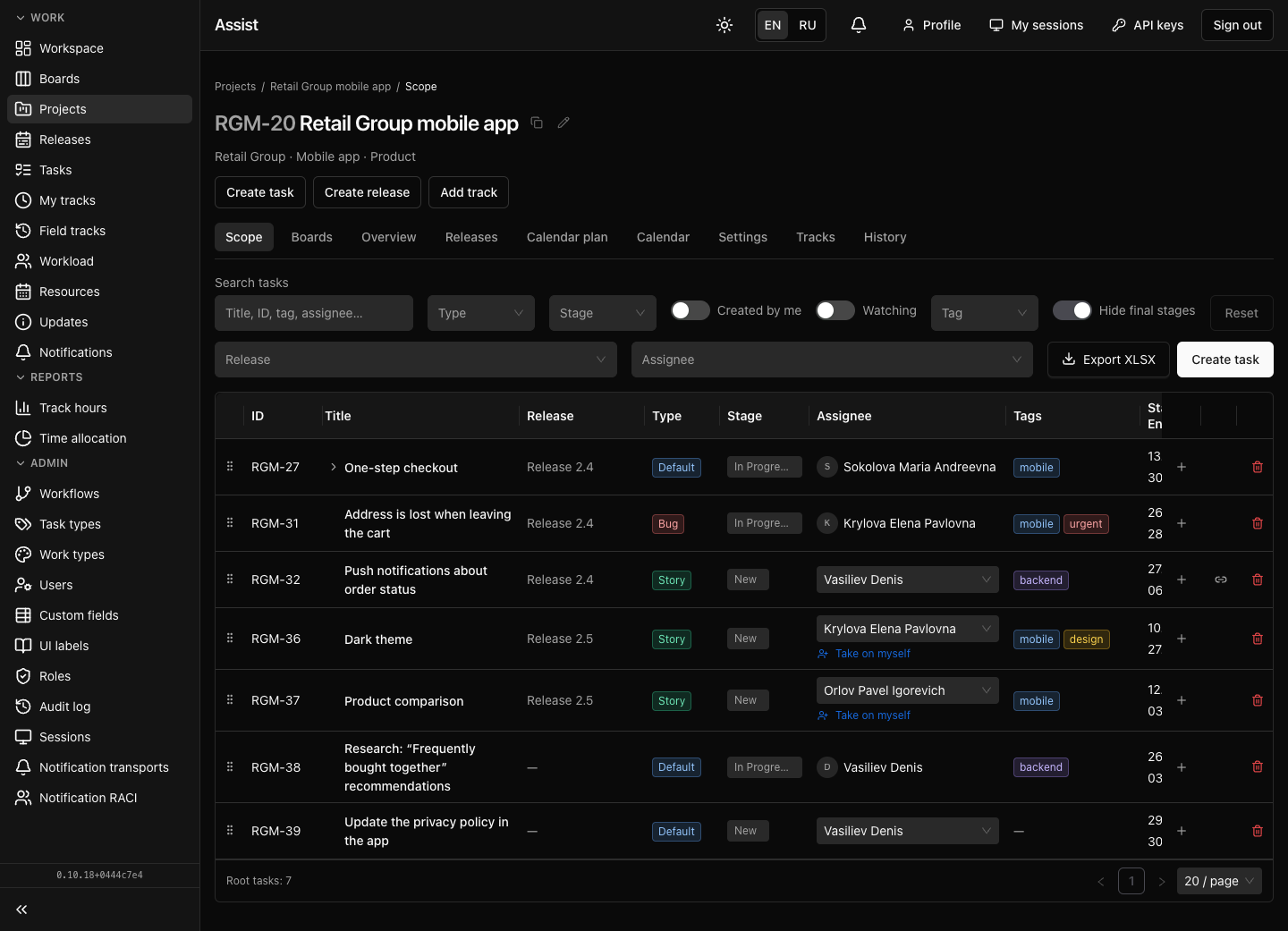
The dark theme changes only colors. It is convenient when working in the evening. The switch is in the header.
Breadcrumbs and the title
Inside a project, release, task, and editors, the path is shown above the title, for example: Projects / Retail Group mobile app / Releases / Release 2.4 / Overview. Each element of the path except the last is a link to the corresponding page.
In the title of a project, release, and task, to the right of the name there are two icons:
- the copy icon copies the key and title (for example, “RGM-30 Card payment via SBP”) to the clipboard. Use it to paste a link to a task into an email or chat;
- the pencil icon turns on title editing. Confirmation: leaving the field or the save button. The Escape key cancels the edit.
Tabs and buttons above them
A project, release, and task open with a row of tabs. A project has the tabs Scope, Boards, Overview, Releases, Calendar plan, Calendar, Settings, Tracks, History. A release has Scope, Board, Overview, Calendar, Tracks, History, Settings. A task has Overview, Tracks, History.
Buttons above the tabs (for example, Create task, Create release, Add track) work on any tab. The set of tabs depends on the role's permissions: a hidden tab means no permission.
Tables
Tables are built the same way:
- A search bar and filters above the table.
- A reset button (Reset, Reset all filters) returns the filters to the original view.
- Column headers. Some columns have a sort icon.
- Rows. Clicking a name opens the record card.
- Action icons at the end of a row: pencil (edit), trash can (delete), “plus” (add a nested record).
- Pagination at the bottom: page numbers and the page-size selector (“10 / page”, “20 / page”, “50 / page”).
The “Hide final stages” switch. In the lists of projects, releases, tasks, and scopes, by default a switch is on that hides records at final stages. If you need to find a completed record, turn it off. In the cabinet it may be called Hide final stages or Hide completed.
A tree. In scopes, tasks with subtasks are marked with an arrow on the left. Click the arrow to expand the subtasks.
Export. The buttons Export XLSX, Export CSV, Download Excel export what is in the table now, with filters applied.
Forms
- Required fields are marked with a red asterisk to the left of the label. Without filling them in, the save button is inactive or the cabinet shows an error under the field.
- Hints are written in small gray text under a field.
- Dropdown lists open on click. Many lists support search: start typing.
- Dates are chosen in the calendar or entered manually.
- Estimate and duration accept the formats
1.5(hours),1d 2h 30m, and90(minutes). The unit can be switched with the icon next to the field. - The text editor (description, comments) supports formatting. Start a line with the
/character to open the block menu: headings, lists, and so on.
Autosave and saving on leaving a field
On view pages, changes in many fields are saved at once, without a separate button:
| Field | When it is saved |
|---|---|
| The description of a project, release, task | After a pause following input, on closing the tab, or on very long input. Under the field it says “Saved after a pause without edits…” |
| The name, values in “Main” | On leaving the field or by the confirmation button |
| An assignee, a date in a table | Immediately after choosing |
The result is confirmed by a short message (“Saved”).
Windows and confirmations
- Dialog windows open over the page (creating a track, creating a board, adding a transport). A window is closed with the Cancel button or the × icon in the corner.
- Confirmations appear as a small window near the delete button: “Delete?” with confirm and cancel buttons. Clicking the delete button without confirmation deletes nothing.
Messages
The result of an action is shown by a short message at the top center of the screen: green on success (“Stage updated”, “Profile updated”) and red on error (“Could not save”). The message disappears by itself after a few seconds. Message texts: message reference.
Locks and icons next to fields
| Icon | Meaning |
|---|---|
| A lock next to a value | The workflow locked the field at the current stage. The value cannot be changed until the object returns to a stage where the field is open |
| A pencil | The field can be changed. Click to start editing |
| A yellow pencil next to an estimate | The estimate was set manually. Without it, the estimate is calculated automatically as the sum over nested records |
| A clock icon at a stage | Shows the stage deadline if it is set in the workflow |
| A link icon at a task | Shows the number of related tasks |
Dragging
- Cards on boards. Drag a card to another column to change the stage. If the transition is forbidden, the card returns and the cabinet shows the reason.
- Order in a scope. Drag a task by the six-dot icon to change the order among tasks of the same level.
- Projects into folders. Drag a project onto a folder in the project list.
- Order of releases. Releases in a project's table are dragged by the dotted icon.
Keyboard shortcuts
| Shortcut | Where it works | Action |
|---|---|---|
| ⌘+Enter (Mac), Ctrl+Enter (Windows, Linux) | The new comment field | Send the comment |
| Escape | Title editing | Cancel the edit |