Quick start in 15 minutes
Result. After completing the steps you will sign in to the cabinet, find a task assigned to you, move it to the next stage, leave a comment, log the hours worked, and check notifications.
What you need. The cabinet address, a login, and a password. More: “Where to begin”. For steps 5–8 at least one task must be assigned to you. If you have no tasks, tell the project manager: they assign tasks.
Step 1. Open the cabinet and sign in
-
Open the cabinet address in the browser. If you are not signed in, the sign-in page opens.
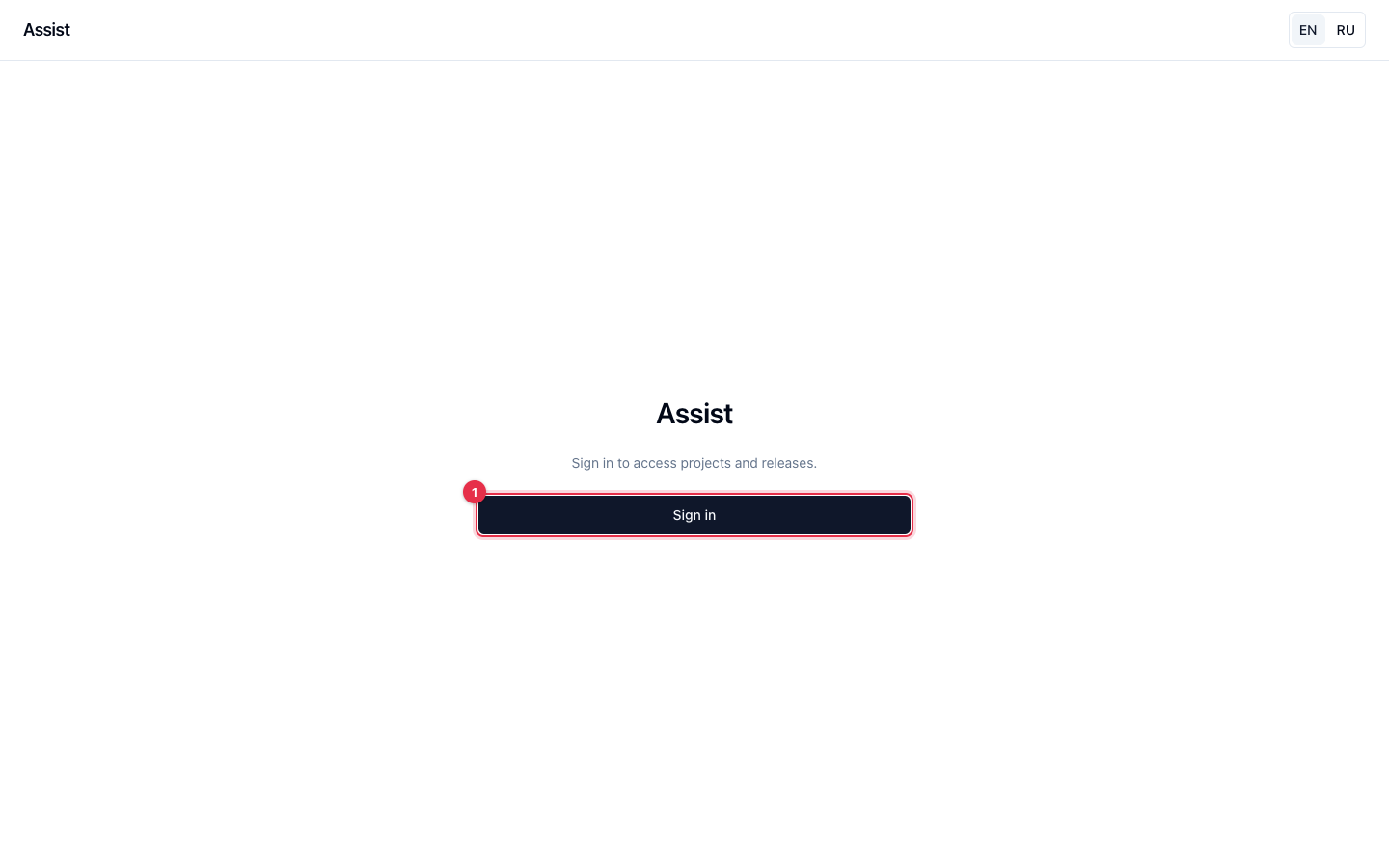
№ Element Purpose 1 The Sign in button Goes to the Keycloak page, where the login and password are entered -
Click Sign in. The browser opens the Keycloak page.
-
Enter the login and password and confirm.
-
Keycloak returns you to the cabinet. The My work page opens.
If it did not work. If the password does not fit, check the keyboard layout and the Caps Lock key. If the password is forgotten, reset it on the Keycloak page or contact the administrator.
Step 2. Look at the interface
On the left is the section menu, on top is the header with your personal pages, in the middle is the work area.
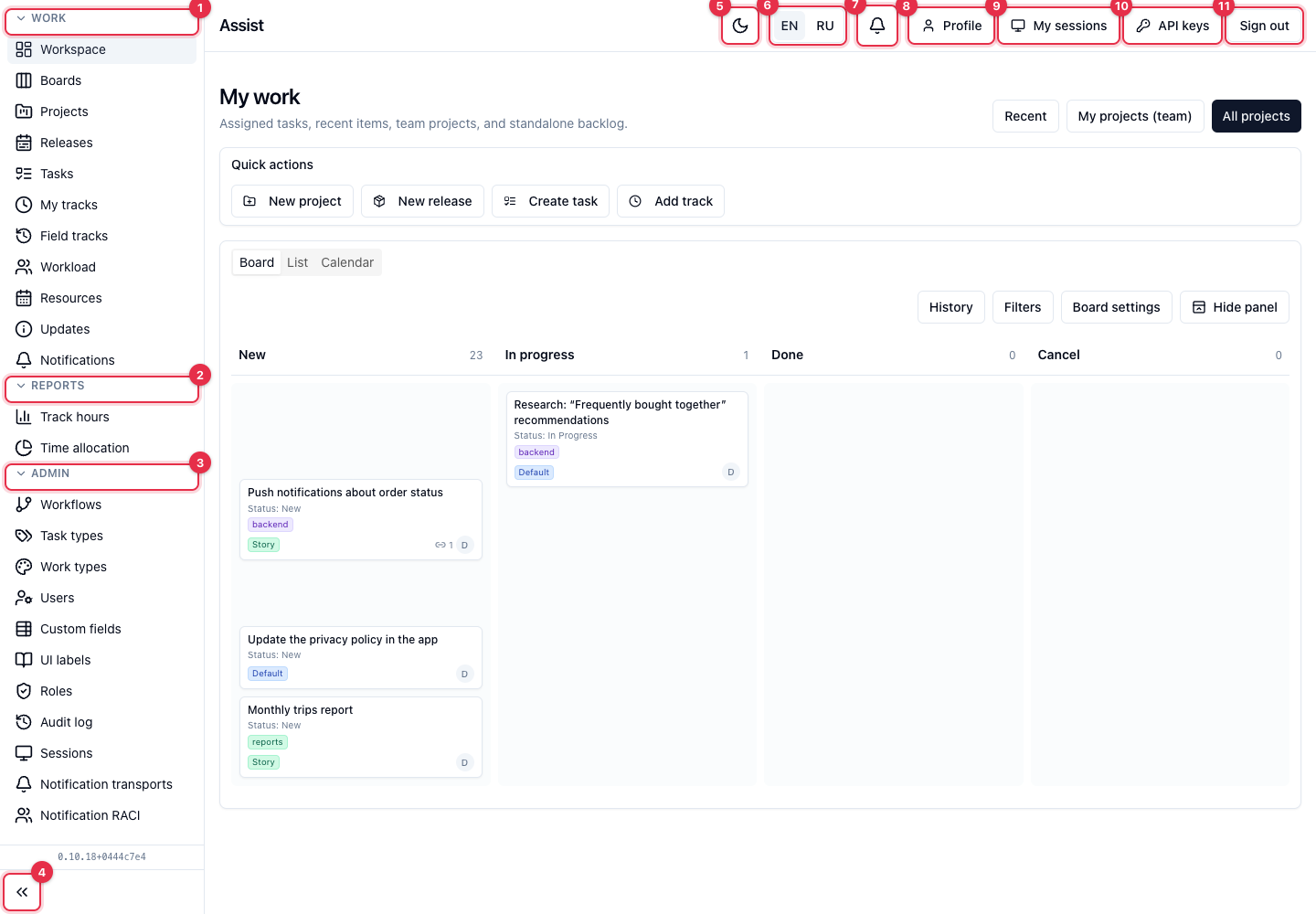
| № | Element | Purpose |
|---|---|---|
| 1–3 | The menu groups Work, Reports, Admin | Cabinet sections. The set of items depends on your role |
| 4 | The button with arrows | Collapses and expands the menu |
| 5 | The moon icon | Switches the light and dark theme |
| 6 | The EN / RU switch | Interface language |
| 7 | The bell | Notifications |
| 8 | Profile | Your data and notification settings |
| 9 | My sessions | The list of your sign-ins |
| 10 | API keys | Keys for integrations |
| 11 | Sign out | Finishing the work |
If some item is missing from your menu, your role has no permission for it. This is normal. More: “Interface layout”.
Step 3. Find your tasks
-
Open Work → Workspace. The page title is My work.
-
Choose the List view: deadlines are visible there.
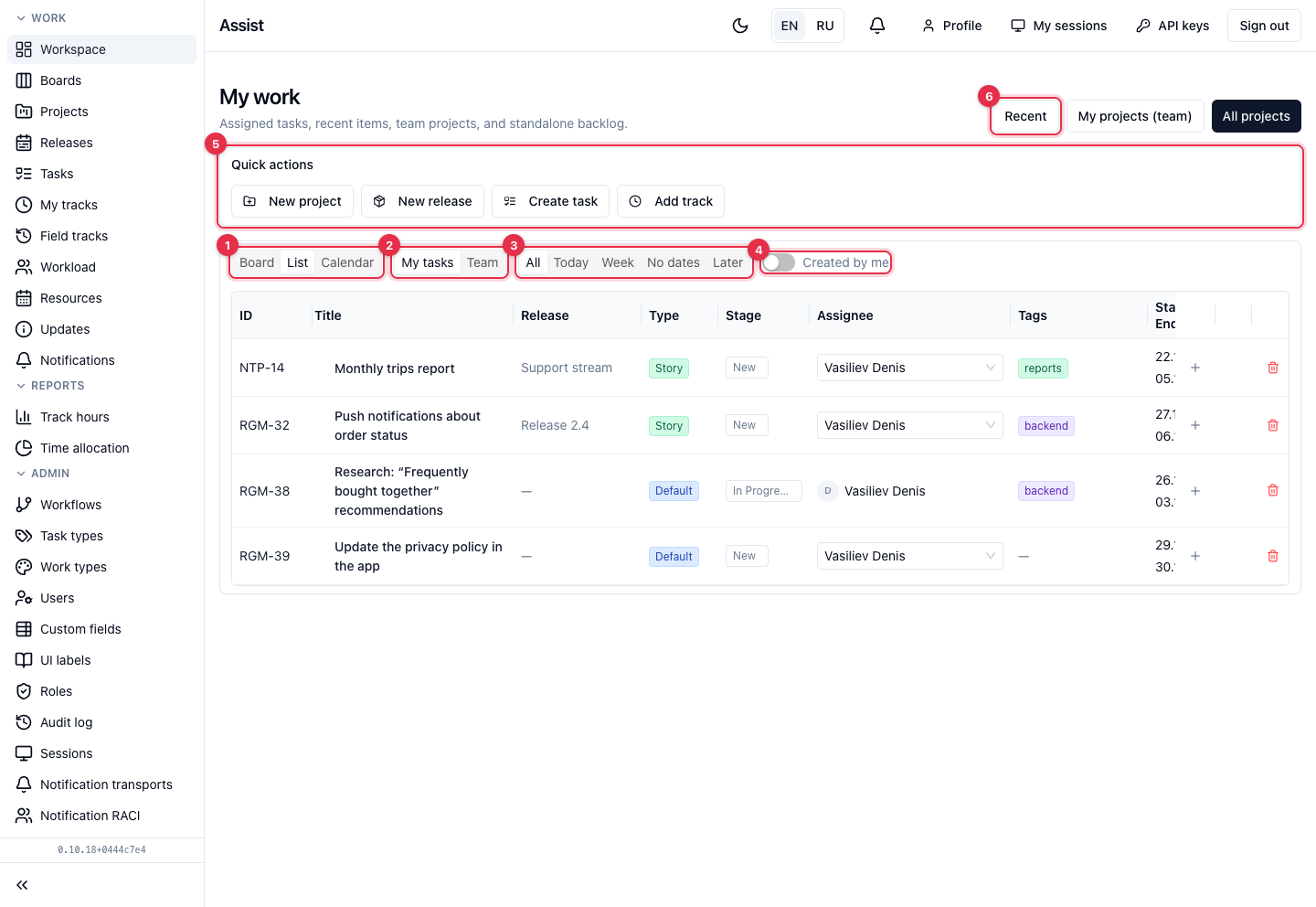
№ Element Purpose 1 The Board / List / Calendar switch Display view 3 The slices All / Today / Week / No dates / Later Selection by deadlines -
Choose the Today slice. The list keeps tasks whose deadline includes today.
-
Choose the Week slice to see the tasks of the current week.
Result. You see your tasks. If the list is empty, you have no tasks with suitable deadlines. Choose the All slice.
Step 4. Open a task
-
Click the title of any task in the list. The task card opens.
-
Read the header: the task key (for example,
RGM-30), title, type, project, and release.
-
Scroll the page and find the blocks Stage, Main, Description, Comments, Dates and metrics, Subtasks. Each block is described in the section “Task card”.
Step 5. Move the task to the next stage
-
In the Stage block, find the current stage (for example, New) and the Target status… list.
-
Open the list and choose the needed stage, for example In Progress.
-
To the right of the list, the cabinet shows the fields the transition checks: assignee, estimate, start and end dates. If some field is empty, fill it in.
-
Click Apply transition.
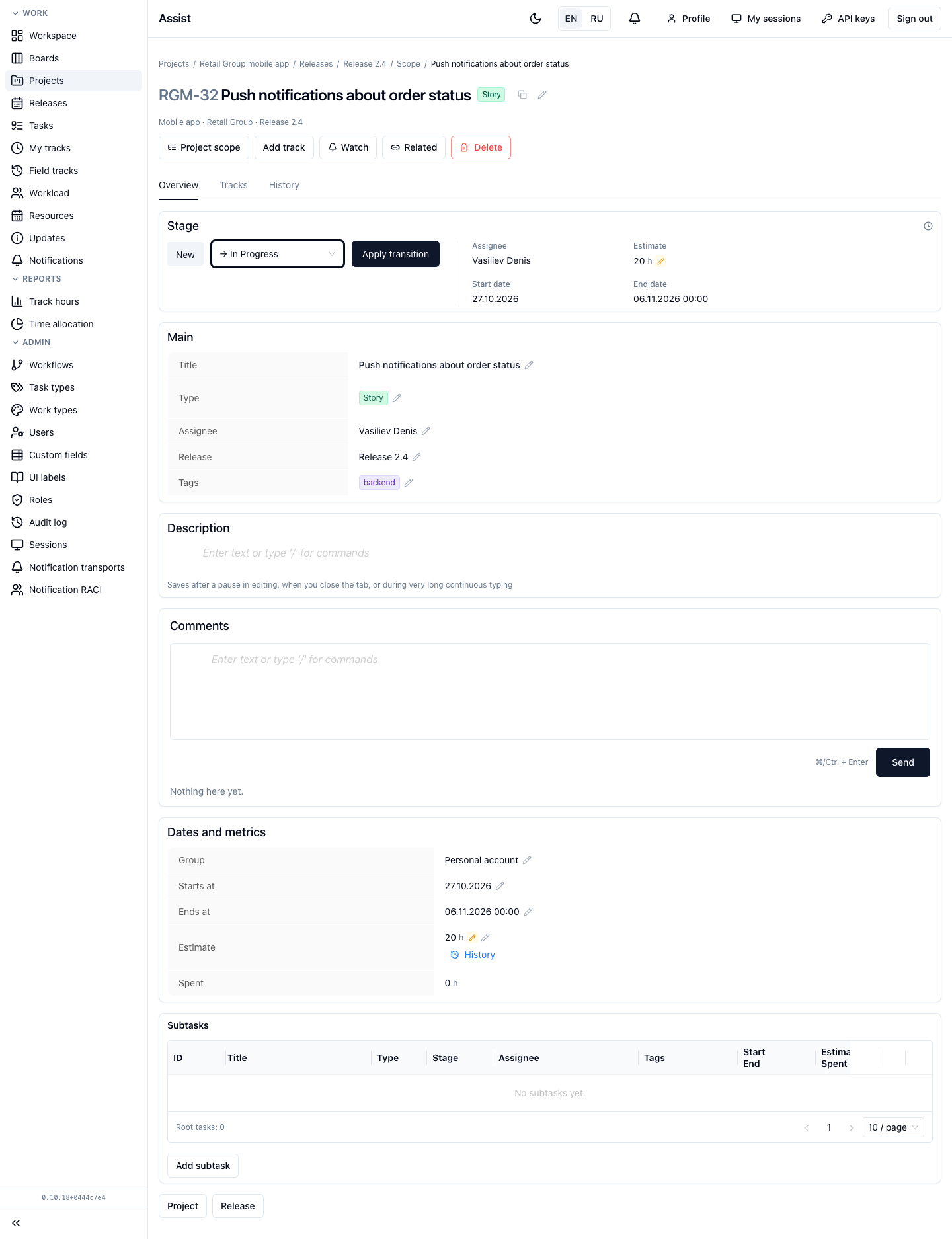
Result. The cabinet shows the message “Stage updated”. The new stage appears in the Stage block. The task history will have the entry “Status: New → In Progress”.
If it did not work. If the Apply transition button is inactive, a transition condition is not met. Fill in the missing fields. If the needed stage is not in the list, the task's workflow does not allow such a transition. Contact your manager.
Step 6. Leave a comment
- In the Comments block, click the empty field.
- Enter text, for example: “Started work, waiting for access to the test environment”.
- Click Send or press ⌘+Enter (Mac) or Ctrl+Enter (Windows and Linux).
Result. The comment appears in the list below. The other participants of the task receive a notification if they have such an event enabled.
Step 7. Log hours
-
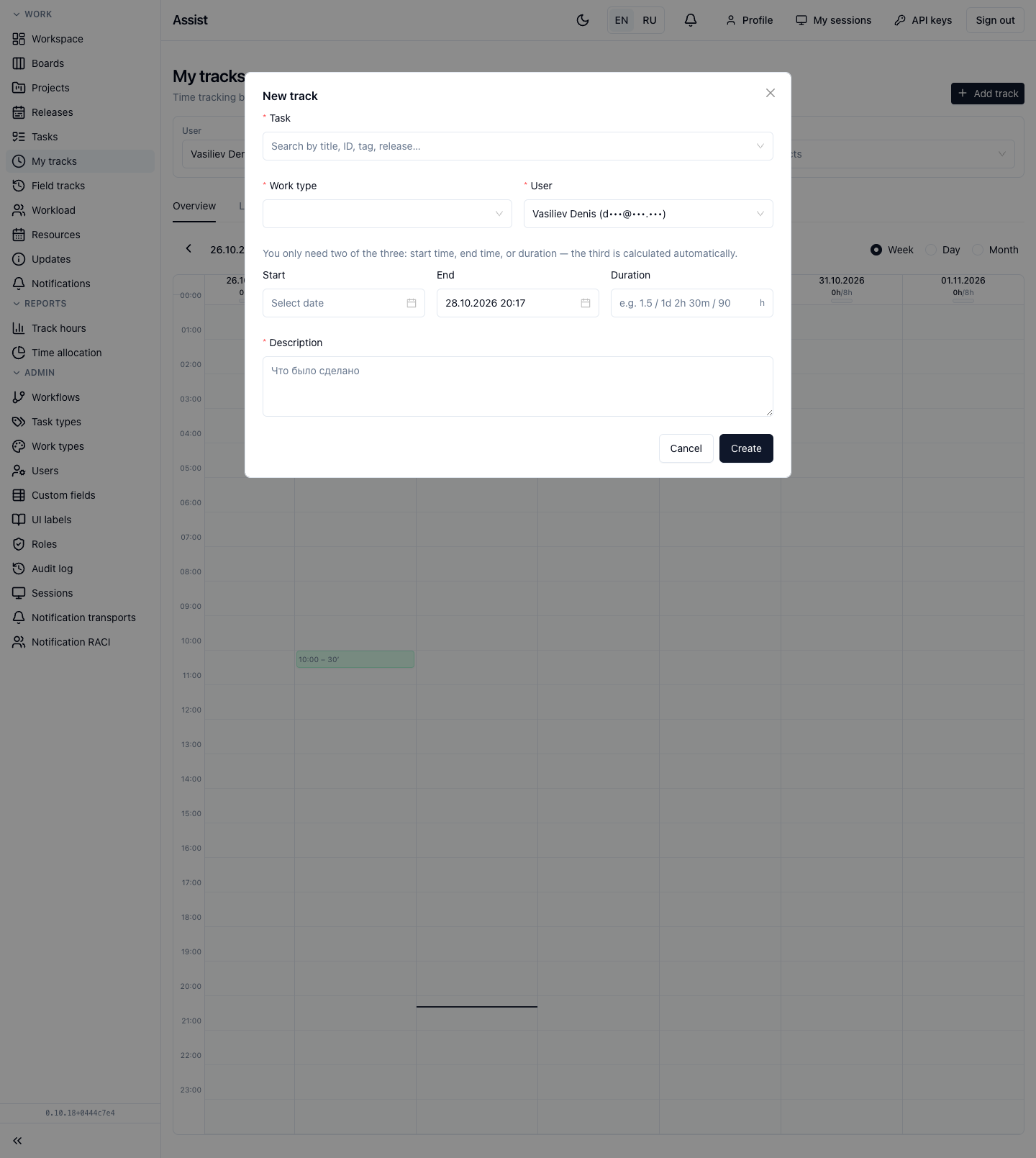
In the card header, click Add track. The “New track” window opens.
-
In the Task field, choose the task. If you opened the form from the card, the task is already filled in.
-
In the Work type field, choose the kind of work, for example “Development”.
-
In the Description field, briefly write what was done.
-
Specify the time: fill in any two of the three fields Start, End, Duration. The cabinet calculates the third. In the Duration field the formats
1.5(hours),1d 2h 30m, and90(minutes) are allowed. -
Click Create.
Result. The entry appears in the calendar on the My tracks page, and in the task card the Spent value grows.
Limits. You cannot specify the start of a track earlier than 7 days ago, and you cannot specify an end in the future. More: “Time tracking”.
Step 8. Check your hours for the week
-
Open Work → My tracks.
-
Find today in the calendar. Above the day there is a “battery” like
3h/8h: hours worked out of the norm of 8 hours.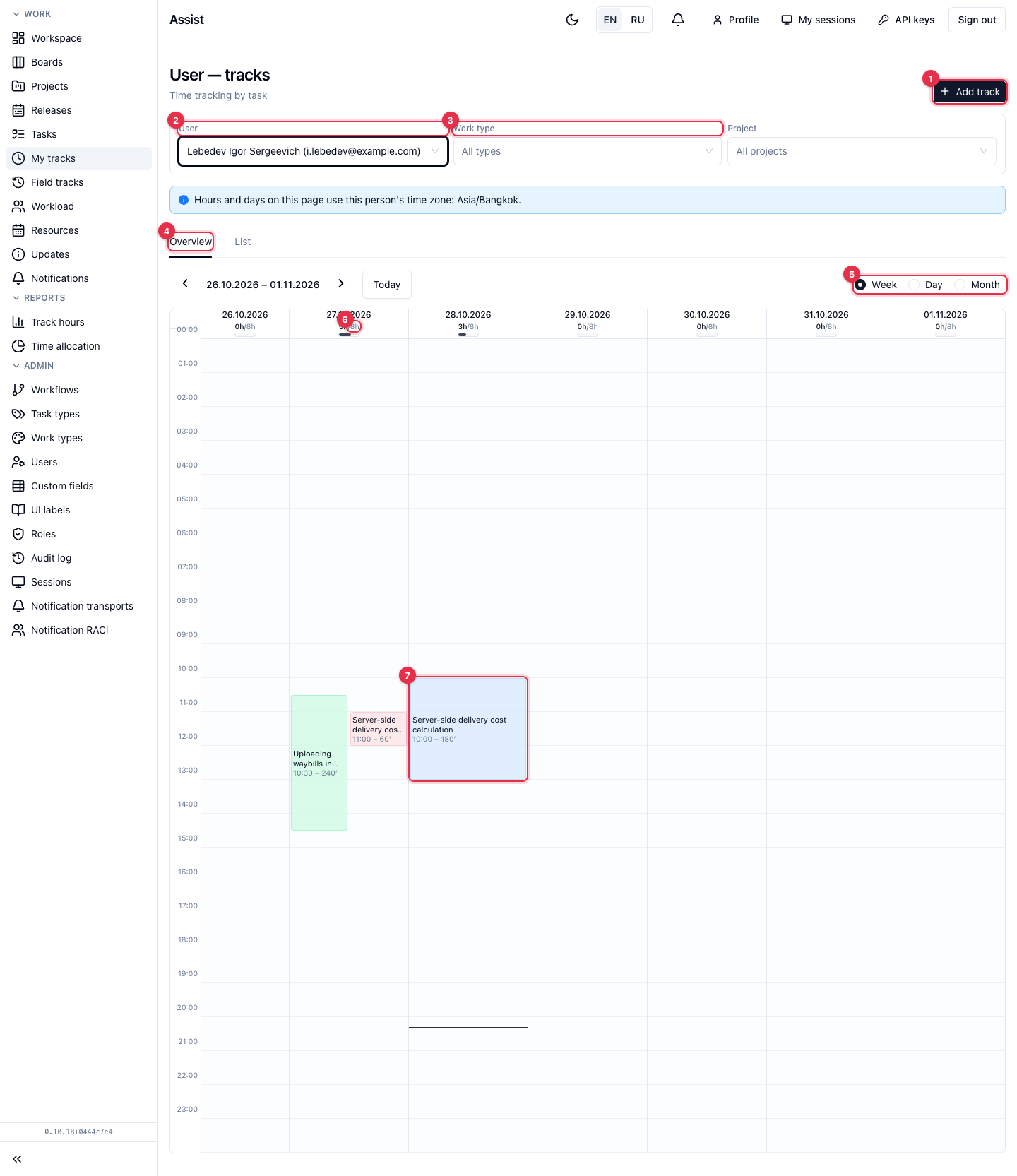
-
If there are fewer hours than actually worked, add the missing entries with the Add track button.
Step 9. Check notifications
- Click the bell in the header or open Work → Notifications.
- Find today's events: assignments, comments, deadline changes.
- To remove the unread mark, click Mark all as read.
More: “Notifications”.
Step 10. Sign out
If you work on someone else's computer, click Sign out in the upper-right corner. On your own computer you do not need to sign out after every session: the session is kept while Keycloak considers the sign-in valid.
What next
| I want to | Read |
|---|---|
| Understand how the working day goes | The working day |
| Learn to work with tasks | Working with tasks |
| Set up notifications | Notification setup |
| Understand the terms | Glossary |