API keys
Purpose. An API key is a password for programs. With it a script, integration, or AI assistant works with Assist within the permissions of the role chosen for the key.
Who sees it. Everyone sees their own keys. The administrator sees everyone's keys if the role has the permission.
How to open. The API keys button in the header on the right.
What is on the screen
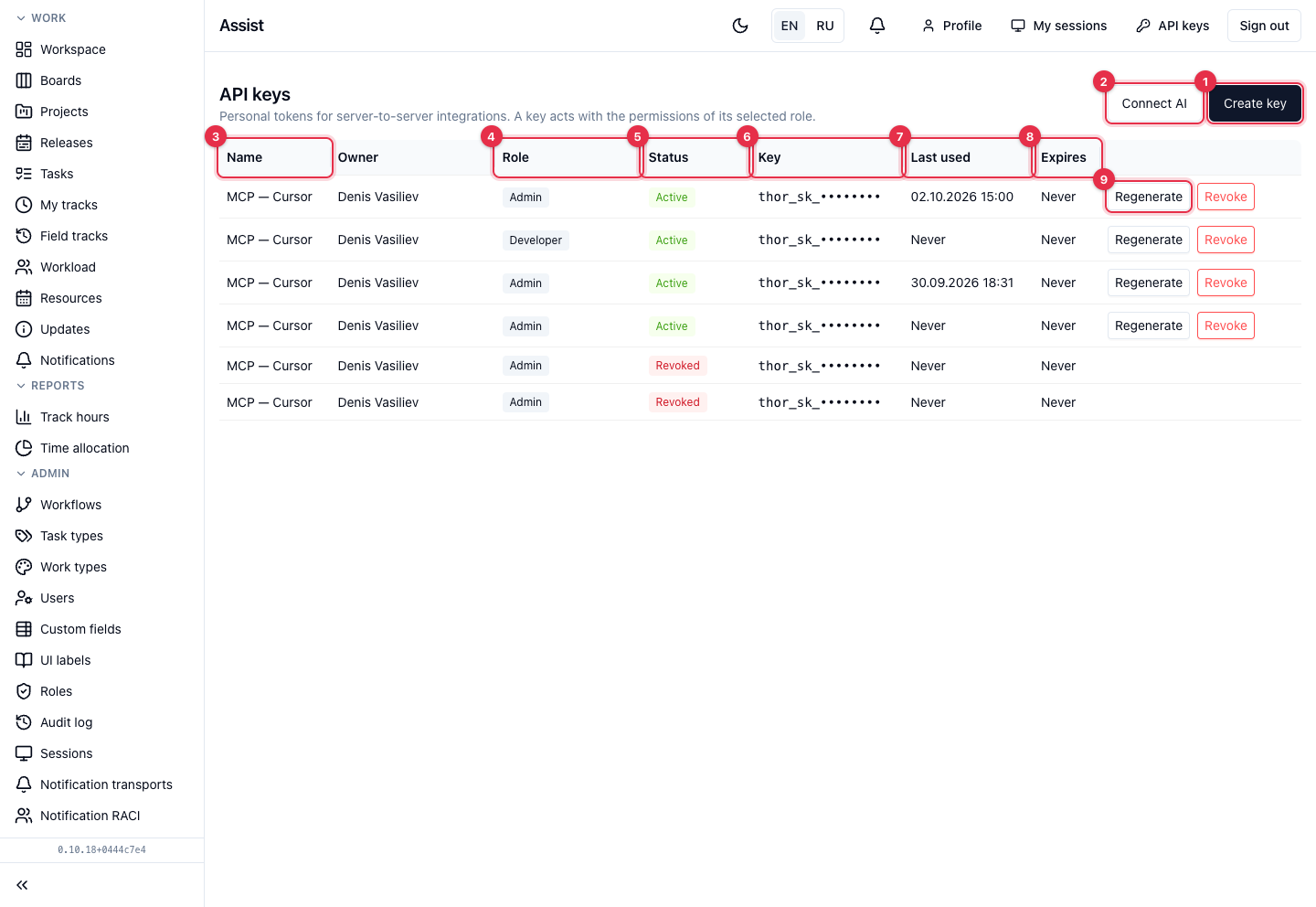
- Create key opens the form.
- Connect AI creates a key and shows ready-made settings for an AI assistant: “Integrations”.
- Name — an understandable name.
- Owner and Role: the key acts with the role's permissions, not those of your account.
- Status: “Active”, “Revoked”, “Expired”.
- Key — the beginning of the token for identification. The full token is not shown.
- Last used — when the key was last used. “Never” — it has not been used yet.
- Expires — until when the key works.
- Regenerate and Revoke.
While there are no keys, the cabinet says “No API keys yet”.
How to create a key
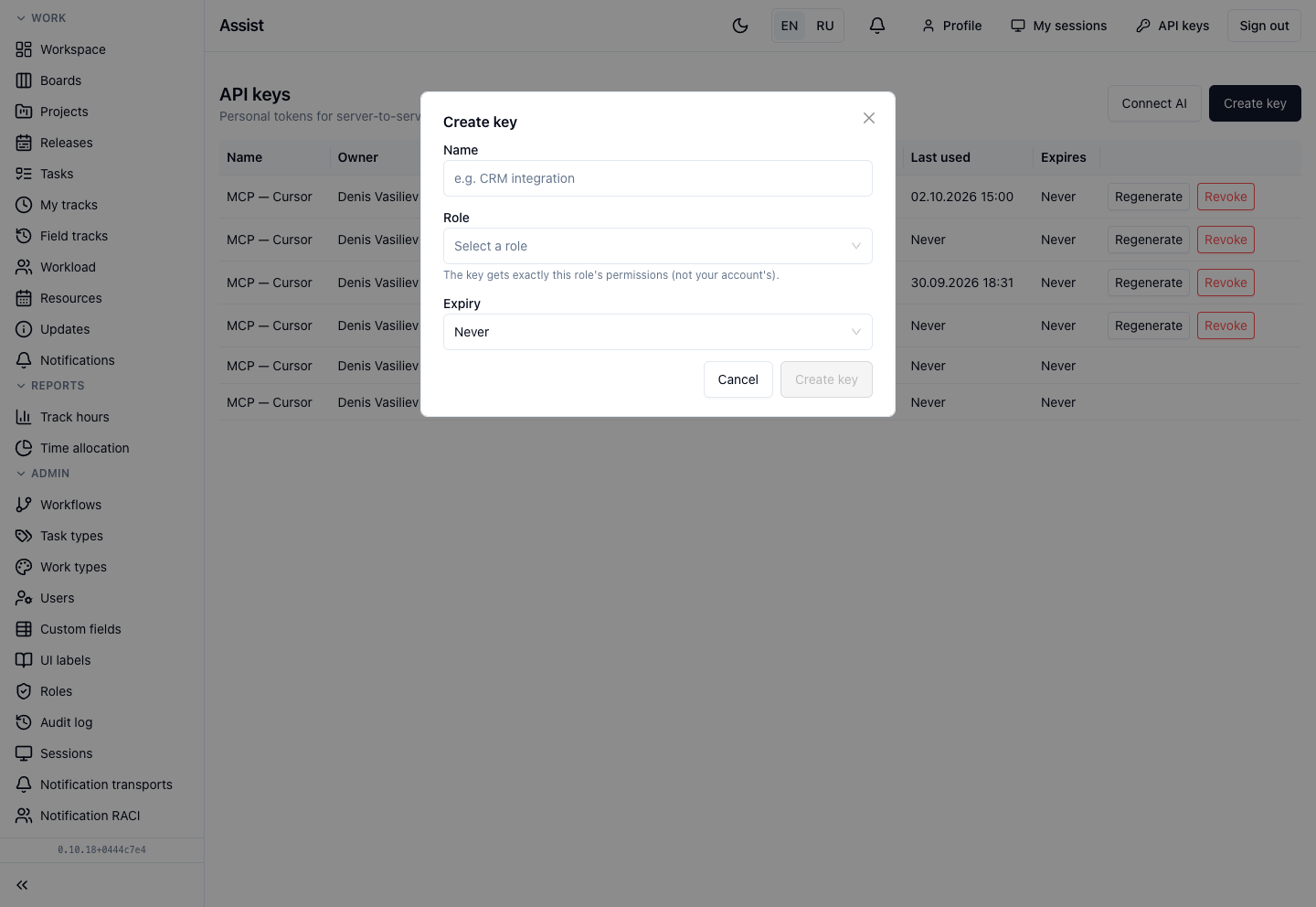
- Click Create key.
- Enter a Name, for example “CRM integration”.
- Choose a Role. You can choose your own role or a role with lower priority: the key will not get more permissions than you have. If there are no suitable roles, contact the administrator.
- Choose the Expiry: “Never”, 30, 90, or 365 days.
- Click Create key.
- Copy the token with the Copy button. The cabinet shows the full token once. If you lose it, regenerate the key.
Regeneration and revocation
- Regenerate. Creates a new token; the old one stops working at once. Update the token in integrations.
- Revoke. The key stops working forever. Irreversible; integrations using it stop.
The number of active keys is limited: when the limit is reached, the cabinet reports it.
Security
- Do not send the token in messengers and do not store it in a repository.
- Give a key a role with the minimum needed permissions.
- Keys can be created, regenerated, and revoked only in the interface; a key cannot do this itself.