My work
Purpose. The first page after sign-in. It collects the tasks assigned to you and quick buttons for frequent actions. An assignee spends most of the day on this page.
Who sees it. All users. The “Team” mode is available to the Admin and Manager roles.
How to open. Menu Work → Workspace or the address /.
What is on the screen
The page has three parts: buttons in the upper-right corner, the “Quick actions” block, and the main area with tasks. The main area has three views: Board, List, Calendar.
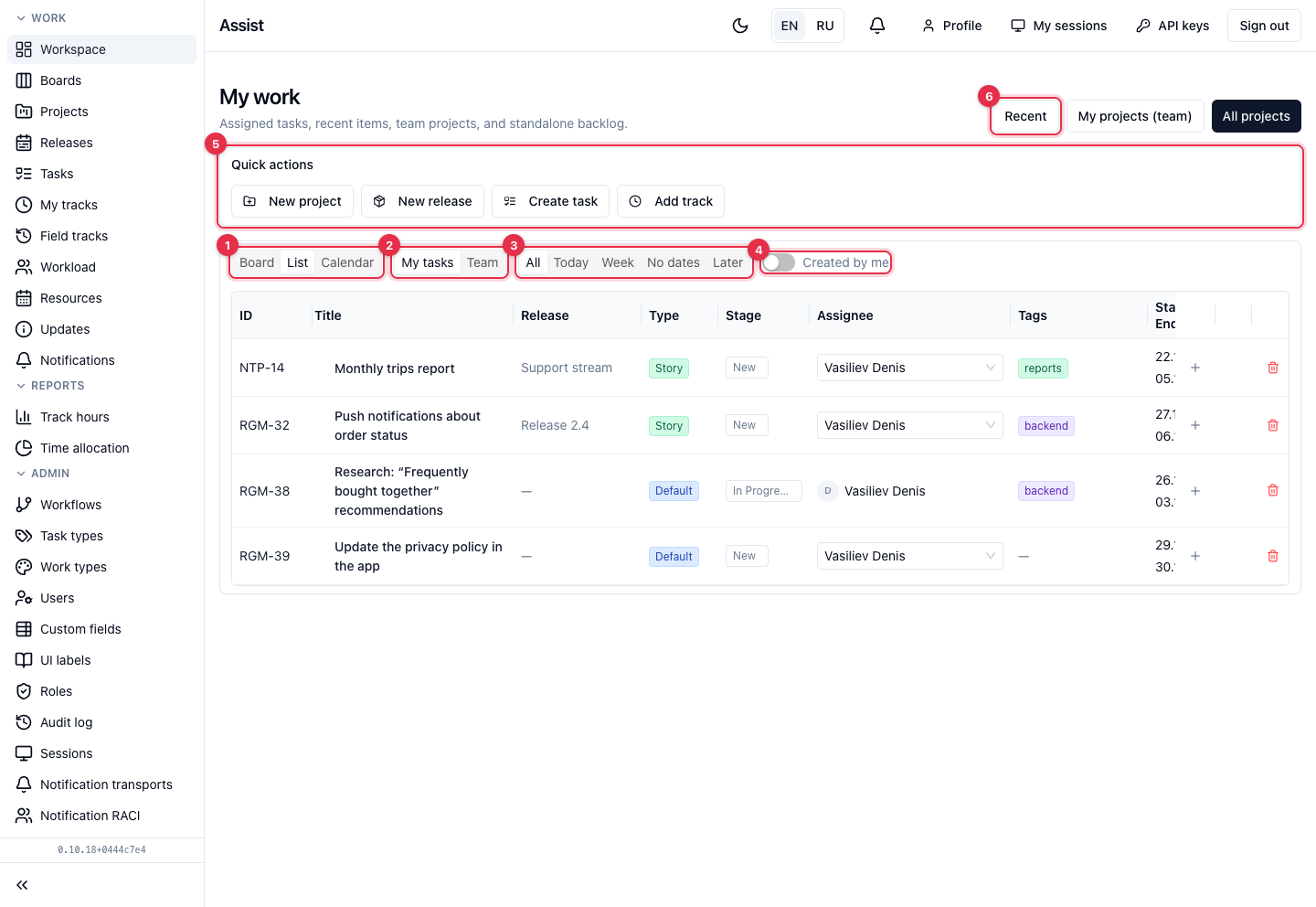
- View switch: Board, List, Calendar.
- The My tasks / Team switch. It is available in the list and calendar. Team mode shows the tasks of the whole team, not only yours.
- Date slices: All, Today, Week, No dates, Later.
- The Created by me switch keeps only the tasks you created.
- Quick actions: create a project, a release, a task, or add a track.
- The Recent button opens the latest tasks and projects you viewed.
Next to Recent there are two more buttons: My projects (team) opens the projects whose team you belong to, All projects goes to the “Projects” page.
“Board” view
The default view. This is your personal board: task cards stand in columns by stage, and the number next to a column name shows how many cards are in it.
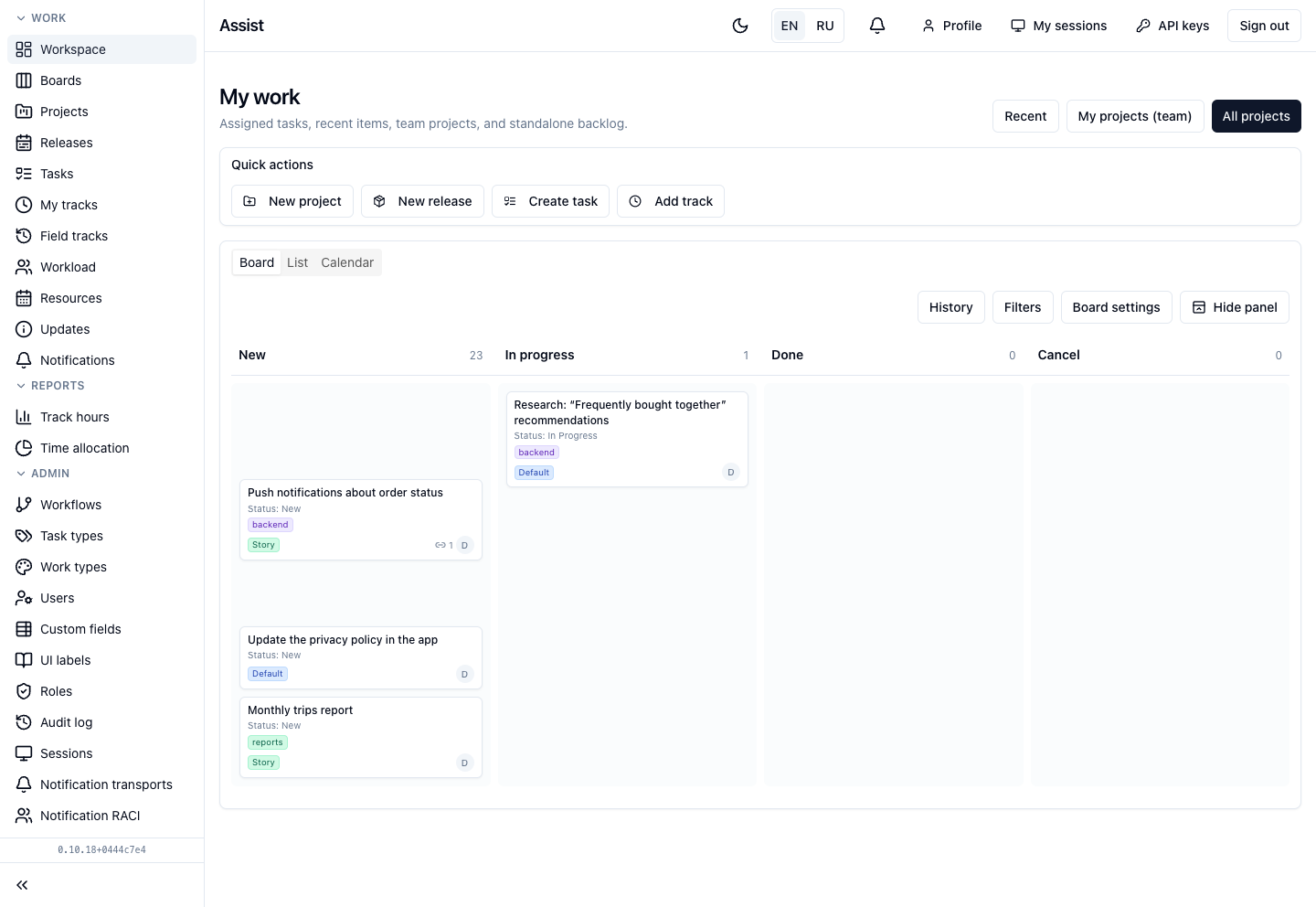
Above the columns there are four buttons:
- History — the board event log;
- Filters — filter cards by conditions;
- Board settings — which columns and fields to show;
- Hide panel — collapse the panel with these buttons. The choice is remembered for all boards.
How to change a stage. Drag a card to another column. If the transition is forbidden by the workflow or data is missing, the card returns and the cabinet explains why. Details: “Consolidated boards”.
“List” view
Each task occupies one row: key, title, release, type, stage, assignee, tags, dates.
- You can change the assignee right in the row.
- The “plus” icon adds a subtask.
- The link icon shows related tasks.
- The trash can deletes the task.
Date slices
| Slice | What it shows |
|---|---|
| All | All assigned tasks |
| Today | Tasks for which today falls between the start and the end |
| Week | Tasks running during the current week (Monday to Sunday), but not today |
| No dates | Tasks without a start and an end |
| Later | Other tasks with dates: future ones and those with past dates |
If a slice is empty, the cabinet says: “Nothing planned for today”, “Nothing planned this week”, “All tasks have dates assigned”, or “No tasks scheduled beyond this week”.
“Calendar” view
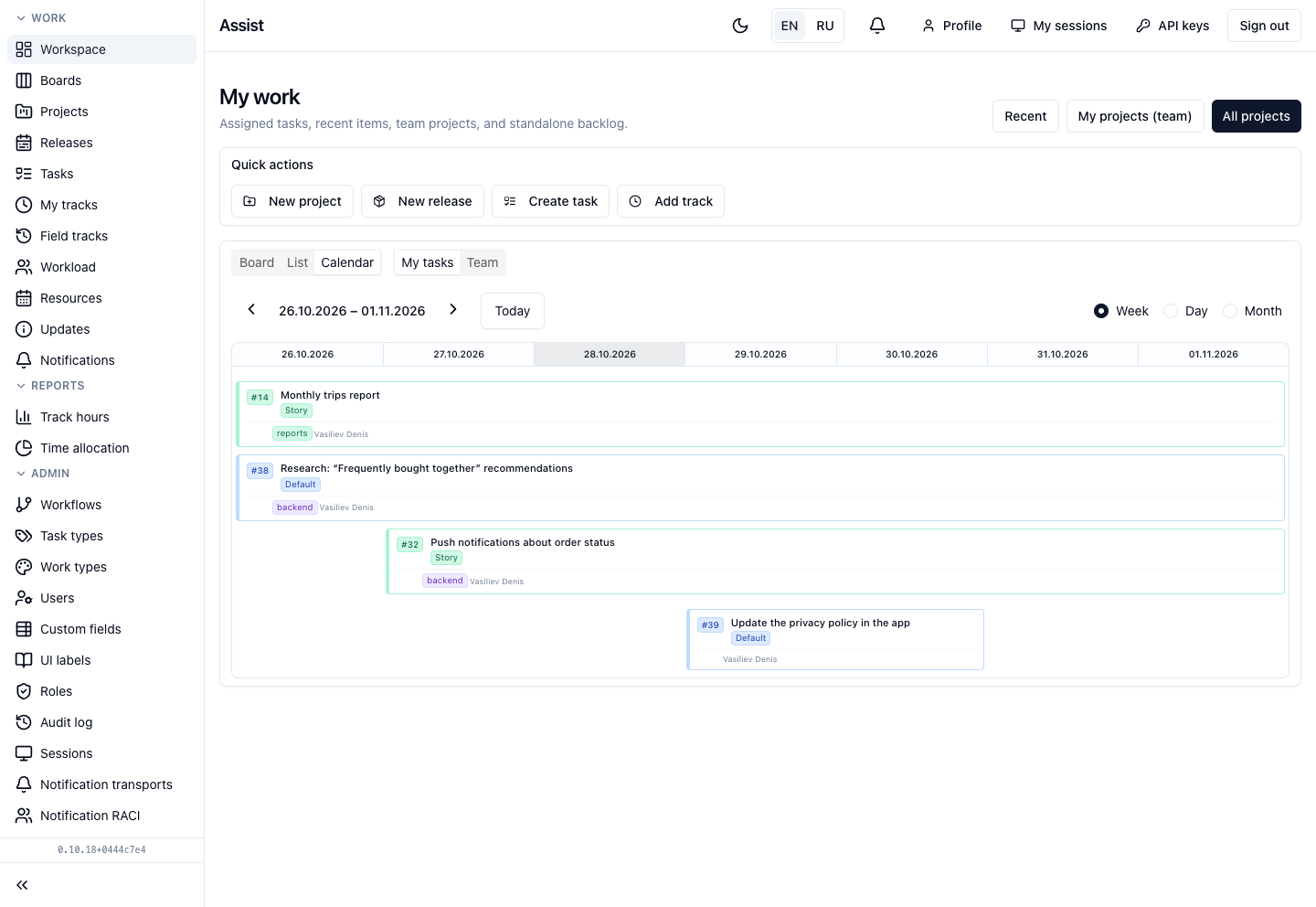
Tasks are laid out as bars across days. Choose the scale on the right: Week, Day, or Month. The arrows move the period, the Today button returns to the current date. Click a bar to open the task card.
Quick actions
| Button | What it does |
|---|---|
| New project | Opens the project creation form |
| New release | Opens the release creation form |
| Create task | Asks you to choose a project and opens the new task form |
| Add track | Opens the time entry form, the same as in “My tracks” |

How to create a task from here.
- Click Create task.
- In the window, choose a project and click Continue.
- Fill in the new task form.
Tasks are created by the administrator, manager, and developer. If your role has no such permission, the button is unavailable.
Frequently asked questions
Why is my task not in the list? Check the My tasks mode and the All slice. A task not assigned to you is not shown in the list. Find it in the task catalog or in the project scope.
Where are the tasks without dates? In the No dates slice. They are not in the calendar: there is nothing to place on a day.
Where are overdue tasks? In the Later slice.