Resource planning
Goal. Lay out for a month how many hours each employee gives to each project, and then compare the plan with the fact.
Who does it. A manager or planner. To edit the plan, the role needs permissions on the “Resource plans” collection. Others can only view.
What you need before starting.
- Projects are created and teams are added: “Creating a project”.
- The production calendar for the year is filled in. It is maintained by the administrator: “Resources. Calendar”.
Time. 30–90 minutes at the start of the month.
How planning works
A plan is numbers in cells. A row is a person in a project, a column is a day of the month, and a number is planned hours. The fact is collected from tracks logged by employees. The comparison shows where people are lacking and where they are underloaded.
Step 1. Open the section
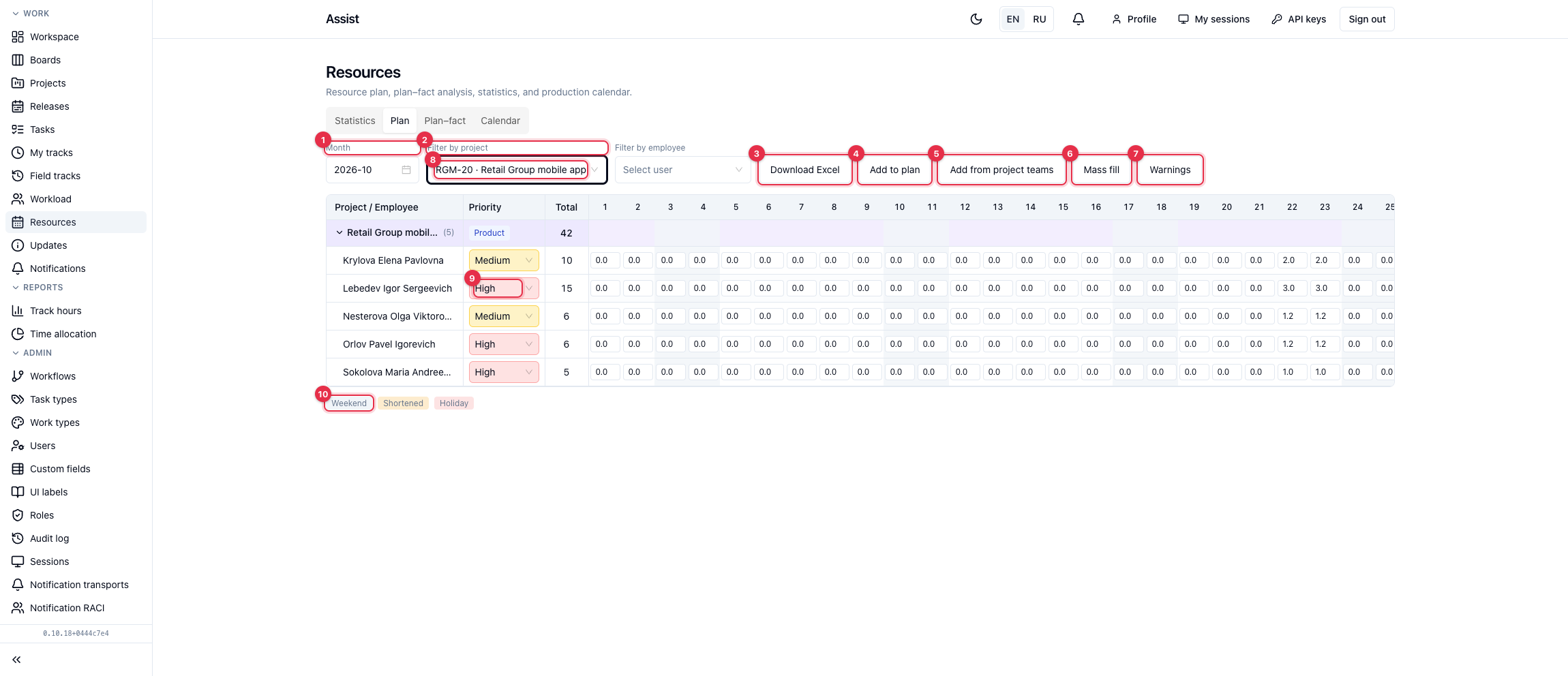
- Open Work → Resources.
- Go to the Plan tab.
- Choose the Month.
Step 2. Add people
There are two ways:
- Add to plan. Choose a project and a person. Suitable for single additions.
- Add from project teams. The cabinet creates empty rows for all team members. If a project filter is selected, only people of this project are added. Those already in the plan are skipped.
Step 3. Fill in the hours
Method 1. Mass fill
- Click Mass fill.
- Choose a project, an employee, a date range, and hours per day, for example 6.
- Confirm.
Weekends, holidays, and shortened days get zero.
Method 2. Editing cells
- Click a cell.
- Enter the number of hours.
- Click outside the cell: the value is saved.
Priority
In the Priority column choose “High”, “Medium”, or “Low”. Priority does not affect calculations; it helps understand whose time is more important when redistributing.
Step 4. Check overload
- Click Warnings.
- In the “Daily overload” list, find employees who have more than 8 hours planned per day across all projects.
- Reduce the hours or move part of the work to another person.
- In the “Fact without a plan row” list, find employees who logged time on a project but are not in the plan. Add them with the Add to plan button.
Step 5. Export the plan
Click Download Excel to hand the plan to colleagues or to accounting.
Step 6. Compare the plan with the fact
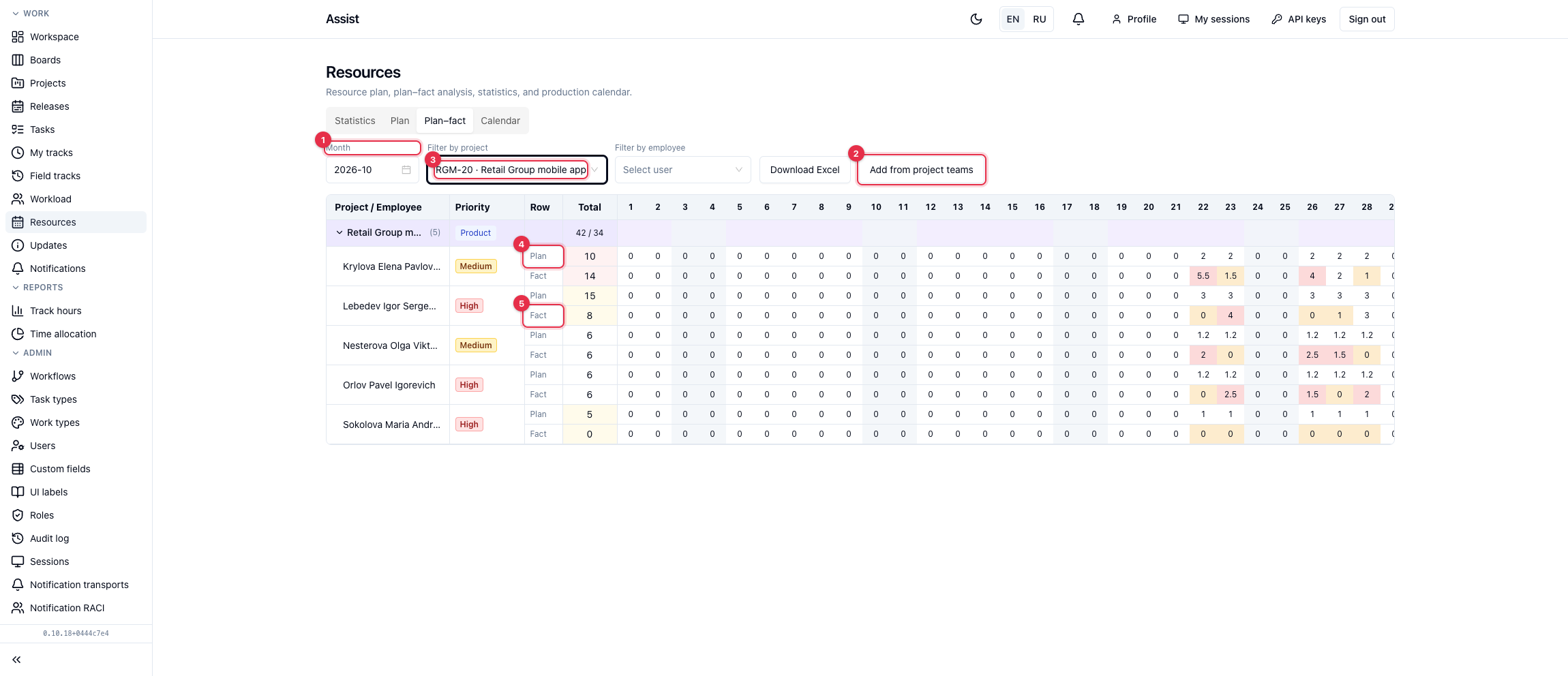
- Go to the Plan–fact tab.
- For each person two rows are shown: Plan and Fact.
- Look at the color of the fact cells.
| Color | Meaning | What to do |
|---|---|---|
| No highlight | On plan | Nothing |
| Amber | Underload: the fact is below the plan by more than 20% | Find out whether time is logged and what the person is busy with |
| Red | Overspend: the fact is above the plan by more than 10% | Revisit estimates or redistribute people |
For the overall picture over a period: the Statistics tab. The target “Resource spend” is 85–100% of the plan.
How to check the result
- There are no red overload cells in the plan.
- For each project the total of hours is visible.
- In the middle of the month, the “Plan–fact” tab shows no mass underload.
Typical mistakes
| Situation | Cause | Solution |
|---|---|---|
| “No plan rows for this month.” | The plan is not made | Add people on the “Plan” tab |
| Cells cannot be edited | The role has no permission | Contact the administrator |
| The fact is zero | Employees do not log time | “Time tracking” |
| There are hours on weekends | The hours were entered manually | Correct the cell |