Creating a project
Goal. Create a project so that releases and tasks can be created in it at once and the team sees its tasks.
Who does it. A manager or administrator whose role has the permission to create projects: “Permission matrix”.
What you need before starting.
- The names of the client and the product.
- A short task prefix (up to 10 Latin characters), for example
RGM. - A list of people who will work in the project. They must already have accounts: “Users and roles”.
Time. 10–15 minutes.
Step 1. Open the form
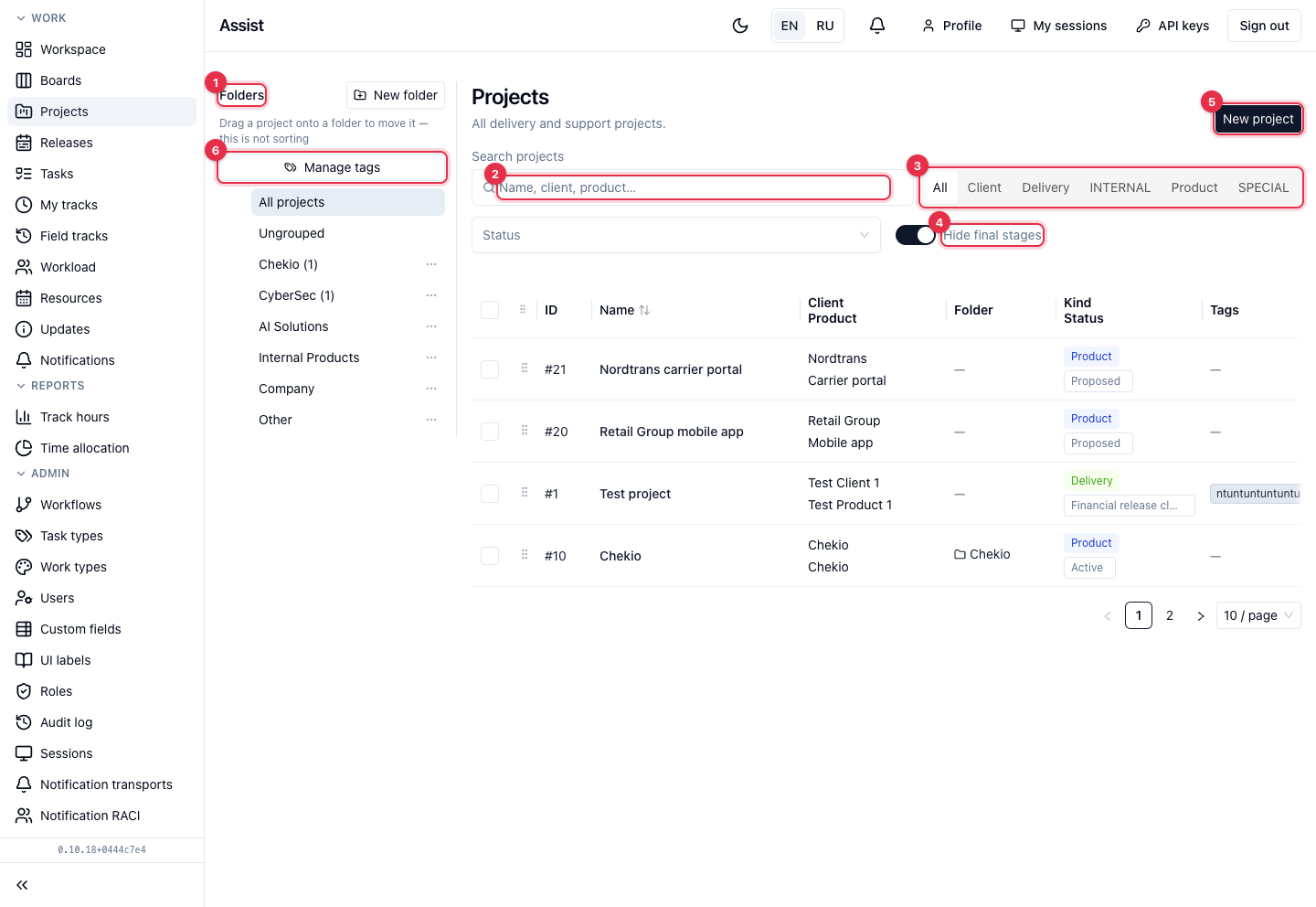
- Open Work → Projects.
- If needed, choose a folder on the left: the project will be created in it.
- Click New project.
Step 2. Fill in the form

| Field | Required | Rule |
|---|---|---|
| Client | Yes | Type a name or choose an existing one |
| Product | Yes | Type a name or choose an existing one |
| Name | Yes | How the project is seen in lists |
| Task prefix | Yes | Up to 10 characters: Latin letters, digits, hyphen. The prefix is unique |
| Project type | No | A directory value, for example “delivery” |
| Release type (workflow) | Yes | Mark at least one: KANBAN, SCRUM, SUPPORT, and others |
| Task types in new releases | No | Which task types can be added to releases |
| Initial team | No | The owner is always included. Click Add member, label the role |
Click Create project.
Result. The project opens on the “Scope” tab. The cabinet shows “Project created”.
A prefix cannot be reused, and in tasks it is part of the number: RGM-12. Choose the prefix meaningfully: it can be changed, but numbers in emails and chats will diverge.
Step 3. Check the “Overview” tab
- Open the Overview tab.
- Check the client, product, and prefix.
- Fill in the description: the project goal, links, special features.
More: “Project. Overview”.
Step 4. Assemble the team
- Open the Settings tab, the Project team block.
- Click Add member and choose a person.
- Fill in the Role label (reference text: “Project manager”, “Developer”).
- Fill in the Area of responsibility: what the person is responsible for, what they enter, which metrics and how often. Write it so that an AI assistant can understand it too.
- Click Save team.
Why this is needed. Task assignees are chosen only from the project team. Someone not on the team cannot be assigned to a task.
More: “Project. Settings”.
Step 5. Set up tags and groups
In the Tags block, enter a name, choose a color, and click Add tag. In the Task groups block, enter a name and click Add group. Tags and groups are chosen on tasks and help filter work.
Step 6. Check notifications
By default the global RACI rules apply. If other recipients are needed in the project, in the Notification RACI block click Enable override. More: “Notification RACI”.
Step 7. Create the first release
A project without a release contains no release work. The next step: “Planning a release”.
How to check the result
- The project is visible in the “Projects” list.
- The team has all the needed people with role labels.
- The prefix is correct.
- A task can be created in the project: “Working with tasks”.
Typical mistakes
| Situation | Cause | Solution |
|---|---|---|
| “A project with this prefix already exists.” | Another project uses the prefix | Choose another prefix |
| No “New project” button | The role has no permission | Contact the administrator |
| An assignee cannot be chosen in a task | The person is not on the team | Add them on the “Settings” tab |
| A release of the needed type cannot be created | The type is not marked in the project | Mark the type in the project before creating a release |