Time tracking
Goal. Log, correct, and check hours so that data in tasks, releases, projects, and reports is accurate.
Who does it. Each employee for themselves. Managers can view others' hours if the role has the permission.
What you need before starting. A task is assigned to you and you know the work type.
The main rule. Log time on the day of the work. The start of a track cannot be older than 7 days.
How to log time
-
Open the form in one of the ways:
- in the task card, click Add track;
- open Work → My tracks and click Add track;
- on “My work”, in the “Quick actions” block, click Add track;
- in the project header, click Add track.
-
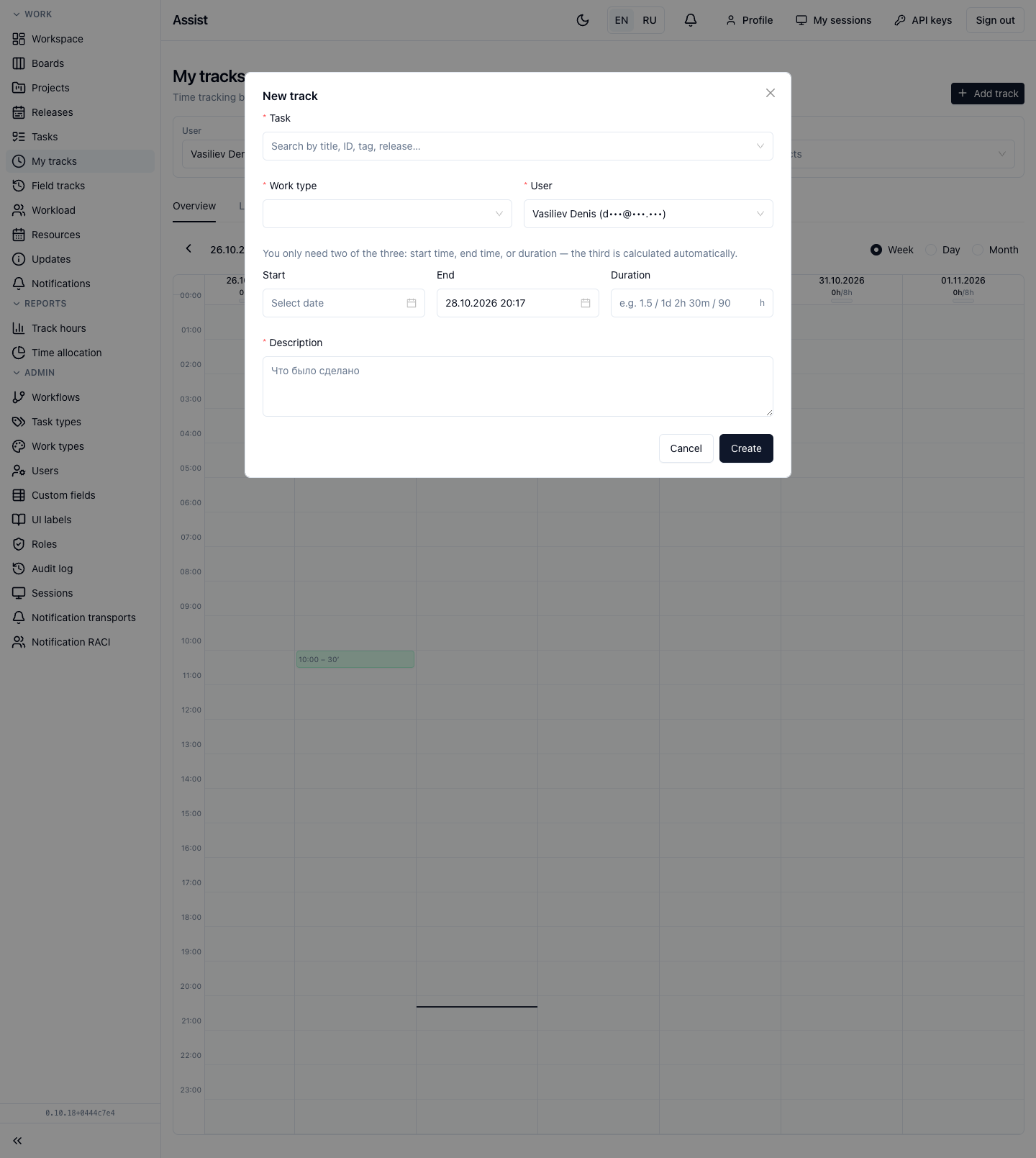
Fill in the “New track” form.
-
Click Create.
Result. The entry appears in the “My tracks” calendar, in the track tables of the task, project, and release. The “Spent” values increase.
Form fields
| Field | Required | How to fill in |
|---|---|---|
| Task | Yes | Choose from the list. Search by title, number, tag, release. If the form is opened from a card, the task is filled in |
| Work type | Yes | The kind of activity: “Development”, “Design”, “Review”, “Meetings”, “Support”, “General” |
| User | Yes | You by default. The field for choosing another person is available only with the corresponding permission |
| Start | Conditional | The date and time the work started |
| End | Conditional | The date and time the work ended. The current time is filled in |
| Duration | Conditional | How long the work lasted |
| Description | Yes | What exactly was done |
The “two of three” rule. It is enough to fill in any two of the three fields “Start”, “End”, “Duration”. The cabinet calculates the third. If all three are filled in and inconsistent, the cabinet reports “Start, end, and duration are inconsistent”.
Duration formats:
| Format | Meaning |
|---|---|
1.5 | 1.5 hours |
90 | 90 minutes |
1d 2h 30m | 1 day 2 hours 30 minutes |
The unit can be switched with the icon next to the field.
Examples
| Situation | What to enter |
|---|---|
| Worked from 10:00 to 12:30 | Start 10:00, End 12:30 (the duration of 2.5 hours is calculated) |
| Finished at 18:00, worked 3 hours | End 18:00, Duration 3 (the start 15:00 is calculated) |
| Held a 45-minute meeting that ended now | Work type “Meetings”, Duration 45 (End is filled in as now) |
Limits
| Rule | Description |
|---|---|
| Not older than 7 days | The start of a track cannot be earlier than 7 days ago. Exception: a role with the “Can create tracks retroactively” permission |
| Not in the future | The end cannot be later than the current moment |
| Not less than a minute | The minimum duration is 1 minute |
| Not more than a day | One track does not last more than 24 hours |
| A description is required | An empty description is not accepted |
More: “Rules and limits”.
How to check your hours
-
Open Work → My tracks.
-
The Overview tab shows a week, day, or month. Above each day there is a “battery” like
3h/8h: hours logged out of the norm of 8 hours.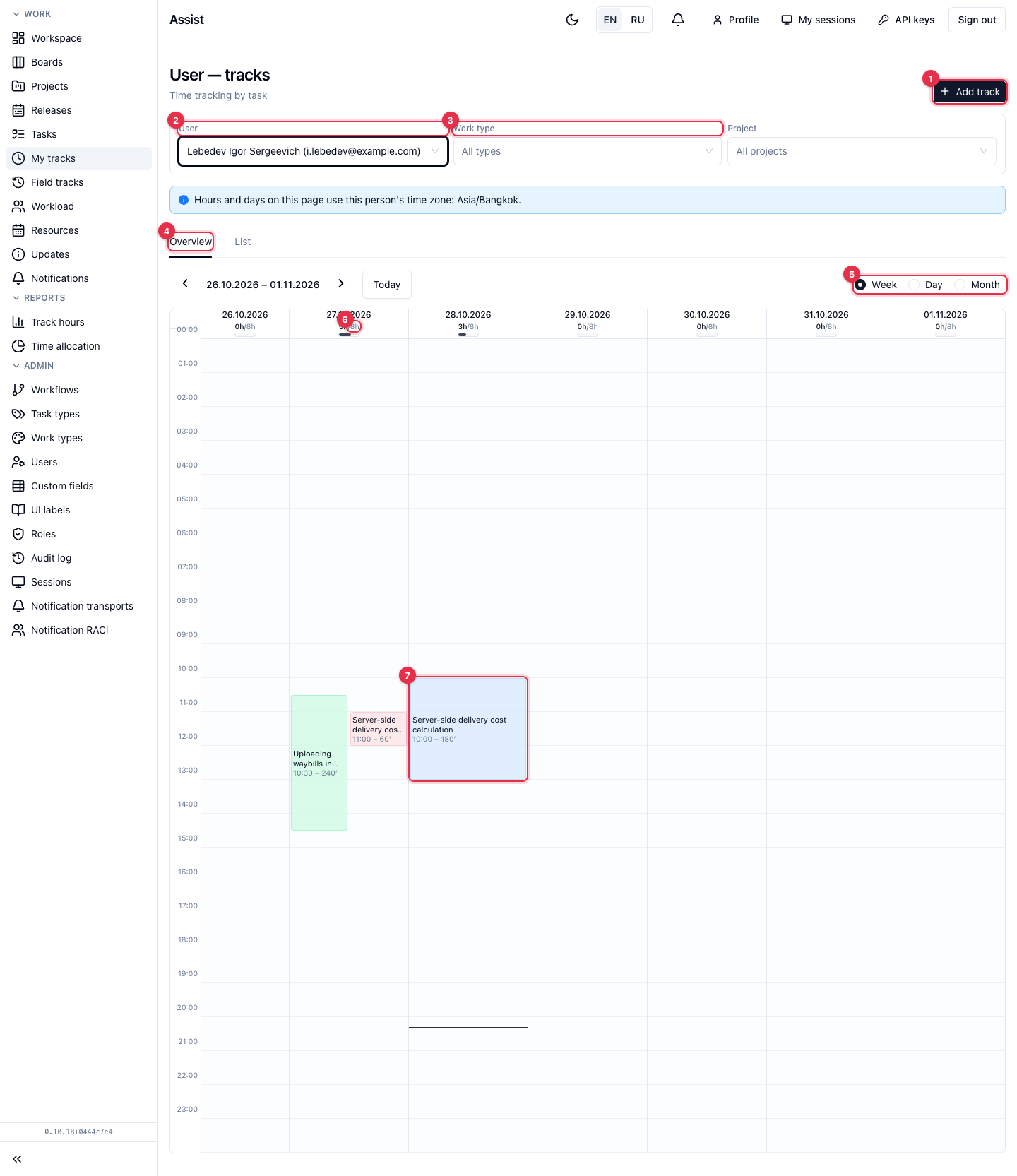
-
The List tab shows entries as a table with the sum of hours for the period. Choose a period and click Export XLSX or Export CSV if you need an export.
How to correct or delete an entry
- Open My tracks (calendar or list) or the Tracks tab of a task card.
- Click the entry or the pencil in the table row.
- Change the fields and save. To delete, click the trash can and confirm.
The age rules apply on editing too: if after the change the start becomes older than 7 days, the cabinet refuses.
How to view hours by task, release, and project
| What to view | Where |
|---|---|
| Hours on a task | Task card, Tracks tab |
| Hours on a release | Release, Tracks tab |
| Hours on a project | Project, Tracks tab |
| Hours by people and days | “Track hours” report |
| Hours by projects | “Time allocation” report |
| Plan and fact | “Resources. Plan–fact” |
How to log time for last month
If time was forgotten and more than 7 days have passed, it cannot be logged. Contact the administrator: they can enable the “Can create tracks retroactively” permission for your role or record the time in another way provided in your company.
Typical mistakes
| Message | Cause | Solution |
|---|---|---|
| “You cannot set a start date older than 7 days.” | Age | Contact the administrator |
| “End time must be after start time.” | The end is not later than the start | Correct the time |
| “Enter a description of the work logged.” | An empty description | Enter a description |
| “Start, end, and duration are inconsistent.” | The three values contradict each other | Leave two values |
| “Specify any two of the three…” | Fewer than two are filled in | Fill in two values |
Full list: “Messages and errors”.