Working with tasks
Goal. Perform any action with a task: create, find, change, move through stages, discuss, link, delete.
Who does it. Assignees and managers. Which actions are available is determined by the role: permission table.
What you need before starting. You are signed in to the cabinet and are on the team of the project you work in.
How to create a task
A task can be created in three ways. The result is the same.
Method 1. From a project
- Open Work → Projects and click the project name.
- In the project header, click Create task. The “New task” form opens.
- Fill in the form fields (description below).
- Click Create task.
Method 2. From “My work”
- Open Work → Workspace.
- In the Quick actions block, click Create task.
- In the “Create task” window, choose a project and click Continue. The new task form opens in this project.
Method 3. A subtask
- Open the project scope table and find the parent task.
- Click the “plus” icon on the right of the parent task's row or the Add subtask button in the task card.
- Fill in the form. The parent task and the release are filled in by themselves.
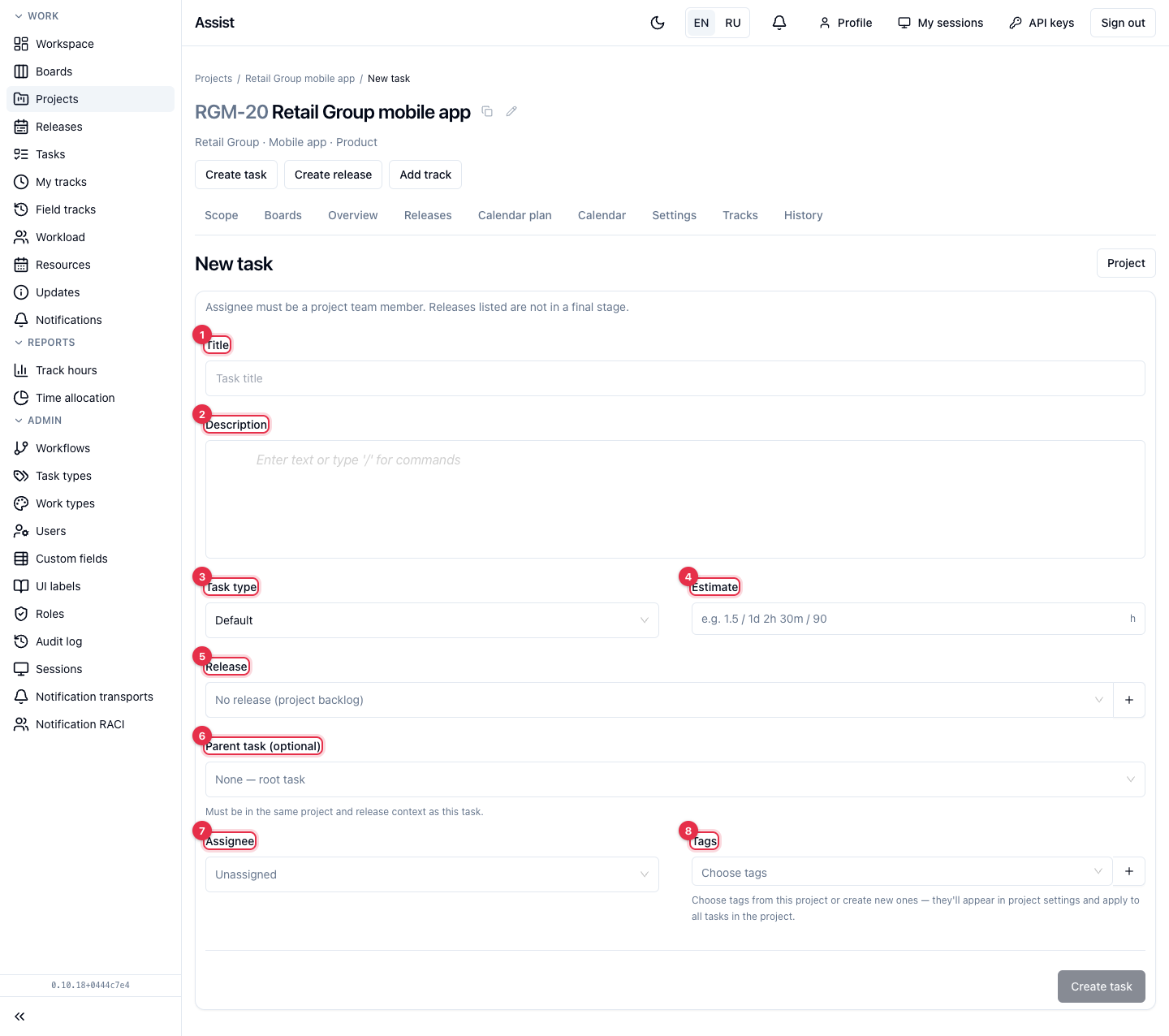
“New task” form fields
| Field | Required | How to fill in |
|---|---|---|
| Title | Yes | Briefly and specifically: what needs to be done |
| Description | No | Details, completion criteria. A line starting with / opens the block menu |
| Task type | No | Default by default. The set of stages depends on the type |
| Estimate | No | How long the work will take: 1.5, 1d 2h 30m, 90 |
| Release | No | The task's release or “No release (project backlog)”. Only unfinished releases are shown |
| Parent task (optional) | No | A parent task of the same project and release |
| Assignee | No | Only a project team member |
| Tags | No | Project tags. A needed tag can be created with the “plus” icon |
Result. The task appears in the project scope. The cabinet shows “Task created”.
There are no start and end dates in the form: set them in the task card.
More: “New task”.
How to find a task
| What you need | Where to look |
|---|---|
| Tasks assigned to me | My work |
| Tasks of one project | The project's Scope tab: Project. Scope |
| Tasks of one release | The release's Scope tab: Release. Scope |
| A task in any project | Tasks — enter a key, for example RGM-30, or a part of the title |
| Recently opened | The Recent button on “My work” |
| Tasks I watch | Project scope, the Watching switch |
| Tasks I created | The Created by me switch |
If a task is not found, turn off the Hide final stages switch: the task may have been completed.
How to change a task
-
Open the card: click the task title in any list.
-
Click the pencil next to the field and enter a new value. The description is saved automatically.

-
Watch for the “Saved” confirmation.
| What to change | Where in the card |
|---|---|
| Title | The header, pencil icon, or the “Main” block |
| Assignee | The “Main” block |
| Release | The “Main” block (for a subtask the release is inherited from the parent) |
| Tags | The “Main” block |
| Description | The “Description” block |
| Group, start, end, estimate | The “Dates and metrics” block |
| Type | The “Main” block, the pencil at the type (the permission to change type is needed) |
If there is a lock next to a field, the workflow locked it at the current stage. If there is no pencil, your role has no permission to change the field.
How to assign an assignee
- In the scope table or task catalog: in the Assignee column, open the list and choose a person. The list shows only the project team.
- Take a task for yourself: click Take on myself under the assignee field.
- In the card: the “Main” block, the “Assignee” field.
If the person you need is not in the list, add them to the project team: “Project. Settings”.
How to set dates and an estimate
- Open the card, the Dates and metrics block.
- Click the pencil at the Start field and choose a date. Repeat for the End field.
- Click the pencil at the Estimate field and enter a value.
Rules.
- Dates are stored as calendar days without time of day.
- A parent task's estimate is by default the sum of its subtasks' estimates. If you set a value manually, a yellow pencil appears next to it; to return to automatic calculation, clear the field.
- The History link at the estimate shows all changes of the value.
How to move a task through stages
-
Open the card. The Stage block has the current stage, the Target status… list, and the Apply transition button.
-
Choose the target stage.
-
If the cabinet shows unfilled fields, fill them in.
-
Click Apply transition.
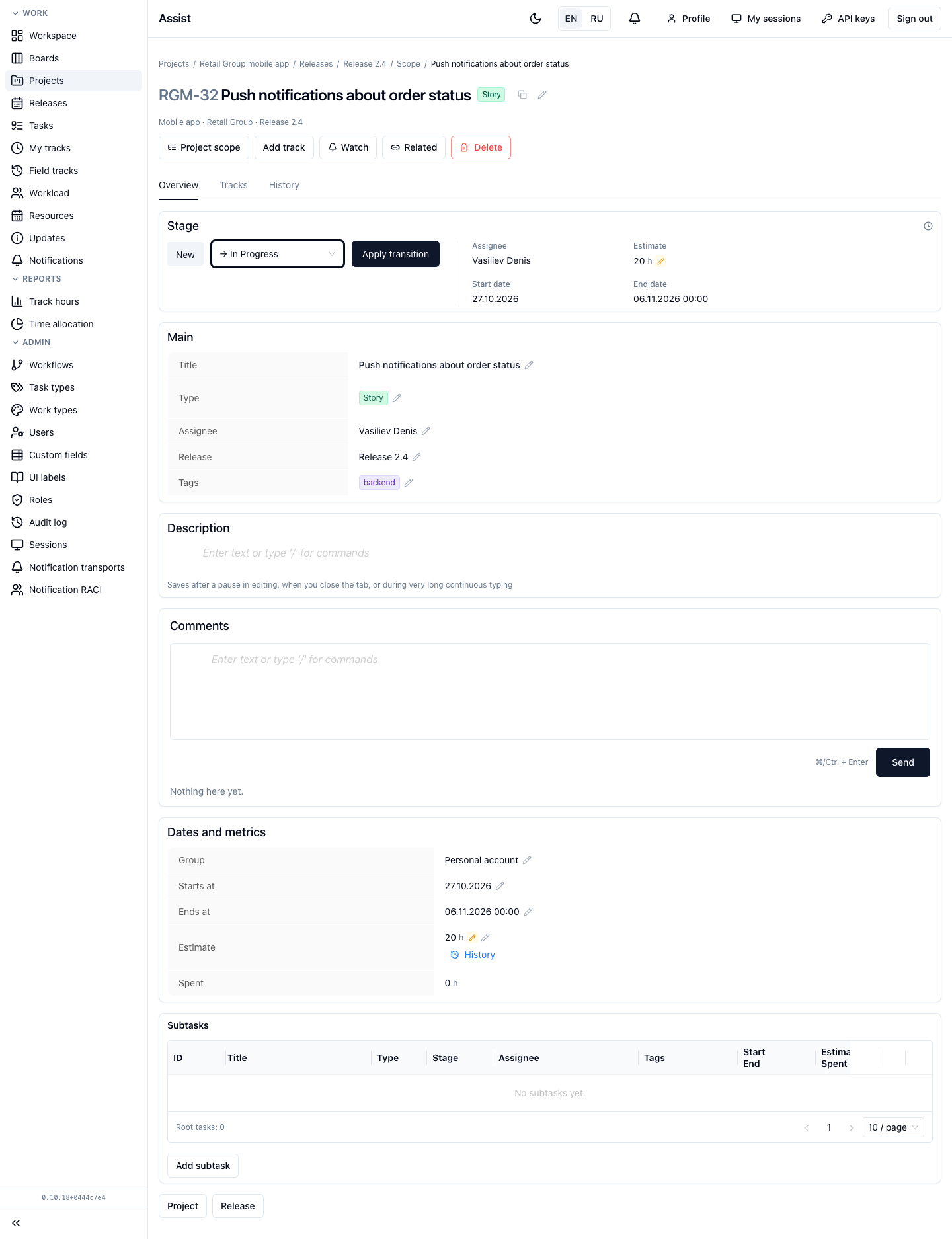
Result. “Stage updated”. The task history has the entry “Status: … → …”.
A task can also be dragged to another column on a board. More: “Consolidated boards”. Allowed transitions: “Stages and transitions”.
How to discuss a task
- In the Comments block, enter text.
- Click Send or ⌘+Enter (Ctrl+Enter).
- To reply to a comment, click Reply. To correct your own comment, click Edit. To delete, click Delete and confirm.
Comments, hours, and changes are collected on the History tab: “Task card”.
How to watch a task
Click Watch in the card header. You receive notifications about changes if the “Changes in watched tasks” event is on in the profile's “Notification settings” tab. To stop watching, click Unwatch.
How to link tasks
- In the card header, click Related. The “Related tasks” panel opens.
- Choose an action:
- Link existing task — link an existing task;
- Create in another project — create a task and link it at once.
- To remove a link, click Unlink and confirm.
A linked task remains independent. The number of links is shown by the link icon on the card and in tables.
How to change the task type
- In the Main block, click the pencil at the Type field. The action is available to roles with the permission to change type.
- Choose the new type. The cabinet shows whether the workflow will change.
- If the new workflow lacks the current stage, map the stages.
- If needed, turn on “Also apply to subtasks”.
- Click Change type.
How to export a task list
In the project or release scope, click Export XLSX. What is shown in the table is exported, with filters applied.
How to delete a task
- In the card header, click Delete or the trash can icon in a table row.
- Confirm the deletion.
Deleting a task deletes its subtasks and the hours logged on them. If a task is completed, it is usually not deleted but moved to the final stage.
Typical mistakes
| Situation | Cause | Solution |
|---|---|---|
| Cannot move to In Progress | No assignee, estimate, or dates | Fill in the fields the cabinet shows |
| The assignee cannot be chosen | Not on the project team or disabled | Add the person to the team |
| Cannot add a task to a release | The task type is not allowed in the release | Choose an allowed type |
| A field does not change | A workflow lock or no permission | Check the lock and the role |