Notifications
Purpose. A feed of events on tasks that Assist told you about: assignment, mention, comment, deadline change, overdue.
Who sees it. Each user sees their own notifications.
How to open. The bell icon in the header or menu Work → Notifications.
What is on the screen
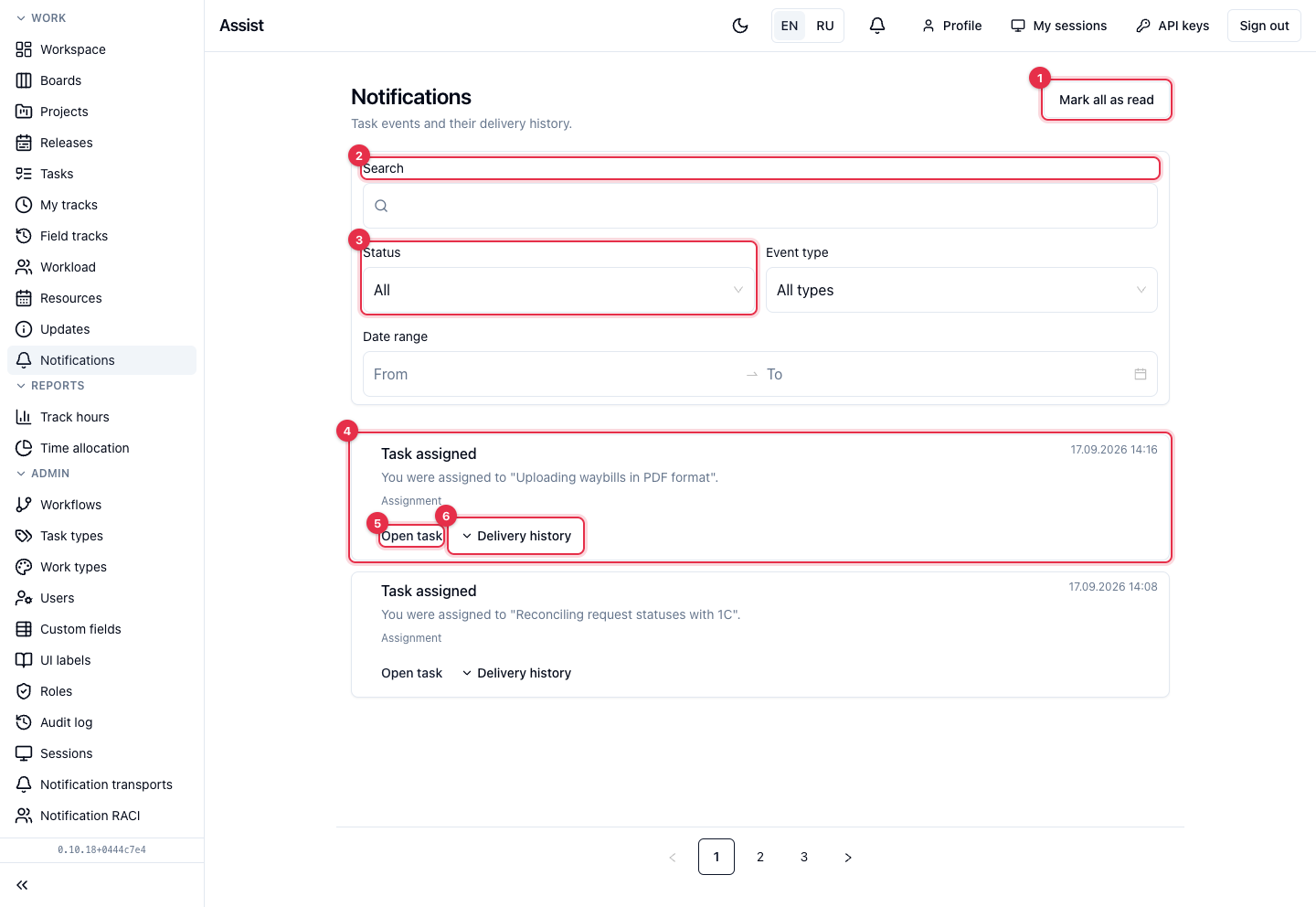
- Mark all as read marks all notifications as read.
- Search by notification text.
- Filters Status (“All” or “Unread”), Event type, Period.
- A notification card: title, text, time, and a type label.
- Open task leads to the task card.
- Delivery history expands how the message was sent across channels.
If there are no events, the list place says “No notifications yet”.
Event types
| Type | When it arrives |
|---|---|
| Assignment | A task is assigned to you |
| Mention | You were mentioned in a comment |
| Comment | A new comment on your task |
| Deadline changed | A task's dates changed |
| Overdue | A task's deadline has passed |
| Watched task changed | A task you watch has changed |
What you can do
Read and open a notification
- Click the notification or Open task.
- After viewing, mark it as read or click Mark all as read.
Check delivery
Each notification is delivered to the cabinet and to the channels you connected: email, Telegram, Element, browser push, webhook. In the Delivery history, the state for each channel is visible: “Pending”, “Sending”, “Sent”, “Delivered”, “Failed”, plus the number of attempts.
If delivery failed, click Retry: the message is queued again.
What is configured where
- Recipient events and channels: “Your notification settings”.
- Company channels: “Notification transports”.
- Recipients of project events: “Notification RACI”.