Task card
Purpose. The main workplace for a specific task. Here you move it through stages, assign it, plan it, discuss it, and log time on it.
Who sees it. Anyone who has access to the task. The developer, manager, and administrator can change fields, stage, and assignee. The developer can also write comments.
How to open. Click the task title in any list, on a board, or in a calendar.
What is on the screen

Header
The title has the task key (project prefix and number), the title, and a type label. Next to it there are the “copy key and title” and “edit title” icons. Above the title are breadcrumbs: project, release, and the tab you came from. Under the title the project and release are named, and for a subtask also the parent.
- Project scope returns to the project's task table.
- Add track opens the time entry form for this task.
- Watch subscribes you to changes. Clicking again unsubscribes you. Notifications arrive if the “Changes in watched tasks” event is on (“Your notification settings”).
- Related opens the related tasks panel: link an existing task, create a related one in another project, unlink an extra one.
- Delete deletes the task after confirmation.
“Overview” tab
- Stage. The current stage, the Target status… list, and the Apply transition button. If the transition has requirements, fields to fill appear under the list. The clock icon shows the stage deadline.
- Main. Title, type, assignee, release, tags. Click the pencil next to a value to change it. For a subtask the release is always the same as the parent's. A lock next to a field means the workflow locked it at the current stage.
- Description. Text with formatting. Start a line with
/to insert a heading or a list. It is saved automatically. - Comments. The Send button or ⌘/Ctrl + Enter. You can Edit and Delete your own comments and Reply to others'.
- Dates and metrics. Group, start, end, Estimate, Spent. A parent task's estimate is by default the sum of its subtasks' estimates (the “auto” label). If set manually, a yellow pencil appears, and the History link shows how the value changed. Estimate formats:
1.5,1d 2h 30m,90(minutes). - Subtasks. A table of subtasks and the Add subtask button.
The Project and Release buttons at the bottom return to the corresponding pages.
What you can do
Move a task to another stage
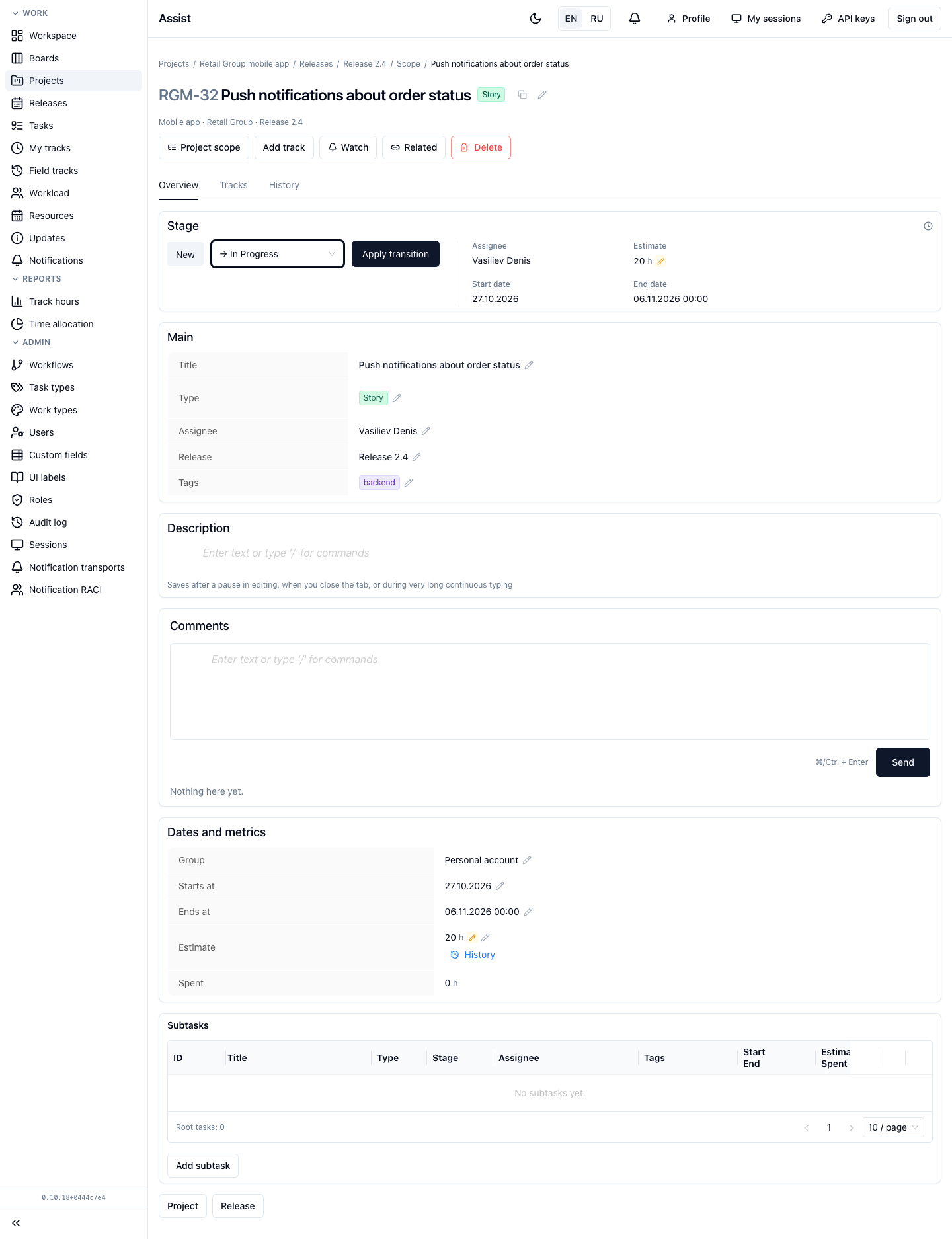
- In the Target status… list, choose a stage.
- On the right, the cabinet shows the fields the transition checks. In the example these are assignee, estimate, start and end dates. Fill in the missing ones.
- Click Apply transition: it becomes active when the requirements are met.
Which stages are available depends on the workflow of the type: “Stages and transitions”.
Change the task type
- Click the pencil next to the type.
- Choose the new type. The cabinet shows whether the workflow will change and offers to map stages that do not exist in the new workflow.
- If needed, enable “Also apply to subtasks”.
- Click Change type.
The action is available to roles with the permission to change type.
“Tracks” tab
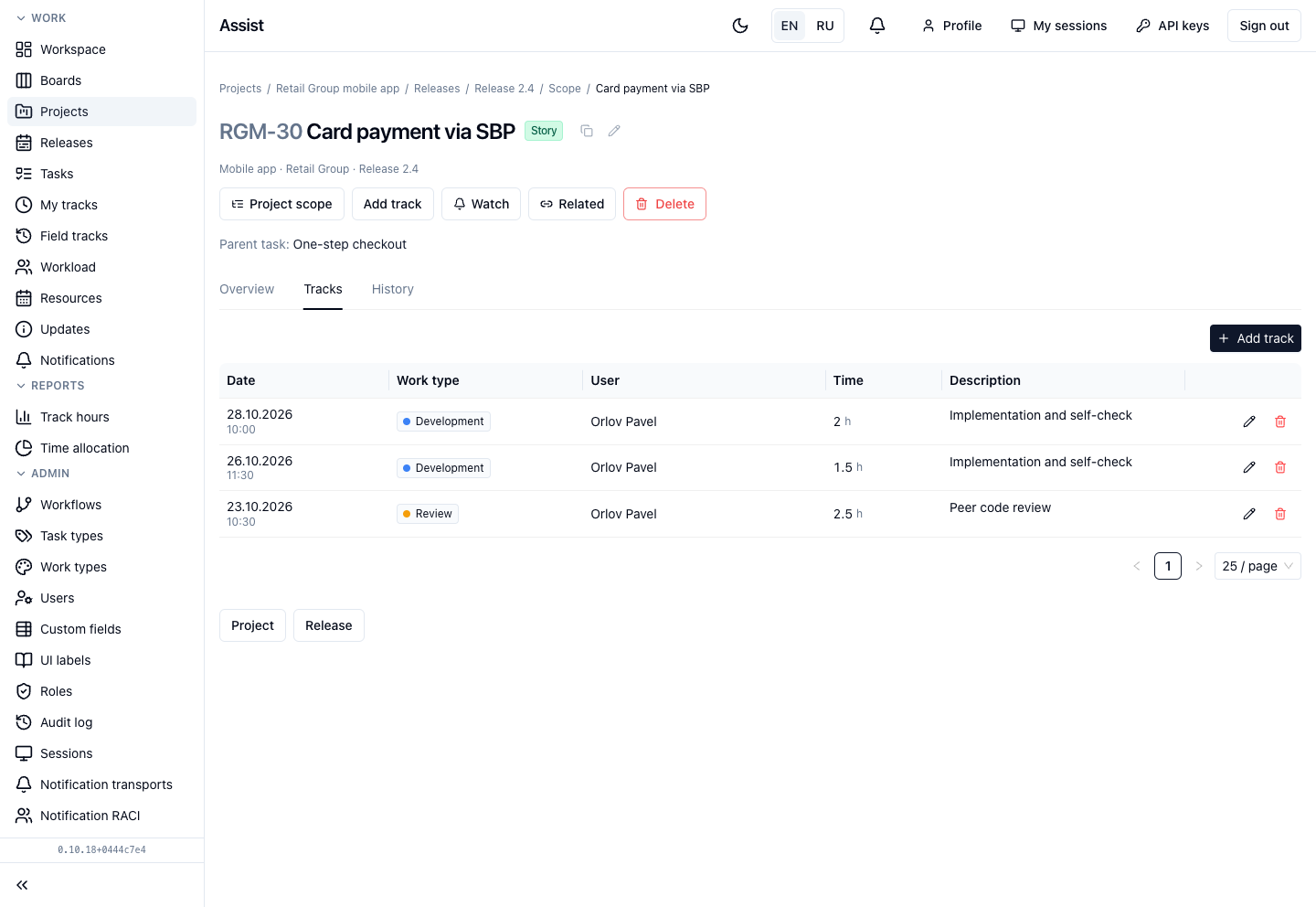
A table of hours logged on the task: date, work type, employee, time, description. The Add track button logs new time; the pencil and trash can in a row edit and delete an entry. Rules: “Time tracking”.
“History” tab
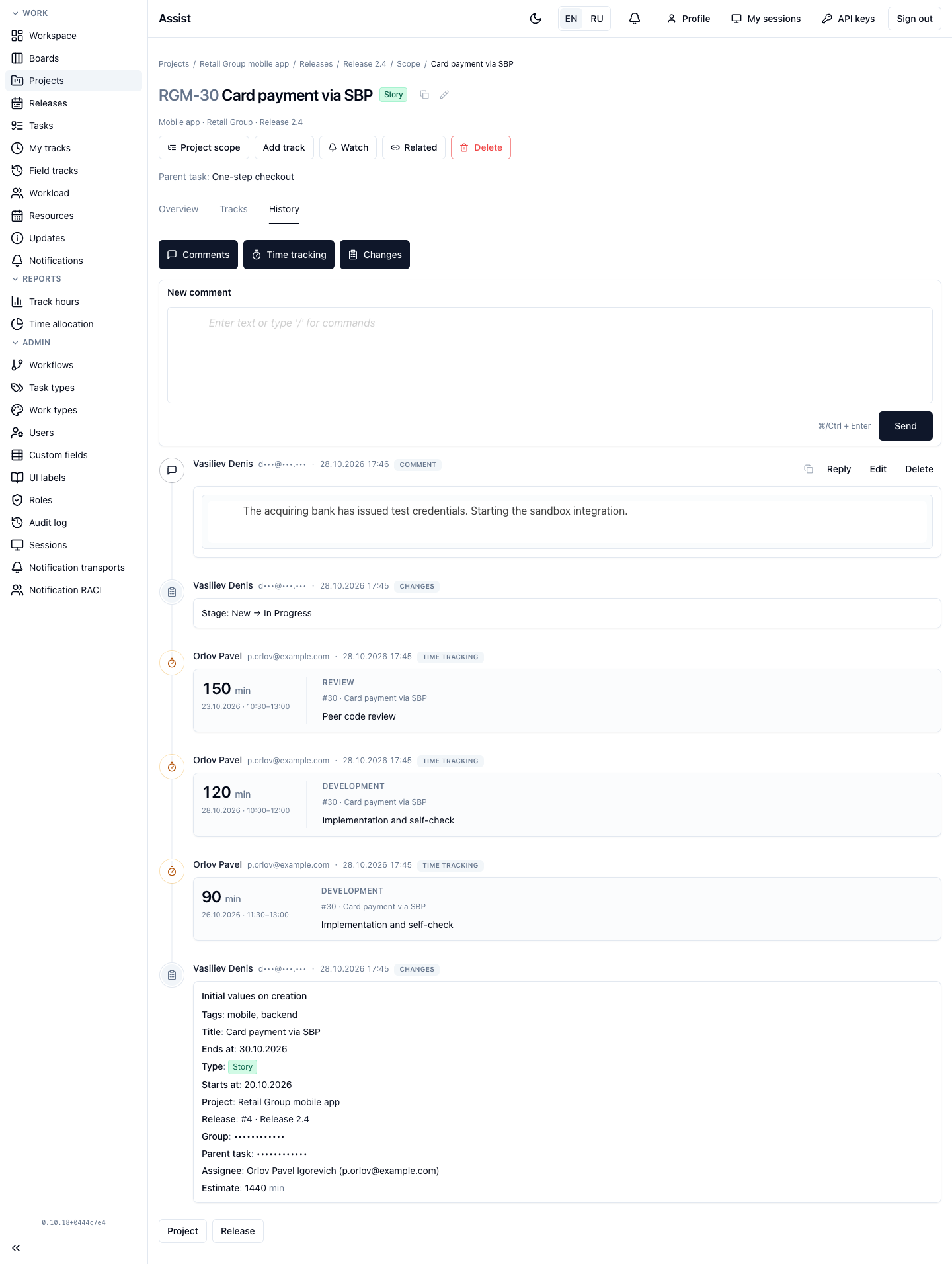
A single feed of task events. Three switches at the top turn on the kinds of entries:
- Comments — team messages;
- Time tracking — logged hours;
- Changes — stage changes (“Status: New → In Progress”), field changes, initial values at creation.
At the end of the feed it is recorded with which values the task was created.
Frequently asked questions
There is no pencil next to a field. The role has no permission to change the field.
There is a lock next to a field. The workflow locks the field at this stage.
The “Apply transition” button is inactive. The transition requirement fields are not filled or no target status is selected.