Notification setup
Goal. Receive the messages you need (assignments, comments, deadlines) where it is convenient for you, and not receive extra ones.
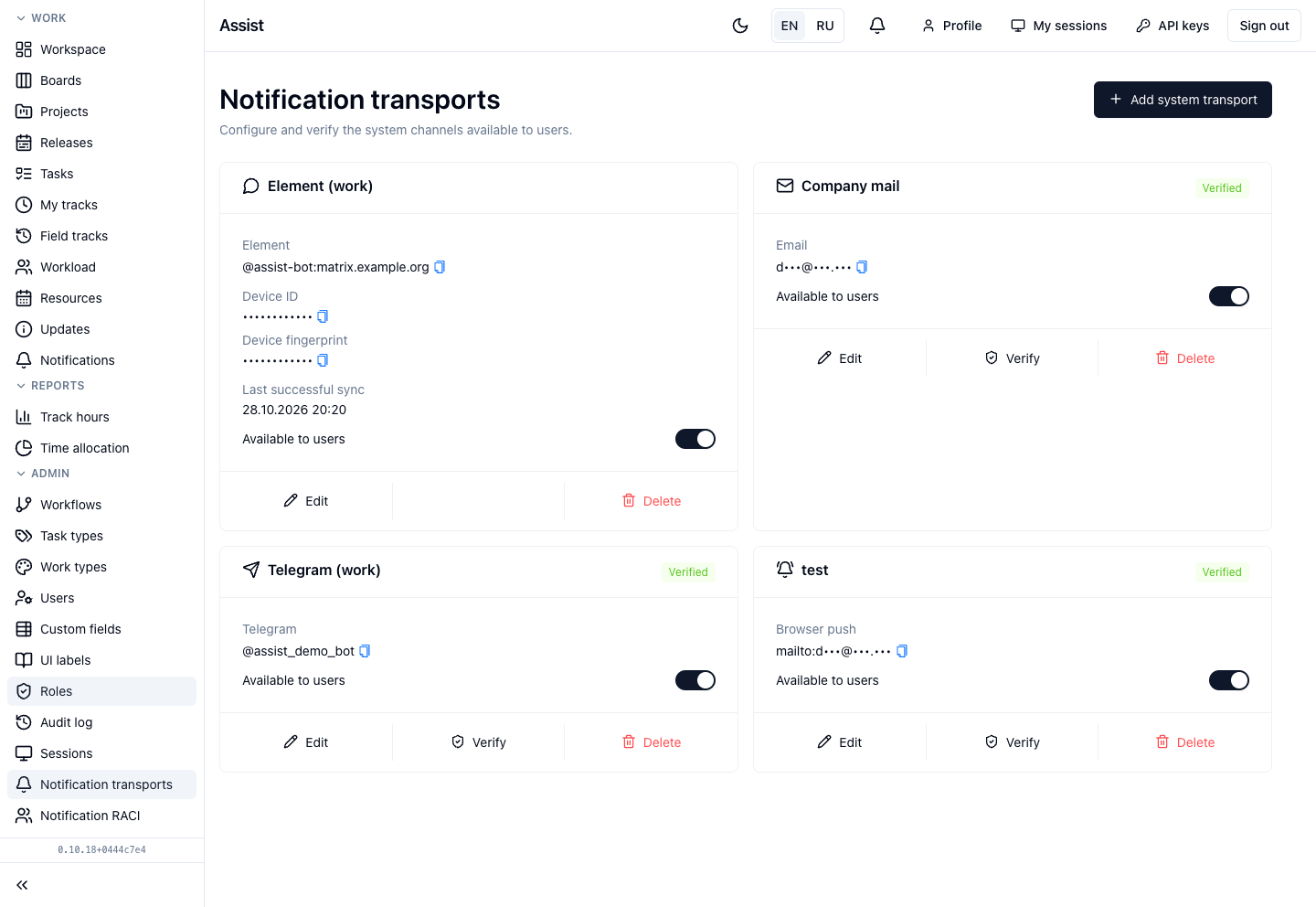
Who does it. Each employee for themselves. Delivery channels are configured beforehand by the administrator: “Notification transports”.
What you need before starting. You are signed in to the cabinet. If you need Telegram, Element, or push, the administrator must open the channel to users.
Time. 5–10 minutes.
How notifications work
An event creates a notification: you were assigned to a task, you were mentioned, a deadline changed. Before the message reaches you, three conditions are checked:
| № | Condition | Who sets it |
|---|---|---|
| 1 | You are in the circle of the event's recipients (assignee, accountable, consulted, informed, watcher) | The project manager and administrator: “Notification RACI” |
| 2 | The event is turned on in your profile | You |
| 3 | A channel is selected for the event, and the channel is connected and works | You and the administrator |
If at least one condition is violated, the message does not arrive.
Step 1. Choose events
- Click Profile in the header and open the Notification settings tab.
- In the “Notification preferences” block, turn on the switches you need:
- “Task assigned to me”;
- “Mentioned in a task comment”;
- “New task comments”;
- “Task deadline changed”;
- “Task overdue”;
- “Changes in watched tasks”.
- For each enabled event, mark the channels: Email, Telegram, Element, browser push, Webhook.
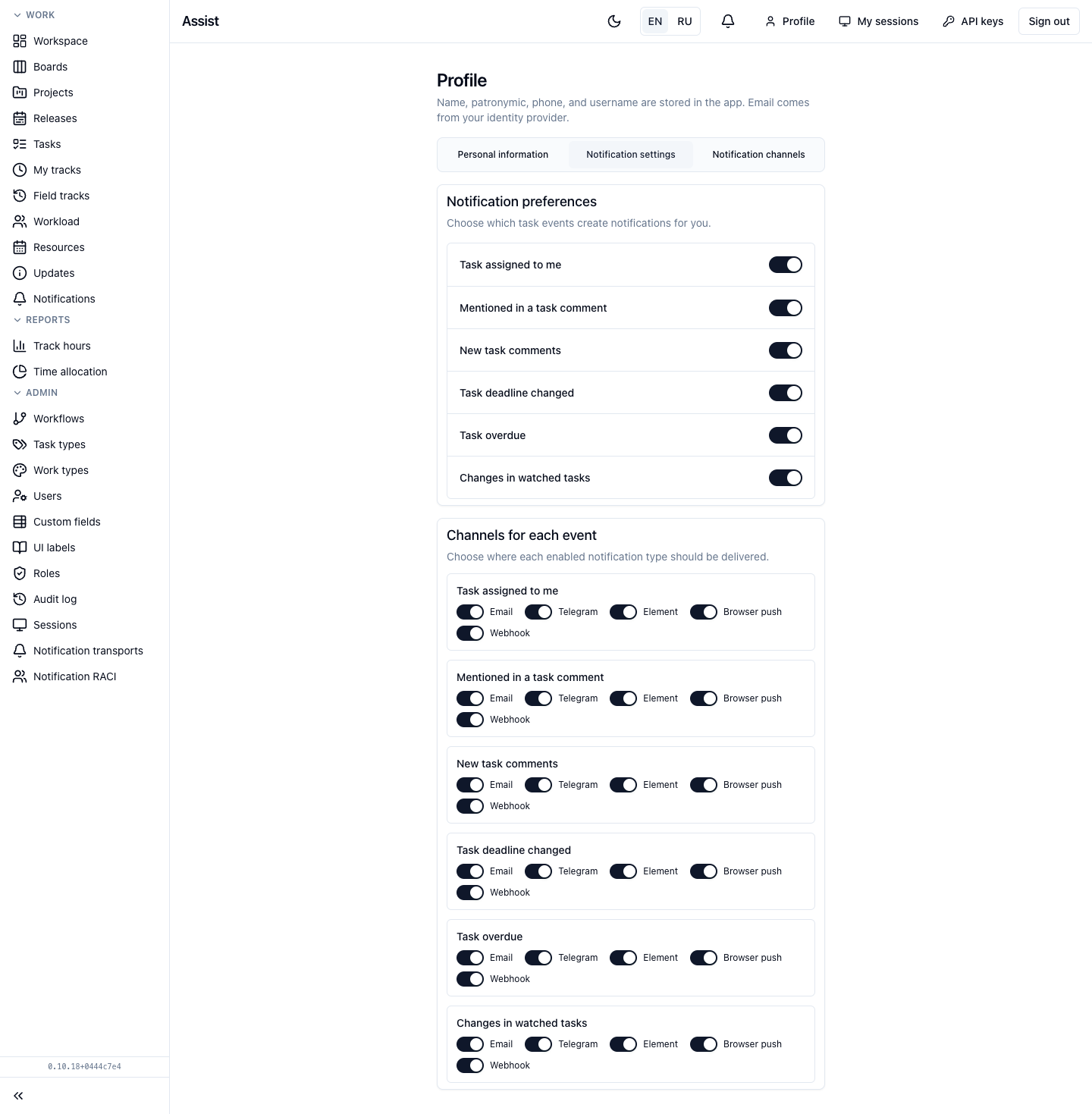
Result. Settings are saved at once.
Recommendation. Receive assignments and mentions in all channels, comments only in the cabinet.
Step 2. Connect channels
Open the Notification channels tab.
Email
If the administrator configured the mail transport, it is shown as connected, and emails go to your Keycloak address. You do not need to do anything.
Telegram
- Click Get Telegram link.
- Open the link, start a dialog with the bot, and confirm the binding.
- Return to the cabinet: the channel status changes to “connected”.
Element
- Click Get pairing code.
- Start an encrypted private chat with the Assist bot.
- Send the code in one message. The code is valid for 15 minutes.
The bot works only in encrypted rooms. In an unencrypted room the code will not be accepted.
Browser push
- Click Enable push.
- In the browser window, click “Allow”.
Push is tied to the browser. On another computer, repeat the connection.
Webhook
A webhook is needed if events must go to your system. Steps and request format: “Integrations”.
A connected channel can be turned off temporarily with the switch or deleted with the Delete button. If the last delivery ended with an error, a warning is shown next to the channel.
Step 3. Read the notification feed
- Click the bell in the header or open Work → Notifications.
- Click a notification to go to the task.
- Click “Mark as read” or “Mark all as read” to remove the mark.
More: “Notifications”.
Step 4. Check delivery
- Ask a colleague to assign a test task to you or do it yourself through your manager.
- Make sure the message arrived in the selected channels.
- If it did not, open the notification in the feed and look at the Delivery history: the state for each channel is visible there.
If a notification did not arrive
| Check | What to do |
|---|---|
| Is the event on? | The “Notification settings” tab |
| Is a channel selected for the event? | The same place, for each event |
| Is the channel connected and on? | The “Notification channels” tab |
| Is there a warning at the channel? | Reconnect the channel |
| Are you among the recipients? | Ask the project manager about the RACI rules |
| Does the transport not work? | For the administrator: “Verify” in “Notification transports” |