The assignee's working day
Goal. Organize daily work in the cabinet so that tasks, stages, and hours are always up to date.
Who does it. The assignee: a developer, designer, tester, and any employee who is assigned tasks.
What you need before starting. You are signed in and have tasks assigned. See “First sign-in”.
The general order of the day
| Time | Action | Screen |
|---|---|---|
| Start of the day | Check today's tasks and notifications | My work, Notifications |
| Before starting work | Move the task to work | Task card |
| During the day | Update stages, write comments, add subtasks | Task card |
| After each piece of work | Log hours | My tracks |
| End of the day | Check hours and stages, leave comments | My tracks, cards |
Step 1. Morning check
-
Open Work → Workspace.
-
Choose the List view, then the Today slice.
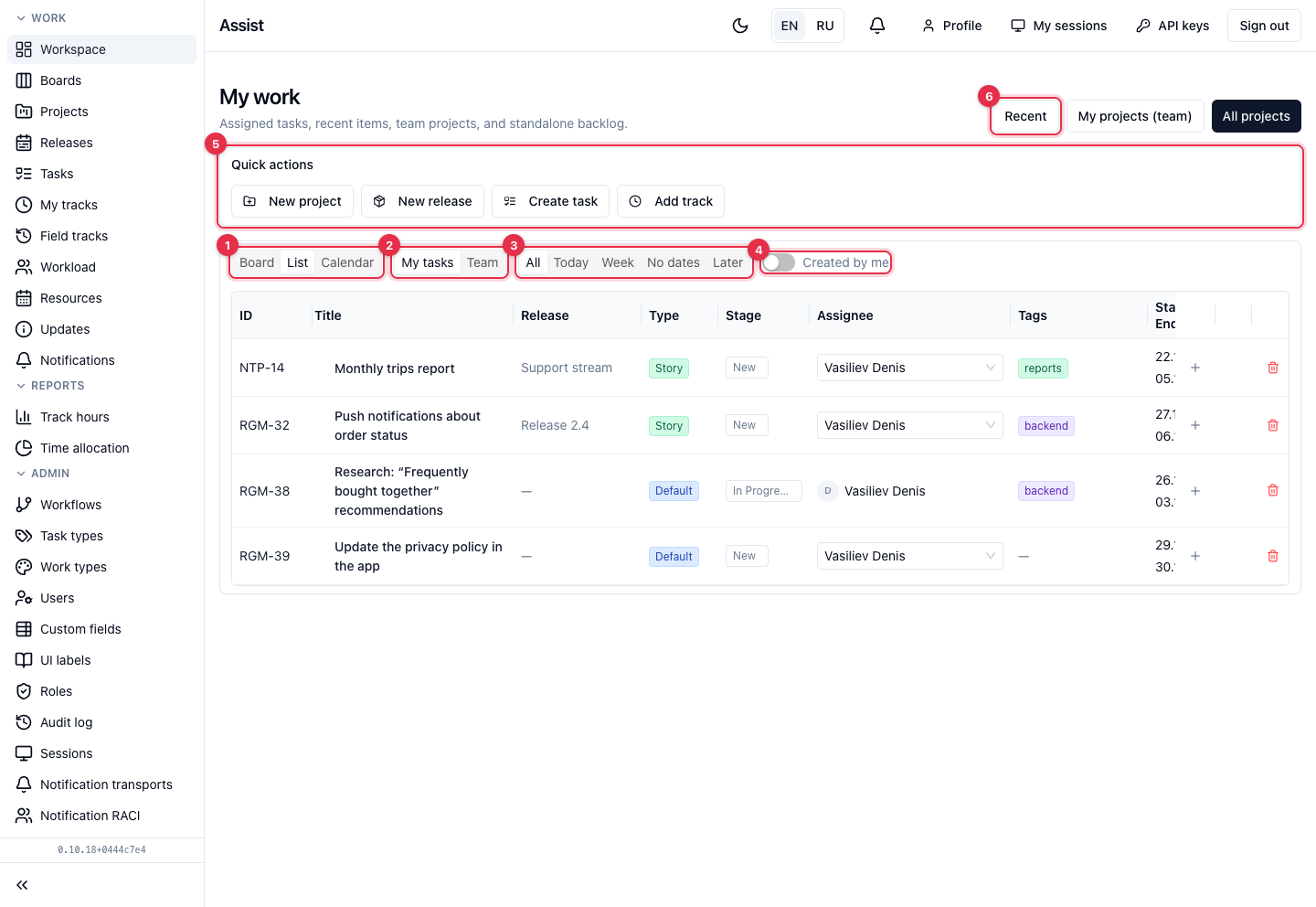
The Today slice shows tasks for which today falls between the start and the end. The Week slice shows tasks of the current week, the No dates slice shows tasks without deadlines, the Later slice shows the rest, including overdue ones.
-
Click the bell in the header. Read new notifications: assignments, comments, deadline changes.
-
If you are a manager and the Team mode is available, switch it to see the tasks of the whole team.
Result. You know which tasks to do today and what has changed since yesterday.
Checking overdue tasks. Open the Later slice and find tasks with past dates. If the deadline is unrealistic, write a comment and tell your manager.
Step 2. Take a task into work
- Click the task title. The card opens.
- Make sure you are listed as the assignee in the Main block. If there is no assignee, click Take on myself in the tables.
- In the Stage block choose the target stage, for example In Progress, and click Apply transition.
- If the cabinet shows unfilled fields (estimate, dates), fill them in and repeat.
Result. The task is at the In Progress stage. On the board it moved to the “In progress” column.
More: “Working with tasks”.
Step 3. Work and keep information updated
- Comments. Ask questions and record decisions in task comments rather than in private messages: then the information stays with the task and is visible to the team.
- Subtasks. If a task turned out to be large, click Add subtask in the “Subtasks” block and break the work down.
- Links. The Related button lets you link dependent tasks.
- Dates. If a deadline changed, update the dates in the “Dates and metrics” block and write the reason in a comment.
- Watching. Click Watch on tasks you need to follow without being the assignee.
Step 4. Log hours
Log time right after finishing a piece of work:
- In the task card, click Add track.
- Choose the Work type, enter a Description, specify the time.
- Click Create.
More: “Time tracking”.
The start of a track cannot be older than 7 days. Do not postpone logging time to the end of the week or month.
Step 5. Move tasks forward
As work progresses, move the task through stages: In Progress → Review → Testing → Done. The sequence depends on the task type's workflow: “Stages and transitions”.
Step 6. Close the day
- Open My tracks and look at today.
- Compare the day's “battery” with your real working time (the norm is 8 hours). If less is logged, add the missing tracks.
- Check the stages of the tasks you worked on.
- If you did not manage to do what was planned, leave a comment with the reason and a new forecast.
Weekly things
| When | What to do |
|---|---|
| Friday | Check the week in “My tracks”: are there empty days |
| End of the month | Check that all hours are logged. Older than 7 days cannot be logged |
| When changing role or project | Check the menu and available tabs |
Typical mistakes
| Mistake | Consequence | How to avoid |
|---|---|---|
| Hours are logged once a week | Some entries have to be made retroactively, and older than 7 days is impossible | Log after each piece of work |
| The task stays in “New” after work starts | The manager and colleagues do not see the real picture | Move the task to work at once |
| Questions are asked in messengers | Decisions are lost | Write comments in the task |
| Deadlines are not updated | Workload and calendars are wrong | Edit dates when the plan changes |