Signing in to the cabinet
Purpose. The sign-in page gives access to the cabinet. Until you sign in, the cabinet shows only this page.
Who sees it. Any visitor.
How to open. Enter the cabinet address provided by your administrator in the browser.
What is on the screen
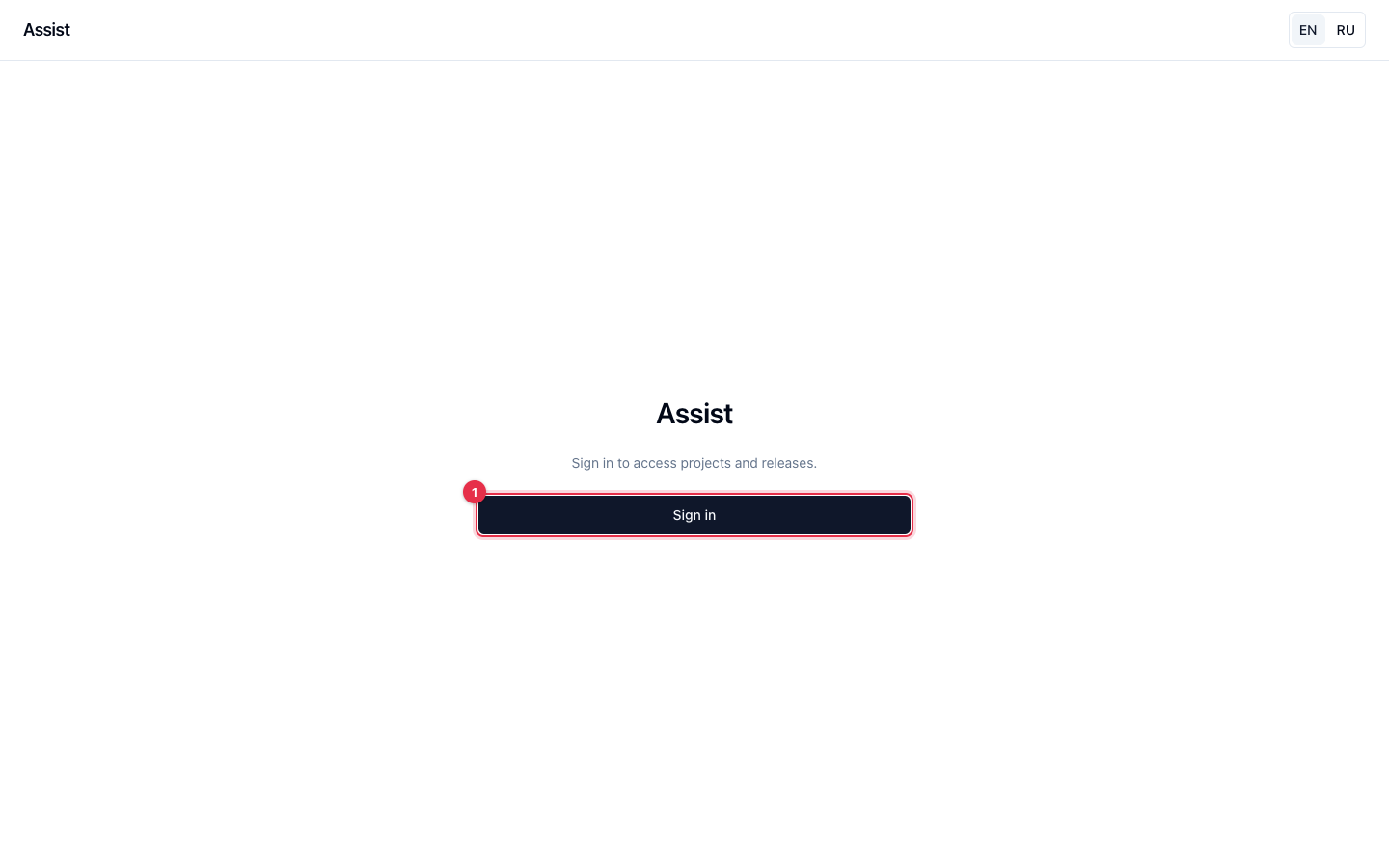
The page contains a short text “Sign in to access projects and releases” and the Sign in button. There are no login or password fields here: Assist does not store passwords. Sign-in is performed through Keycloak, your company's sign-in system.
How to sign in
- Open the cabinet address.
- Click Sign in. The browser goes to the Keycloak page.
- Enter your corporate login and password and confirm.
- Keycloak returns you to the cabinet, and the “My work” page opens.
Result. The browser stores a service cookie. While the session is valid, you do not need to enter the password again. The list of your sign-ins is on the “My sessions” page.
How to sign out
- Click Sign out in the upper-right corner.
- The session in this browser is closed.
On someone else's computer, always sign out.
If sign-in fails
| Symptom | Cause | What to do |
|---|---|---|
| The password is rejected | Keyboard layout, Caps Lock, or a wrong password | Check what you type or reset the password on the Keycloak page. The password can only be changed there |
| After signing in, the menu has almost nothing | The role has few permissions | Contact the administrator: “Roles and access” |
| Keycloak does not open | No network or a VPN is required | Check your connection |
| The cabinet asks you to sign in again | The session was ended or expired | Sign in again |