Tasks
Purpose. A common catalog of tasks from all projects available to you. Use it when you need to find a task without remembering its project, or to get a slice by people and stages across several projects at once.
Who sees it. Roles with permission for the “Tasks” page.
How to open. Menu Work → Tasks.
What is on the screen
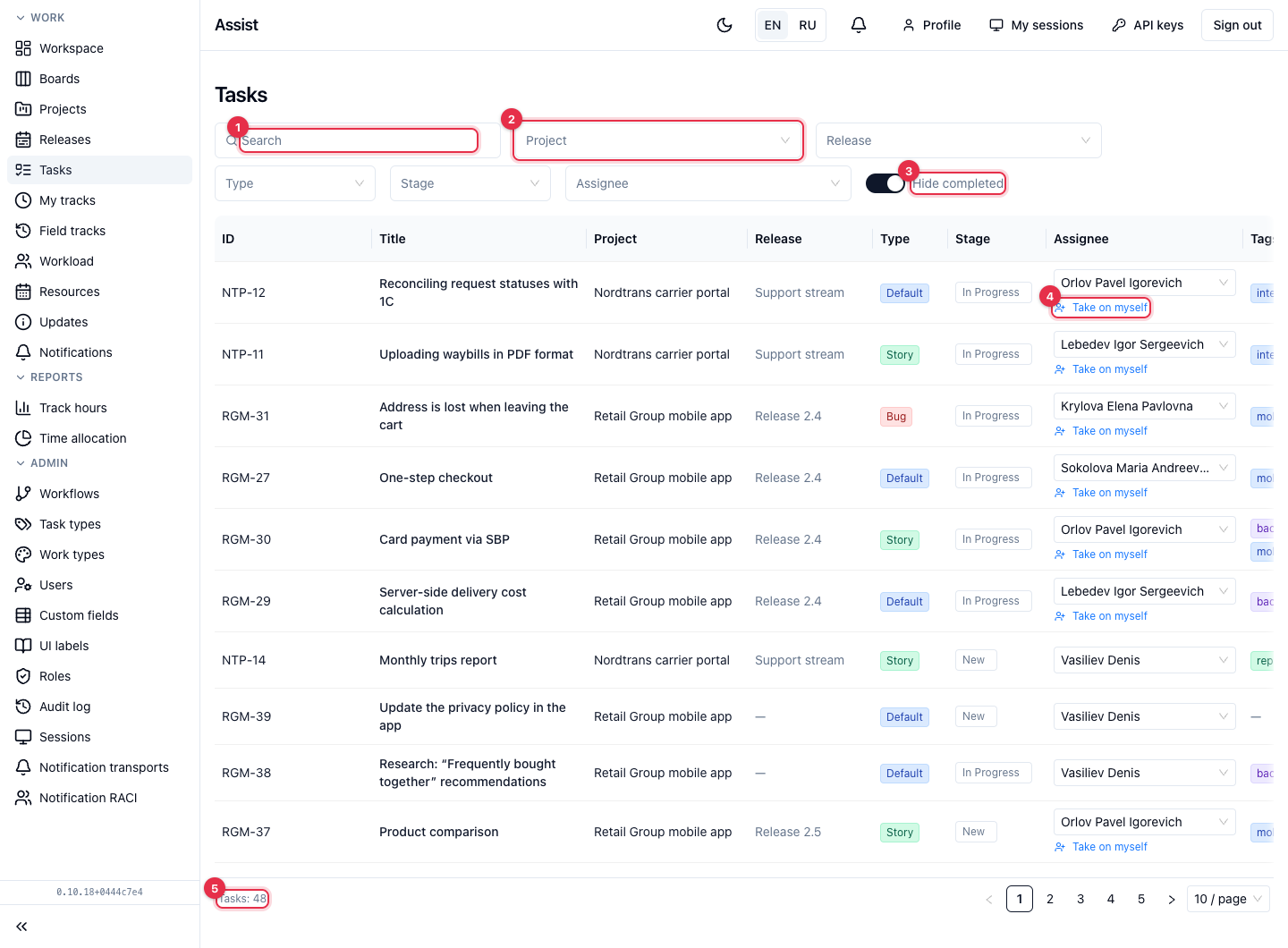
- Search by title, number, and other task fields.
- Filters Project, Release (there is an option “Without release”), Type, Stage, Assignee. The filters narrow each other: the values in each are built from what remains after the others.
- Hide completed is on by default. If a root task is completed, its whole tree is hidden, including subtasks that are still in progress. Turn the switch off to search completed branches too.
- The Assignee column: you can change the assignee right in the table. If a task is not assigned to anyone, there is a Take on myself link under the field.
- At the bottom there is the total number of tasks; on the right, the page and page-size switches.
The table shows key, title, project, release, type, stage, assignee, tags, start and deadline, estimate.
What you can do
Find a task
- Enter a key (for example
RGM-30) or a part of the title in the search field. - Set filters if needed.
- If the task is not there, turn off Hide completed.
- Click the title: the task card opens.
Assign an assignee
- In the Assignee column, open the list and choose a person (project team only).
- Or click Take on myself to assign the task to yourself.
How the catalog differs from the scope
| “Tasks” catalog | Project scope | |
|---|---|---|
| Coverage | All available projects | One project |
| View | Flat table | Tree with subtasks |
| Order | As the catalog returns | Manual order, drag and drop |
| Creating tasks | No | Yes |
Where to create tasks
Tasks are not created in the catalog. Use the Create task button in a project or the quick action on the “My work” page.
Frequently asked questions
The task I am looking for is missing. Check the filters, turn off “Hide completed”, and make sure you have access to the project.