Workflows
Purpose. A workflow describes the path a task, release, project, or user follows: which stages exist, which can be moved to from which, and what is needed for that. Board columns, the “Apply transition” button, and the conditions under which the cabinet will not move work further depend on the workflow.
Who sees it. The administrator: permission for the “Workflows” page is required.
How to open. Menu Admin → Workflows.
Workflow list

- New workflow: specify a name and an entity (project, release, task, user).
- The tabs All, Project, Release, Task, User filter workflows by entity.
- Filters: “filter set” means the workflow applies only to objects that match the conditions (the “Start trigger” tab).
- Status: labels “default”, “System”, “enabled”, “disabled”.
- Stages / Transitions — the number of stages and transitions.
- Row actions: Edit, Clone, Set as default, enable or disable, Delete.
The default workflow applies when no other fits the conditions. There is one for each entity. When you assign a new default, the cabinet asks whether to move existing objects; if not, they stay on the old process.
System workflows (the “System” label) ship with Assist. They can be cloned and the copy edited. Direct editing is available only to the administrator, and the page warns about it. Restore from template returns a system process to the original and erases your edits.
Deleting hides a workflow: new objects are not created on it, existing ones stay. The last enabled workflow of an entity cannot be disabled or deleted.
Workflow editor
Opened with the Edit button, five tabs.
General
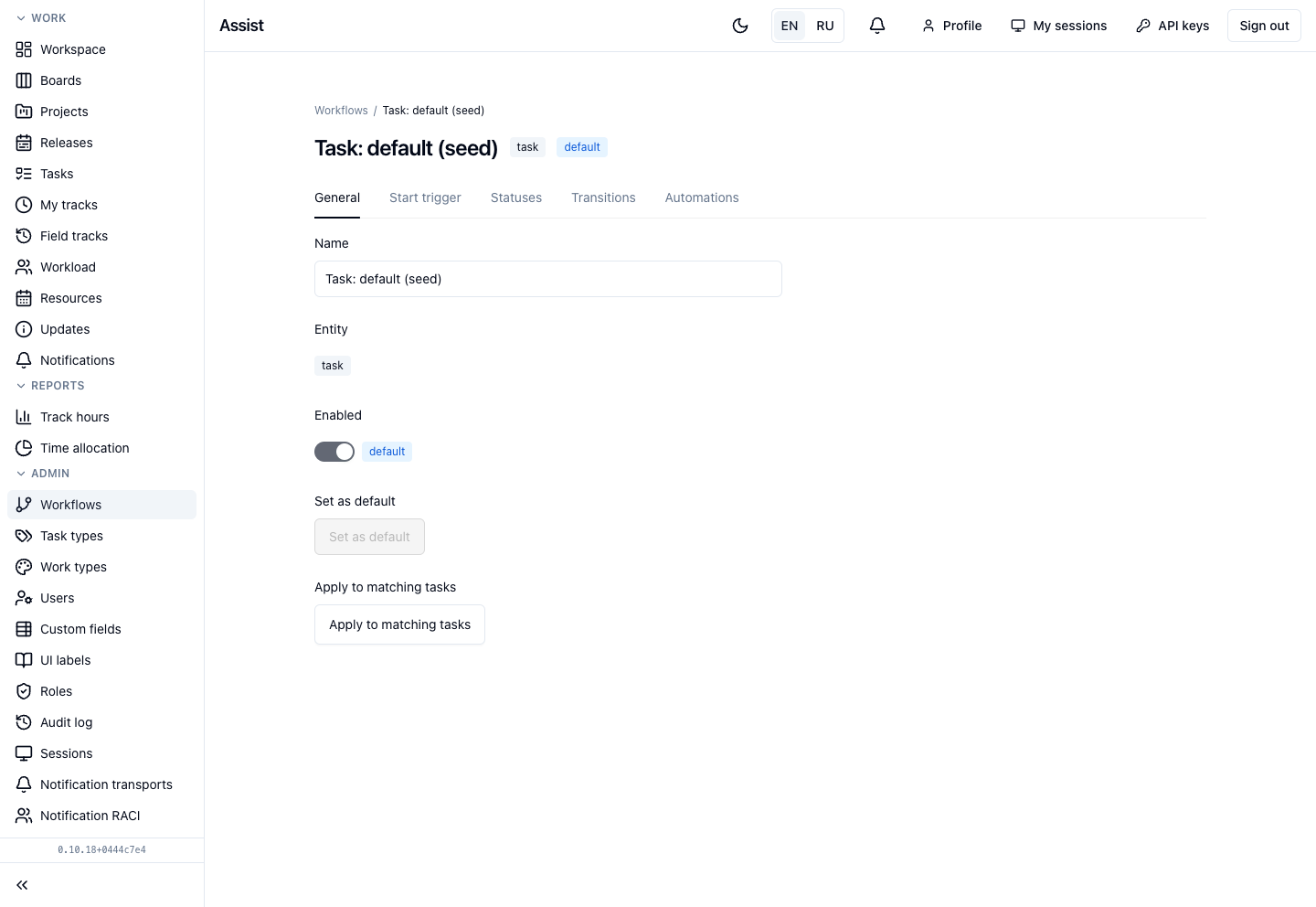
Name, entity, the enable switch, Set as default. A disabled workflow is not offered for new objects. For task workflows there is Apply to matching tasks: a three-step wizard (choose tasks, map stages, confirm). Unavailable while the workflow is disabled or has no statuses.
Start trigger
A collection and filters: which objects the workflow applies to. Without filters, it fits all objects of the entity.
Statuses
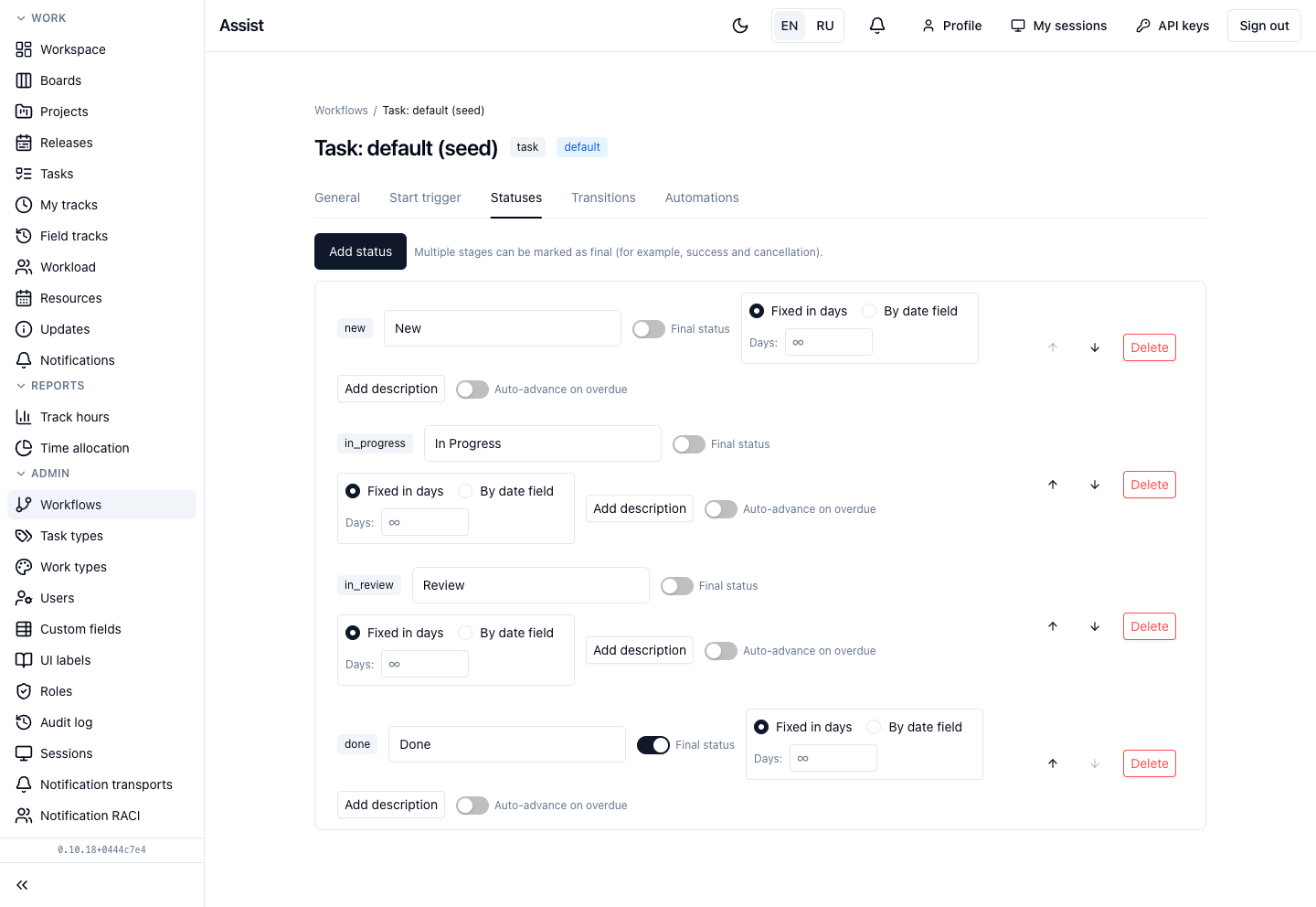
A stage has:
- a key (a service name, for example
in_progress) and a name; - the Final status switch (there may be several final ones, for example “Done” and “Cancelled”; tasks on them are hidden by “Hide final stages”);
- SLA: a number of days or a date from a field. “Infinity” means no deadline;
- Auto-advance on overdue;
- a stage description (“What happens at this status”);
- arrows change the order, Delete removes the stage.
Add status creates a new stage.
Transitions
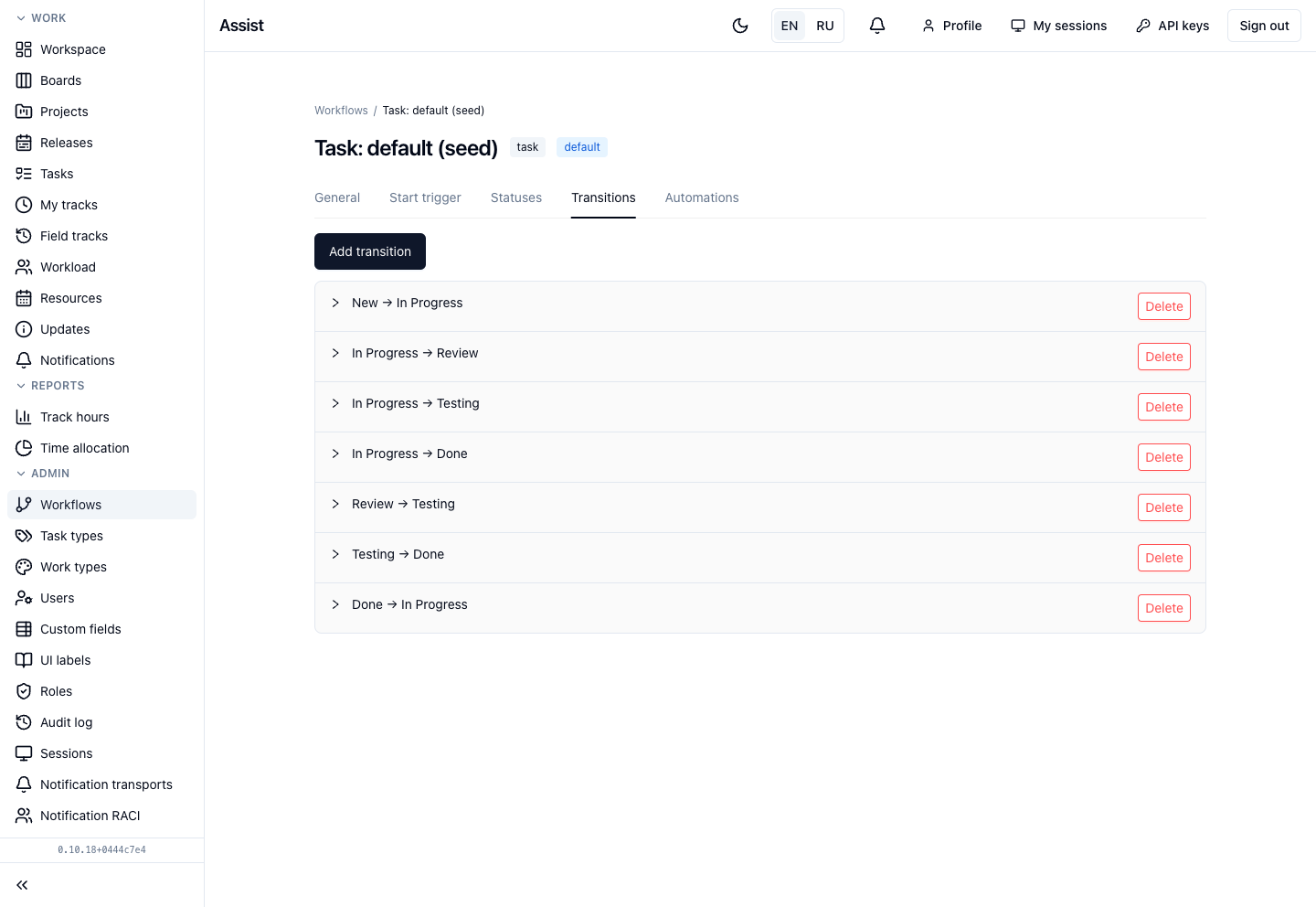
A list of allowed transitions “from → to”. The arrow on the left expands a transition. Without a gate, a transition is always allowed. Enable gate adds:
- Requirements: “Assignee is not empty”, “Estimate is not empty”, “Start date is set”. Groups “all (AND)” and “at least one (OR)”, checks for the existence of related objects;
- a hint — text for people when blocked;
- Lock these fields after passing this transition — fields that cannot be changed after the transition (the locks in cards).
Automations
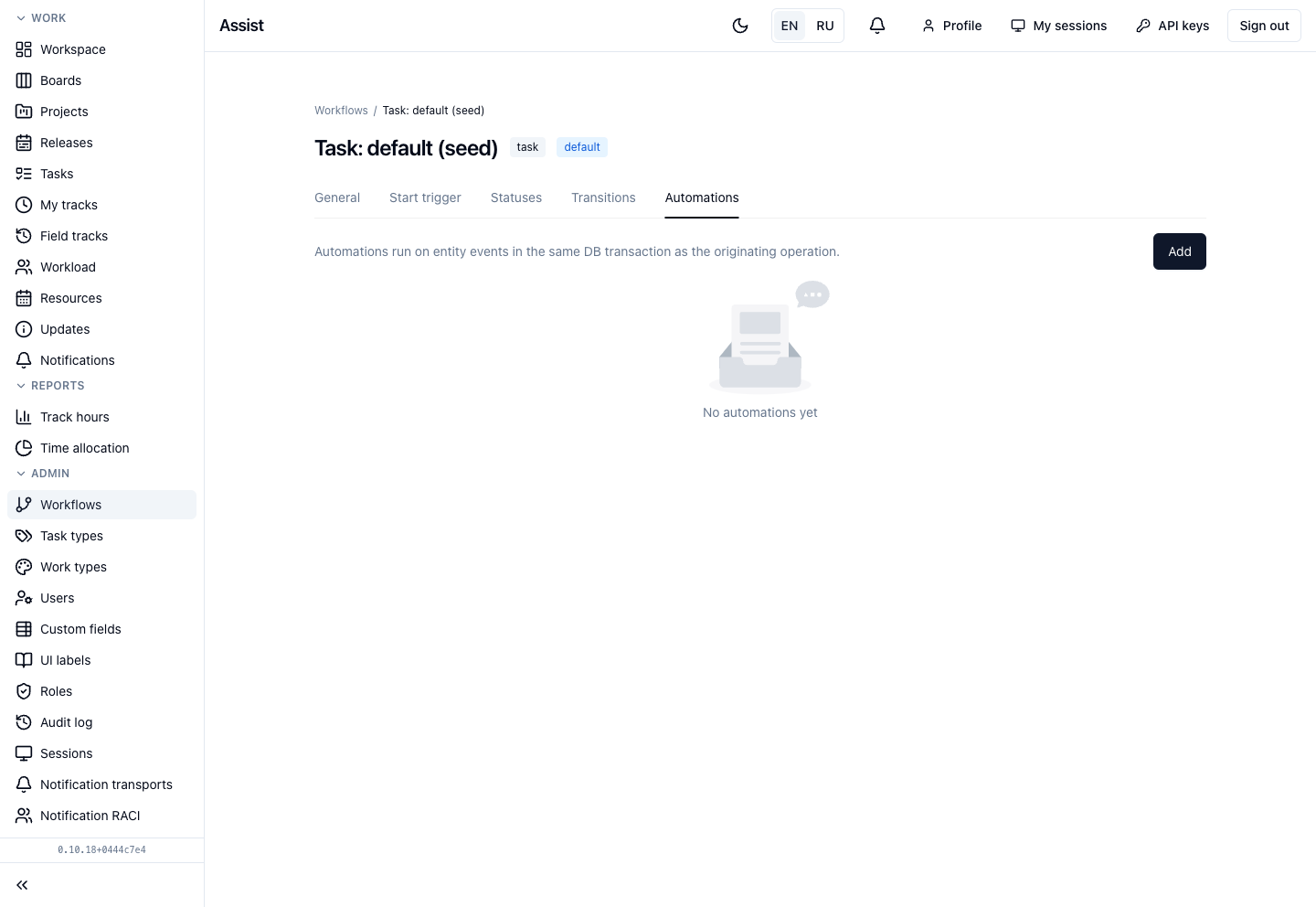
Automatic actions in the same operation as the triggering event. Events: On create, Before create (validation), On transition. Actions:
- change the stage of a related object;
- fill a field with the current time;
- write or copy a field value;
- block the operation under a condition;
- choose a new current release.
Automations of system workflows are view-only.
Be careful
Edits apply at once to all objects of the workflow. Clone it and test on the copy.