Projects
Purpose. A project is the main unit of work in Assist: it has a client, a product, a team, releases, and tasks. The page shows all available projects and lets you create a new one.
Who sees it. Roles with permission for the “Projects” page. Only roles with the create permission can create projects.
How to open. Menu Work → Projects.
Project list
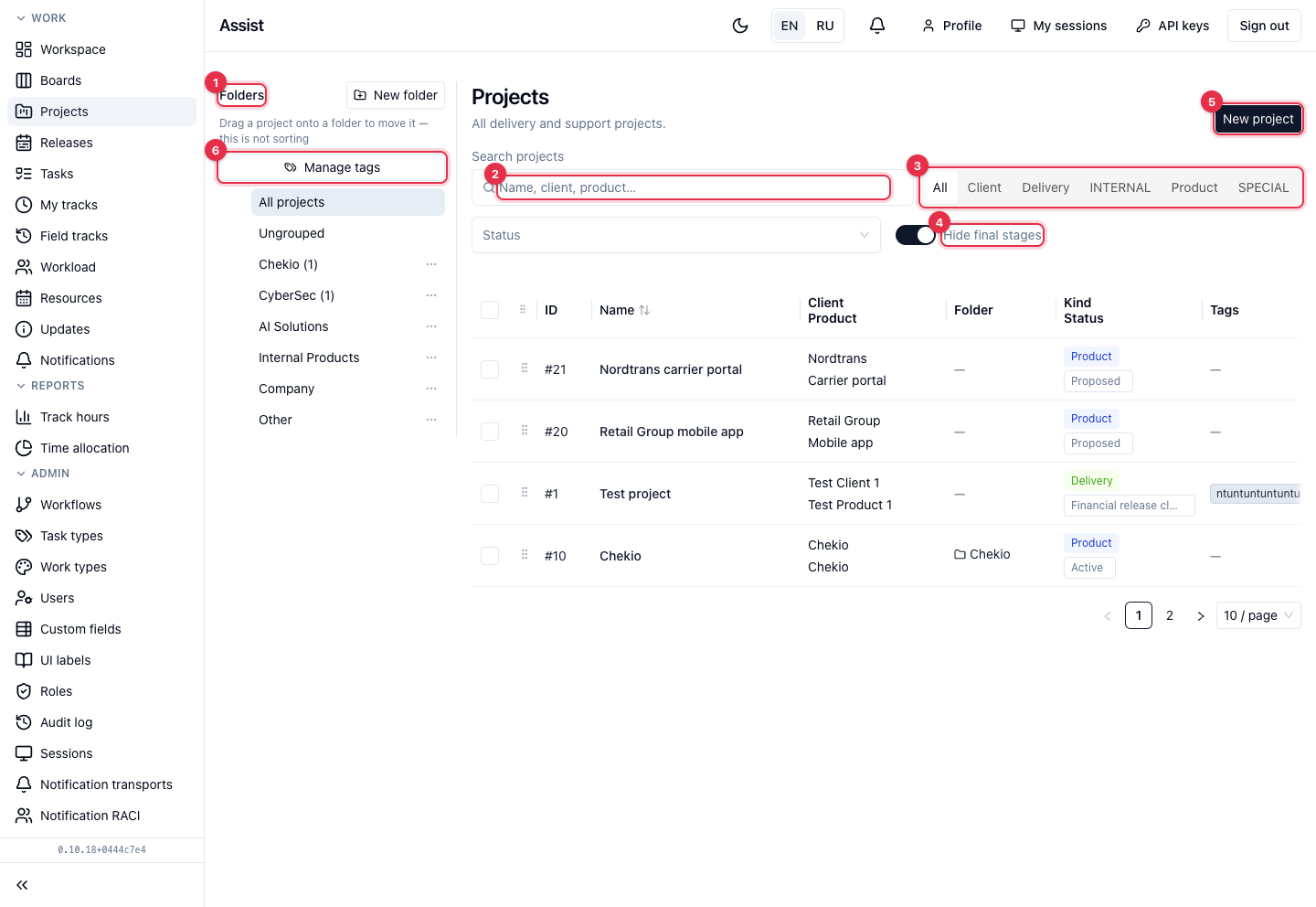
- Folders. Projects are arranged into folders on the left. Click a folder to see its projects. Ungrouped shows projects outside folders. New folder creates a folder, and the “…” menu next to it lets you create a subfolder, rename, or delete it. A non-empty folder cannot be deleted.
- Search projects: name, client, product.
- Project type. Keeps projects of one type. The set of types is defined by the administrator in the field constructor.
- Hide final stages is on by default. Turn it off to see projects at the final stage.
- New project opens the creation form.
- Manage tags. The directory of project tags: create a tag, choose a color, delete. Deletion removes the tag from all projects.
The table shows the number, name, client and product, folder, project type and stage, tags. Above the table there is also a stage filter. Click the name to open the project.
How to move a project into a folder
- Drag the project by the dotted icon onto the folder.
- For several projects, tick them with the checkboxes on the left and choose a folder in the panel that appears.
Moving affects neither sorting nor access rights.
How to create a project

- Click New project on the list page or on the “My work” page. If you are in a folder, the project is created in it.
- Client and Product (required): type a name or choose an existing one.
- Name (required): how the project is shown in lists.
- Task prefix: a short code up to 10 characters (Latin letters, digits, hyphen). It is placed before each task number, for example
RGM-12. The prefix is unique: the cabinet will not save a taken one. - Project type: a directory value.
- Release type (workflow): KANBAN, SCRUM, SUPPORT, and others. Mark at least one.
- Task types in new releases: which types can be added to the project's releases. They are copied into each new release.
- Initial team: the owner is always on the team. Add member adds people, and you can label a role, for example “Project manager”.
- Click Create project.
Result. The project is created and opened on the “Scope” tab.
The full process with checks: “Creating a project”.
What next
Check the “Overview” tab, assemble the team on the “Settings” tab, and create a release.
Frequently asked questions
There is no “New project” button. The role has no permission to create projects.
The prefix is not saved. It is already taken or contains invalid characters.
I do not see the project. Turn off “Hide final stages”; check that you are on the project team if the role is limited to related projects.