Users and roles
Goal. Give each employee access to exactly what they need.
Who does it. The administrator. Permissions for the “Users” and “Roles” pages are needed.
What you need before starting. It is defined which roles the company needs and who gets which.
Part 1. Configuring roles
A role is a set of permissions. Admin (highest priority), Manager, and Developer are preset. All new users get the default role.
How to create a role based on an existing one
- Open Admin → Roles.
- Find a similar role and click Duplicate: this is the fastest way.
- Open the copy, enter a new name, and click Save name.

How to create a role from scratch
- Click New role, enter a name and a key (Latin letters, for example
qa-lead). - Open the created role and configure permissions on the four tabs.
Role permissions
| Tab | What it defines |
|---|---|
| Pages | Which menu items are visible |
| Page tabs | Which tabs are visible in a task, project, and release |
| Collections | Actions (View, Create, Update, Delete) per collection and the record Scope |
| Fields | Permissions on individual fields. An empty matrix means “no restrictions” |
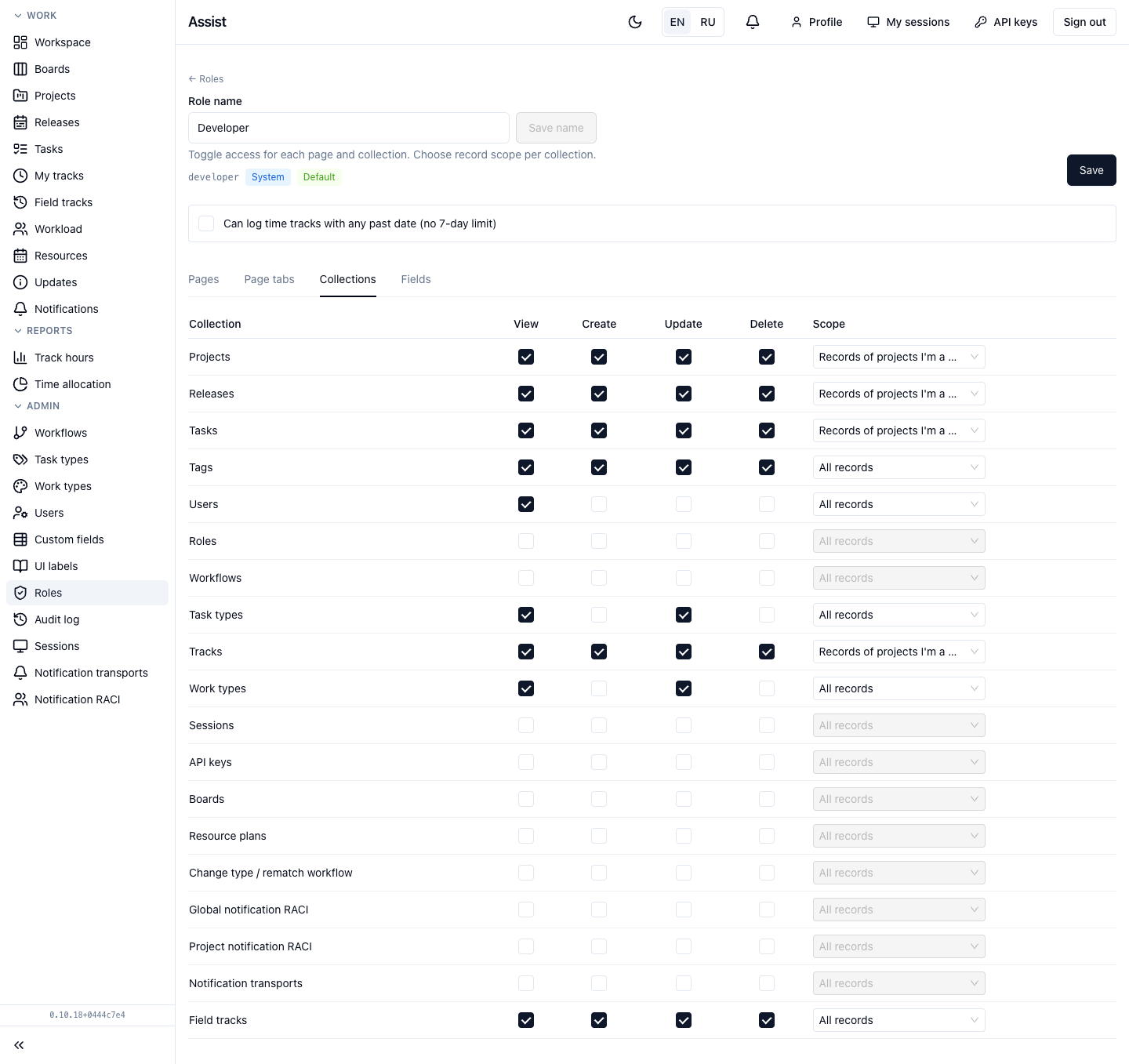
Scopes:
| Scope | What is visible |
|---|---|
| All records | All records of the collection |
| Only project-related | Records of projects where the person is on the team |
| Only own | Records the person created or is assigned to |
A separate option, “Can create tracks retroactively”, removes the 7-day limit for logging time.
- Click Save: the set of permissions is written whole and replaces the previous one.
Do not remove your own role's permission for the “Roles” page: you will lose access to the editor. Permissions apply when an employee next loads the page.
Priority and the default role
- The arrows in the list change priority. A person cannot assign an API key a role “senior” to their own.
- Make default assigns the role that new users get.
- Only a non-system role can be deleted. Users with a deleted role lose access until another is assigned.
Part 2. Adding a user
- In Keycloak, create the employee's account with their email.
- In Assist, open Admin → Users and click New user.
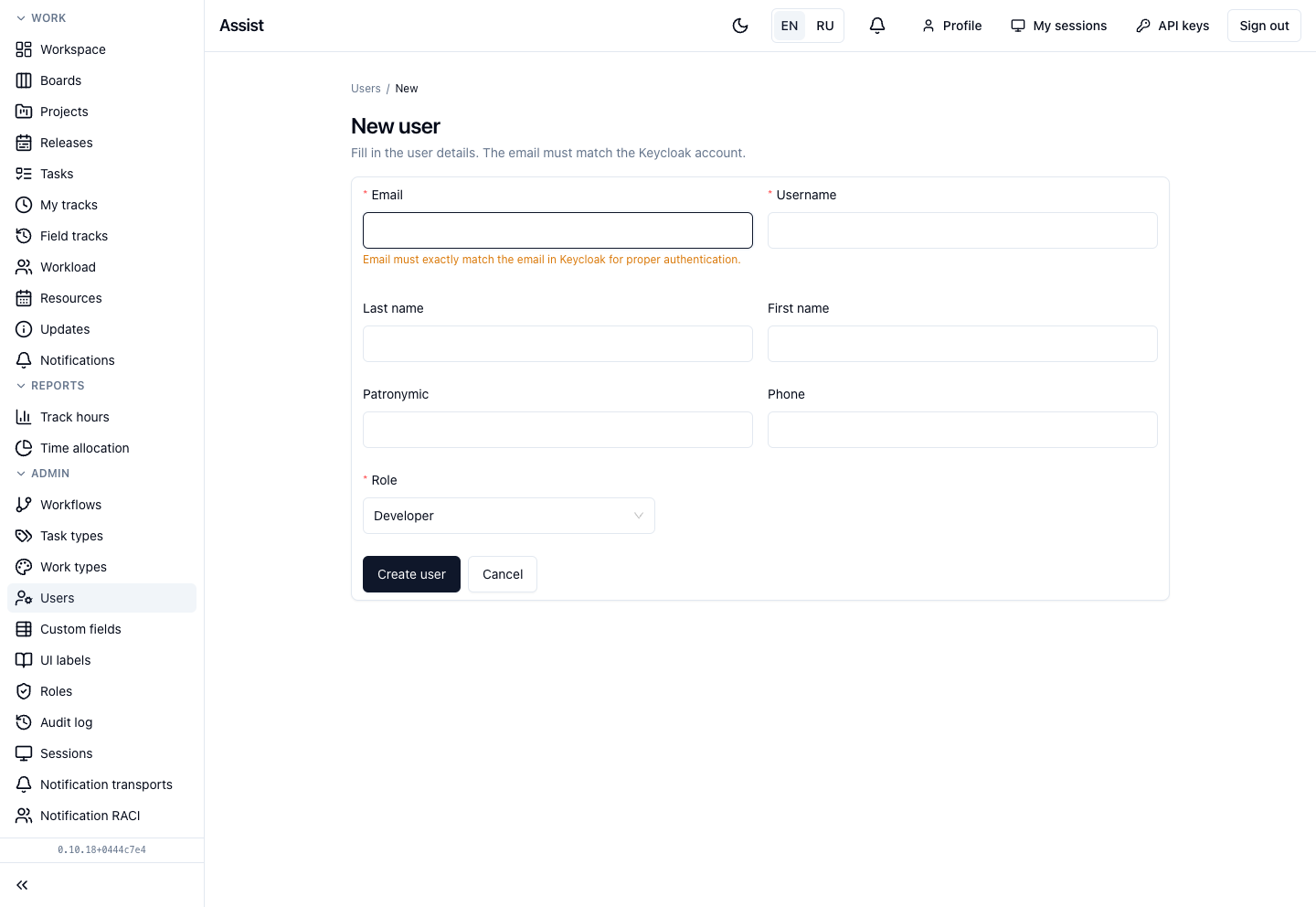
| Field | Required | Rule |
|---|---|---|
| Yes | Exactly as in Keycloak, character for character | |
| Username | Yes | Latin letters, digits, dot, underscore, hyphen; no “@” or spaces; 2–64 characters |
| Last name, first name, patronymic, phone | No | Optional |
| Role | Yes | If you do not know, leave the default role |
- Click Create user.
Result. A record is created with a pre-registration label. After the first sign-in through Keycloak, Assist finds the person by email and assigns the role.
If the person signed in before you created the card, the cabinet creates the record itself with the default role. Change the role in the list.
Part 3. Changing a role and data
- In the user list, choose another role in the Role column and save.
- For other data, open the card (click the full name), change the fields, and click Save. The button is active only after an edit.
- If your role has the permission for rates, the card has a Rate block: type (hourly or fixed) and the cost of an hour.
Part 4. Adding to a project
A role defines permissions, and the project team defines participation. To be able to assign a person as an assignee, add them to the team: “Project. Settings”.
Part 5. Disabling and deleting
More: “Employee offboarding”.
How to check the result
- Sign in under a test account with the new role and make sure the menu and tabs match the intent.
- Check that forbidden sections are unavailable even by a direct link.
Typical mistakes
| Situation | Cause | Solution |
|---|---|---|
| The person did not get the role | The email in Assist differs from Keycloak | Correct the email |
| The person is not in the assignee list | Not on the project team or disabled | Add to the team, check the status |
| After saving a role nothing changed | A page reload is needed | Ask to refresh the page |
| A role cannot be deleted | The role is a system one | Duplicate and change the copy |