Configuring workflows
Goal. Change the process by which tasks, releases, projects, or users pass through stages.
Who does it. The administrator.
What you need before starting. You know the diagram of the desired process: stages, allowed transitions, and conditions.
Time. 30–60 minutes.
Workflow edits apply at once to all objects that follow it. Do not edit a working process directly: clone it and test the copy.
Basic concepts
| Concept | Meaning |
|---|---|
| Stage | The step at which an object is |
| Transition | An allowed move “from stage → to stage” |
| Gate | A transition condition, for example “assignee is set” |
| SLA | The stage deadline in days |
| Automation | An action the system performs on creation or transition |
| Default workflow | Applies when no other fits. One per entity |
The reference of shipped workflow stages: “Stages and transitions”.
Step 1. Clone a workflow
- Open Admin → Workflows.
- Choose the tab of the needed entity: Project, Release, Task, User.
- In the row of the needed workflow, click Clone.

System workflows (the “System” label) ship with Assist. Direct editing is available only to the administrator. The Restore from template button returns a system process to the original and erases your edits.
Step 2. Open the editor
Click Edit on the copy. The editor consists of five tabs.
“General” tab
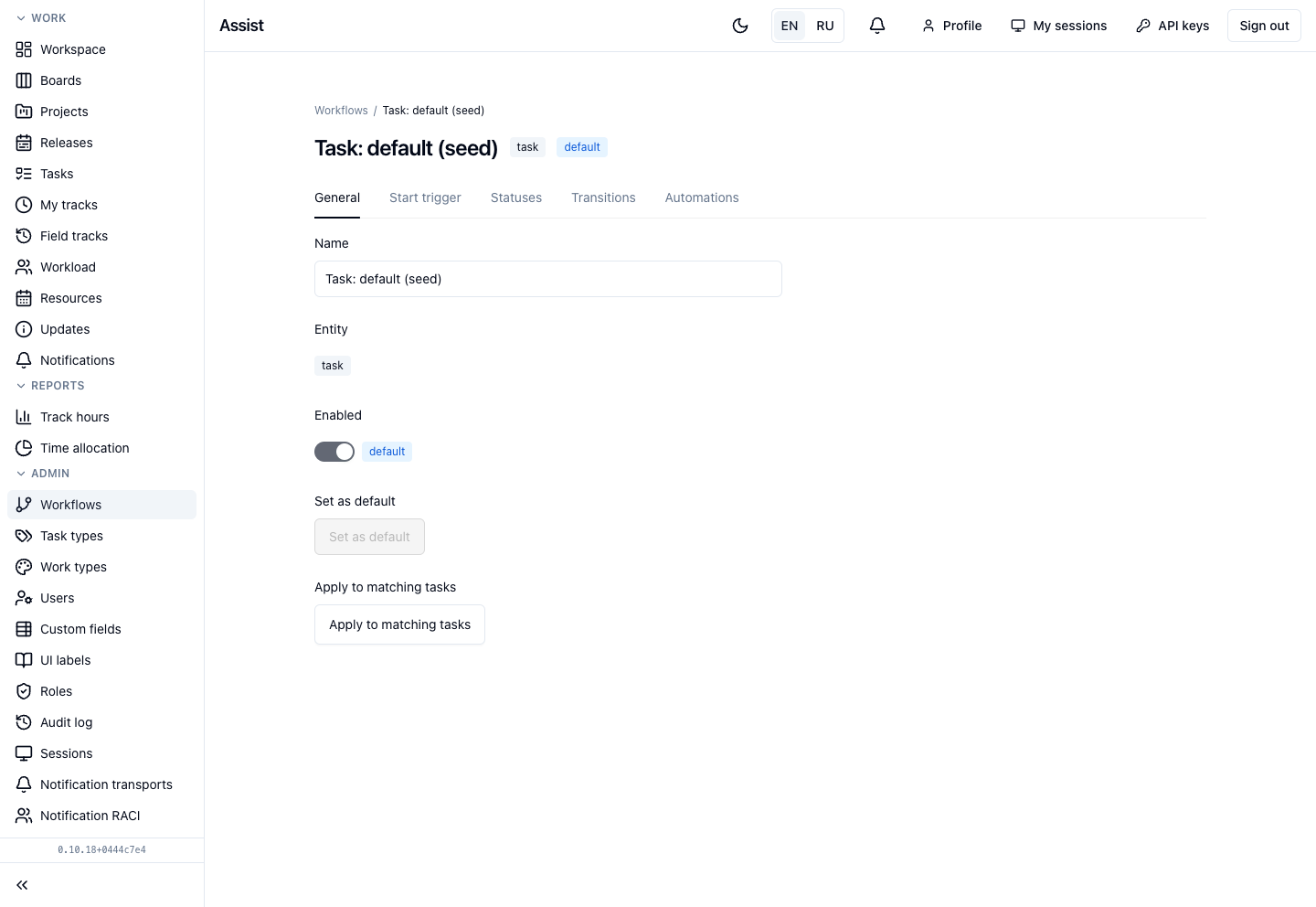
Name, entity, the enable switch. A disabled workflow is not offered for new objects.
“Start trigger” tab
Defines which objects the workflow applies to: a collection and filters. Without filters, the workflow fits all objects of the entity. Use filters so that, for example, the “Support” workflow applies only to support-type projects.
“Statuses” tab
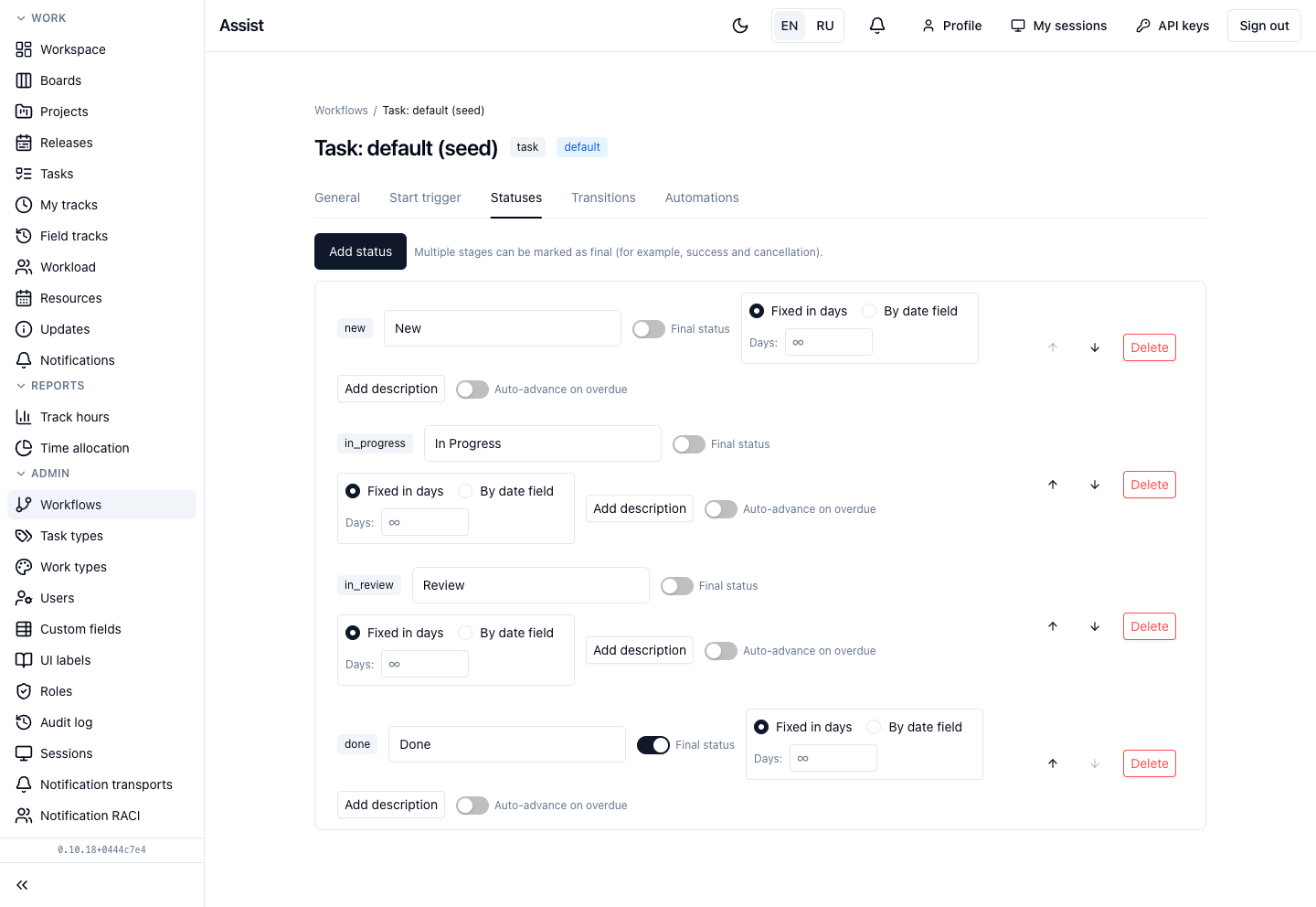
- Click Add status.
- Enter a key (a service name, for example
qa_check) and a name for people. - For finishing stages, turn on Final status. There can be several final ones.
- If needed, set the SLA in days, turn on Auto-advance on overdue, and fill in the stage description.
- Arrange the order with the arrows.
“Transitions” tab
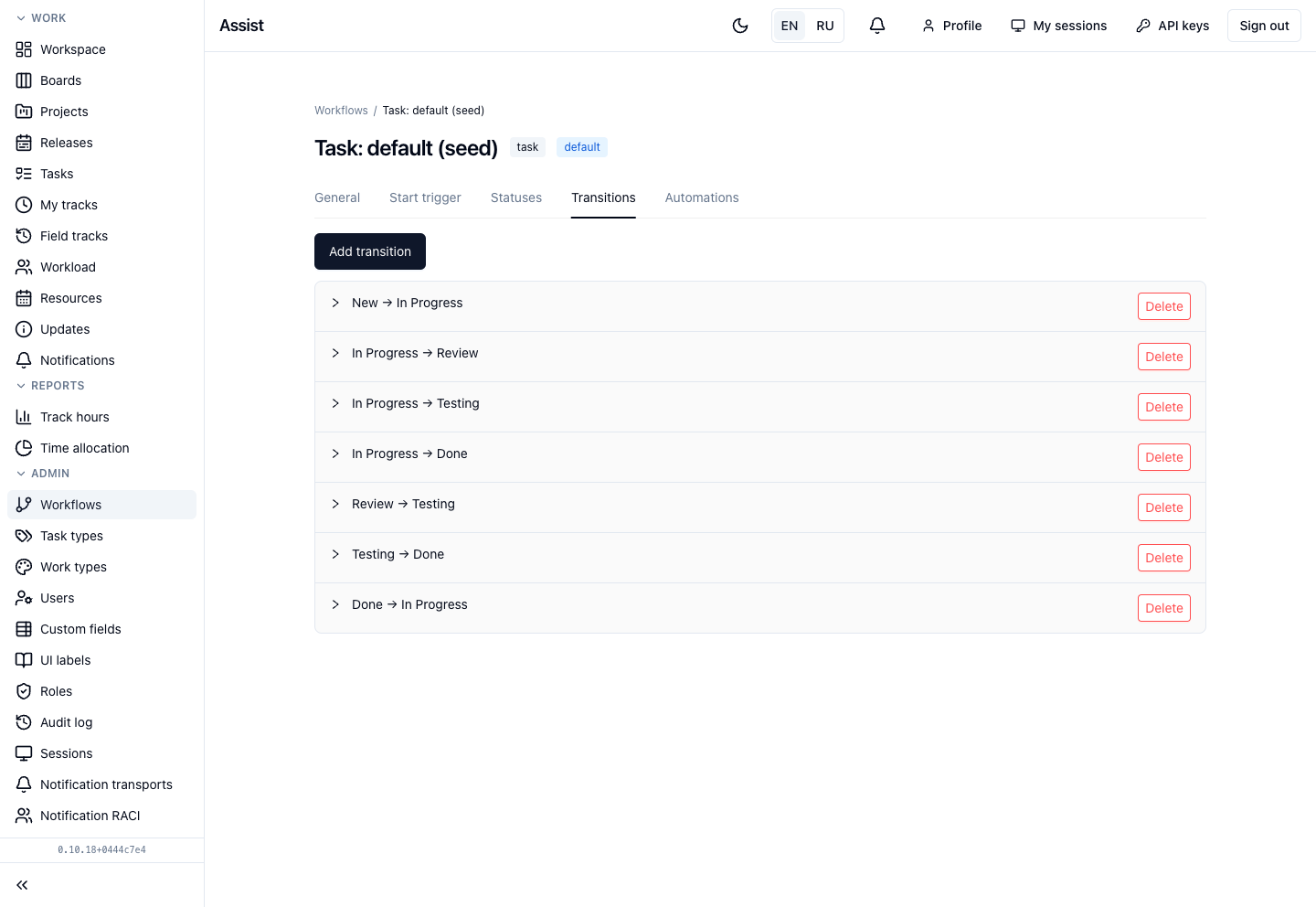
- Add transitions “from → to” between stages.
- Expand a transition with the arrow on the left. Without a gate, a transition is always allowed.
- To set a condition, click Enable gate:
- add Requirements, for example “Assignee is not empty”, “Estimate is not empty”, “Start date is set”; requirements are combined by the groups “all (AND)” and “at least one (OR)”;
- enter a hint: the text people see on blocking;
- mark fields in the Lock these fields after passing this transition block.
“Automations” tab
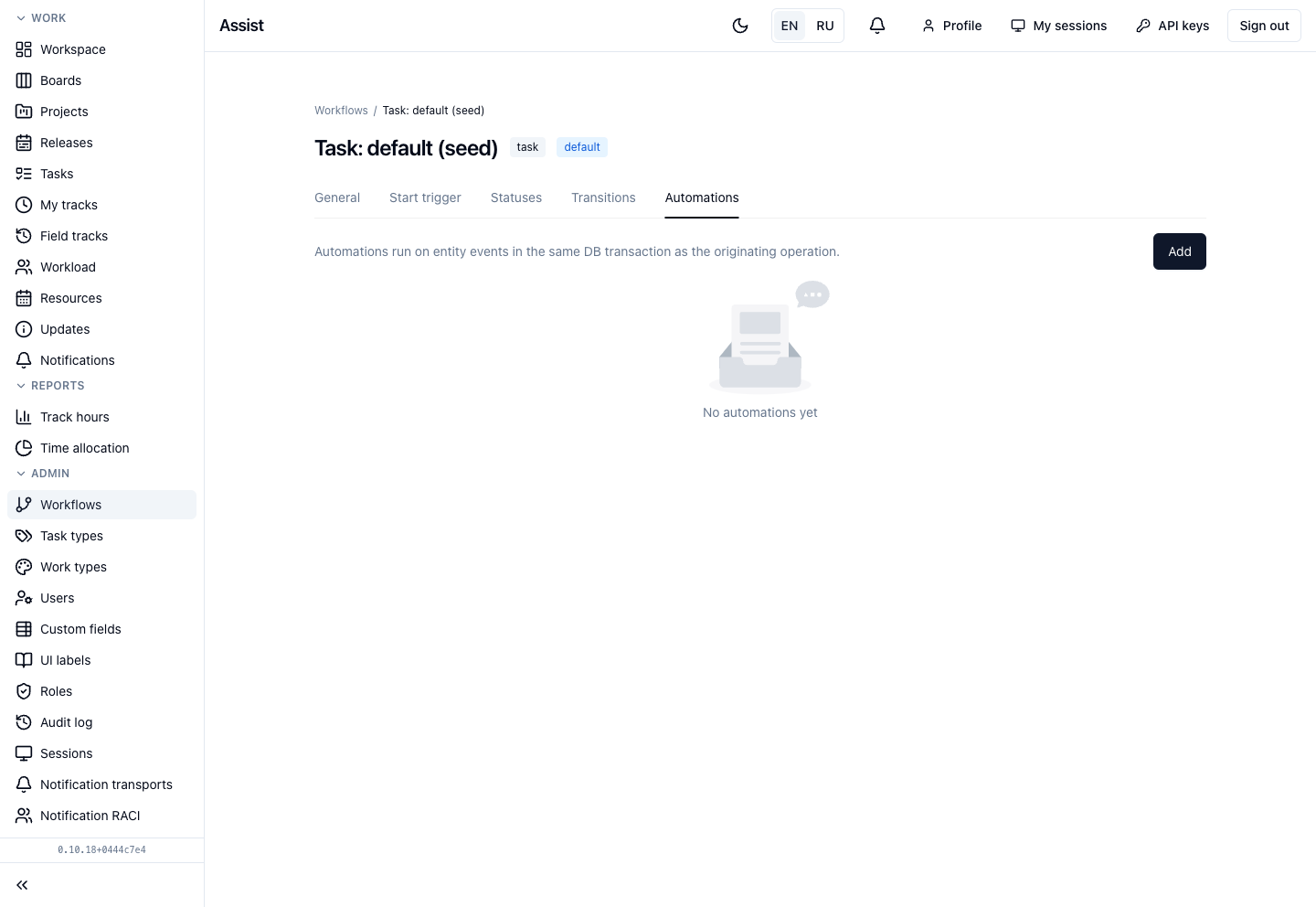
Automatic actions on the events On create, Before create (validation), and On transition:
- change the stage of a related object;
- fill a field with the current time;
- write or copy a field value;
- block the operation under a condition;
- choose a new current release.
Automations of system workflows are view-only.
Step 3. Enable the workflow and make it default
- On the “General” tab, turn on the switch.
- Click Set as default if the workflow must apply to new objects.
- The cabinet asks whether to move existing objects. If not, they stay on the old process.
Step 4. Apply to existing tasks
For task workflows there is the Apply to matching tasks button: a three-step wizard (choose tasks, map stages, confirm). The button is unavailable while the workflow is disabled or has no statuses.
Step 5. Test on a test object
- Create a test task or release.
- Go through the stages.
- Make sure the gates fire, the hints are clear, and the locks appear where needed.
Deletion and disabling
- Deleting a workflow hides it: new objects are not created on it, existing ones stay.
- The last enabled workflow of an entity cannot be disabled or deleted.
Typical mistakes
| Situation | Cause | Solution |
|---|---|---|
| Users complain that they cannot move | The gate is too strict | Check the conditions and the hint |
| Tasks stayed on the old process | The new workflow was not applied | Use “Apply to matching tasks” |
| Automations cannot be edited | The workflow is a system one | Clone it |
| You deleted a needed stage | Objects at it are left without a transition | Restore the stage and move the objects |
What next
- Task types: a type is linked to a workflow.
- Custom fields.