Custom fields
Goal. Add a field that is absent from the product (for example, “Contract number” on a project) and make it visible where needed.
Who does it. The administrator with permission for the “Fields (constructor)” page.
What you need before starting. It is known: which entity the field belongs to, what type of values it has, and who should see and change it.
Step 1. Open the constructor
- Open Admin → Custom fields.
- In the Collection list, choose an entity: projects, releases, tasks, tags, users, and others.
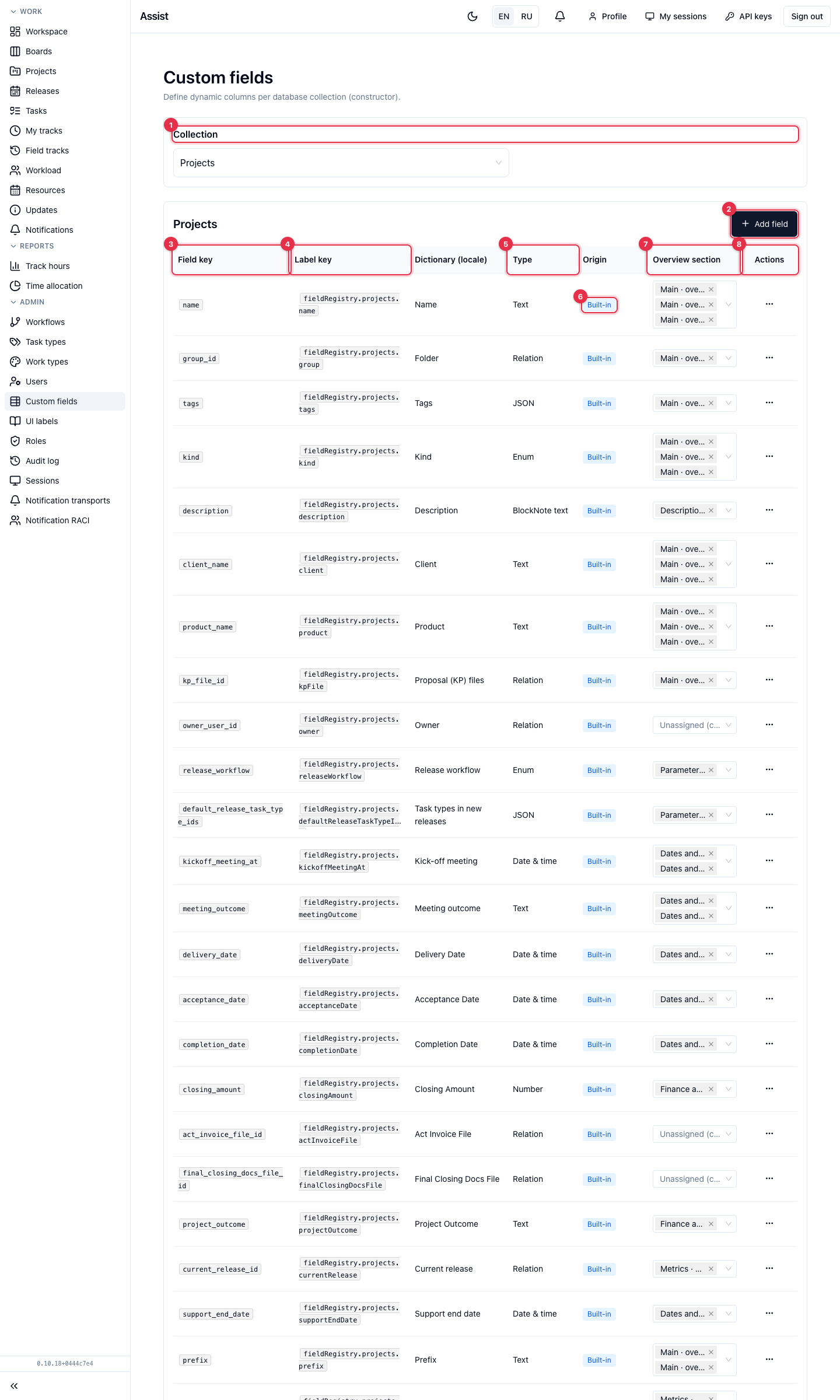
Built-in fields (the “Built-in” label) ship with the product. Your own fields are marked “Custom”.
Step 2. Create a field
- Click Add field.
- Fill in the form.
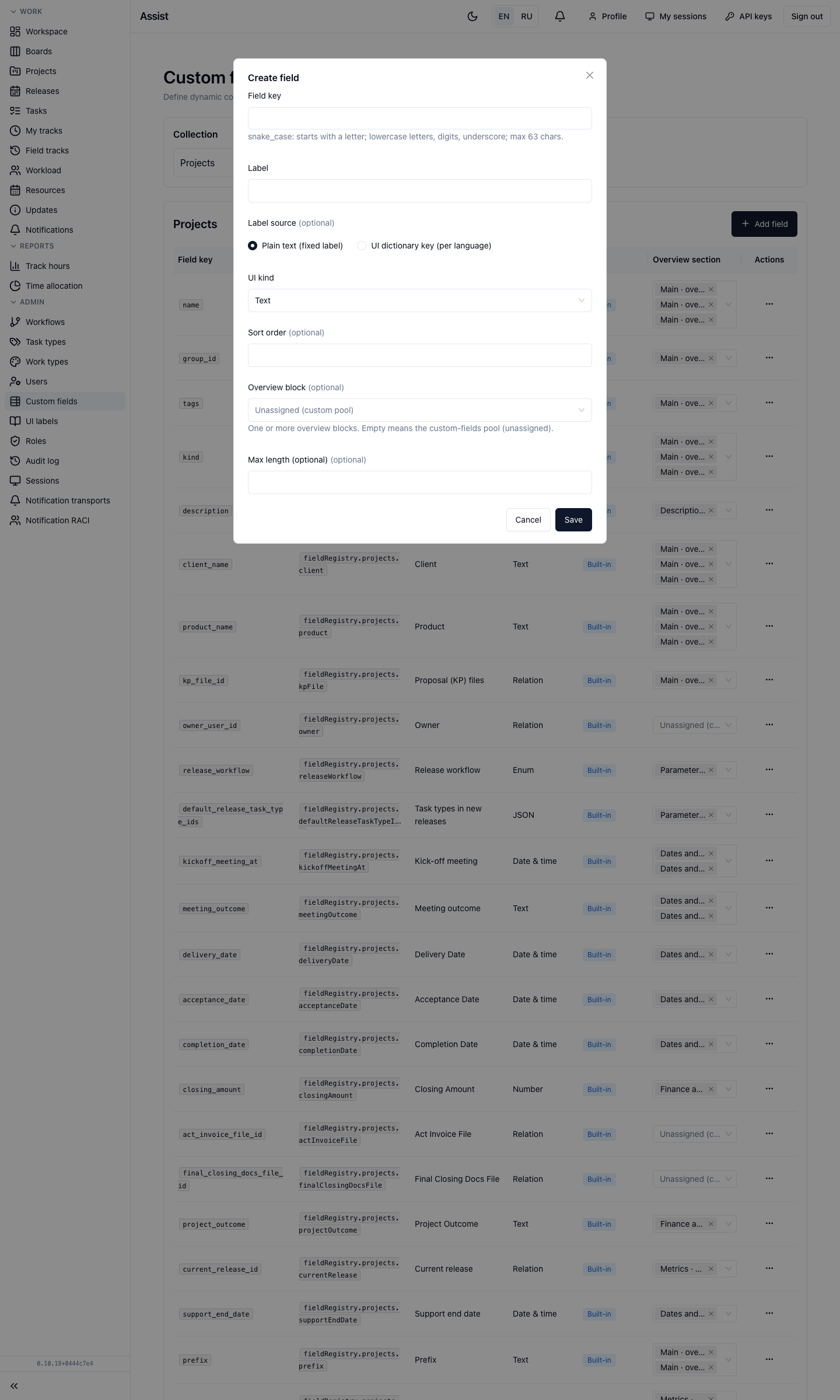
| Form field | Rule |
|---|---|
| Field key | Starting with a letter; lowercase Latin letters, digits, underscore; up to 63 characters, for example contract_number |
| Label | The name people will see |
| Label source | Fixed text or a dictionary key. A key is needed if the name must differ in Russian and English |
| UI kind | Type: text, multiline text, BlockNote text, date and time, number, yes/no, file, relation, enumeration, JSON |
| Sort order | The field's place among others |
| Overview block | The card block where the field is shown. If empty, the field goes to “Additional fields” |
- Click save.
How to choose a type
| What you need | Type |
|---|---|
| A short string | Text |
| A long description | Multiline text or BlockNote |
| A date | Date and time (turn off “Show time” if you need a day) |
| An amount, a quantity | Number |
| A checkbox | Yes / no |
| Attach a document | File |
| A link to another record | Relation |
| Choice from a list | Enumeration |
Step 3. A label in two languages
- Open Admin → UI labels.
- Choose the editing language and click Add key, for example
contract.title. - Enter the text for Russian, then switch the language to English and enter the translation.
- Return to the field and choose the label source “Dictionary key”.
More: “UI label dictionary”.
Step 4. Place the field in the card
Choose the Overview section right in the field table. Card blocks can be created at the bottom of the table: for a block you set the place on the page and the display conditions (always, if the field is filled, if the field equals a value).
Step 5. Value history
For numeric fields, yes/no fields, and dates, turn on the Trackable checkbox: each change is recorded and is visible on the “Field tracks” page.
Step 6. Field permissions
Open Admin → Roles, choose a role, the Fields tab. Mark the field for the roles that should see and change it. As soon as at least one field is marked in the matrix, an allow-list mode is enabled for the collection: other fields become unavailable. More: “Users and roles”.
Renaming and deleting
- Rename key. In the row's “…” menu. Role permissions are updated automatically.
- Delete. The column and all data are deleted irreversibly. To confirm, enter the field key. First make sure the field is not used anywhere.
How to check the result
- Open an entity (for example, a project) and find the field in the needed block.
- Fill in a value and refresh the page.
- Sign in under a role without permissions for the field and check that it is hidden.
Typical mistakes
| Situation | Cause | Solution |
|---|---|---|
| The field is not visible in the card | No permission to view the collection or the field | Configure the role |
| The key is not created | Invalid characters | Only lowercase Latin, digits, underscore |
| No value history | Trackable is not on | Turn the checkbox on |
| The label is in one language only | No translation of the key | Add a translation in the dictionary |