Employee offboarding
Goal. Close a person's access, hand over their work, and keep history and hours.
Who does it. The administrator together with the employee's manager.
What you need before starting. The departure date and whom the tasks are handed to are known.
Time. 15–30 minutes.
The main rule. Do not delete the employee: disable them. A disabled person cannot be an assignee and cannot sign in, but their hours, comments, and history remain.
Step 1. Hand over the tasks
- The manager opens Work → Workspace, the Team mode, and finds the employee's tasks. Or open a project and filter tasks by assignee in the scope.
- For each unfinished task, in the Assignee column choose a new person.
- Move tasks that are no longer needed to the final stage.
More: “Working with tasks”.
Step 2. Check releases and projects
- If the employee was responsible for a release, open the release, the “Overview” tab, and replace the assignee. If the field is locked, return the release to a stage where it is open (if the workflow allows).
- If they were on a project team, open the project's “Settings” tab, click Remove, then Save team. A project owner cannot be removed: hand the project over first.
Step 3. Check the hours
Make sure the latest hours are logged (older than 7 days cannot be logged): the “Track hours” report.
Step 4. Disable the user
- Open Admin → Users and click the employee's full name.
- In the Status block, choose “Disabled” and click Apply transition.
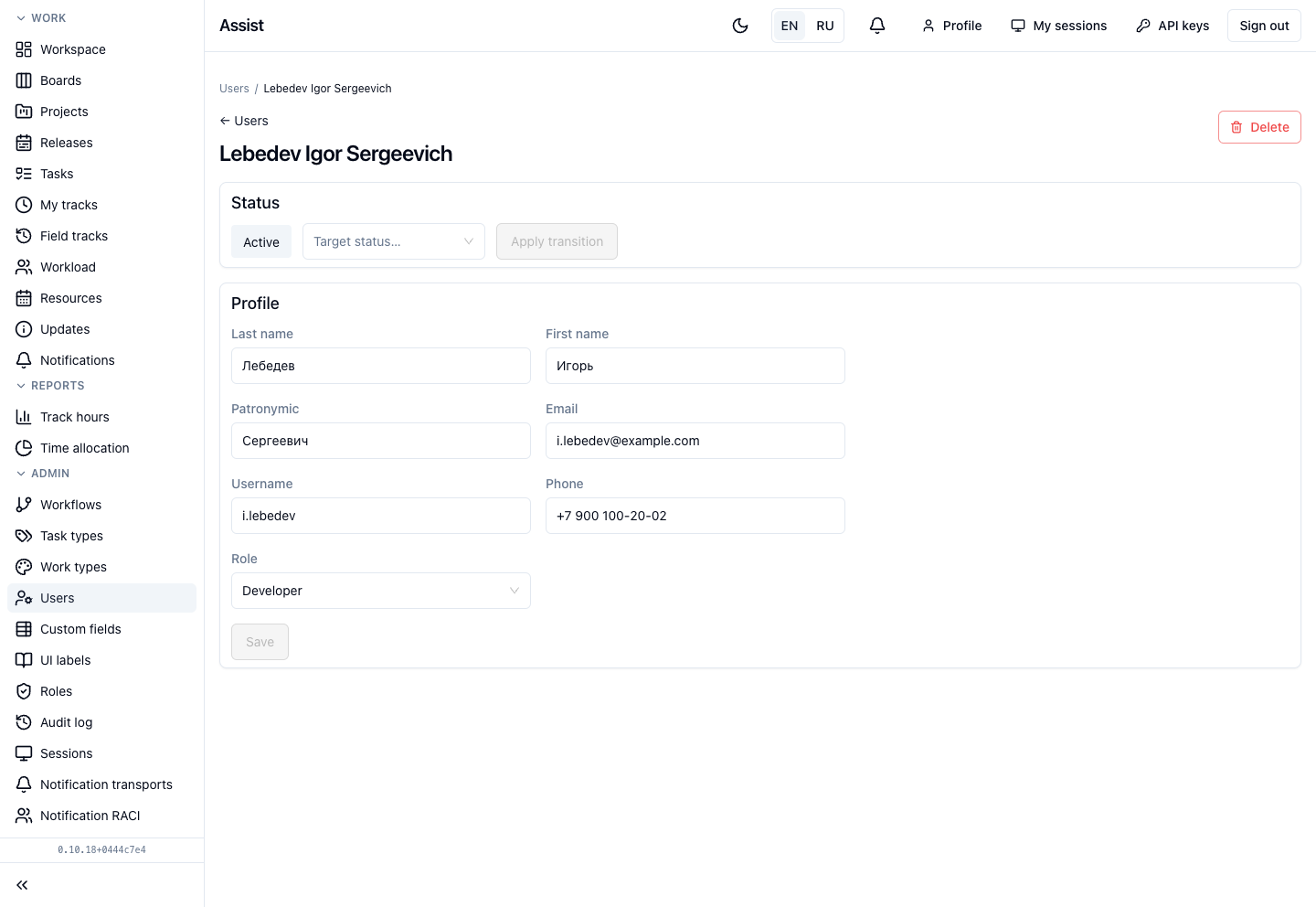
Result. The person is not chosen as an assignee. Past records are kept.
Step 5. End the sessions
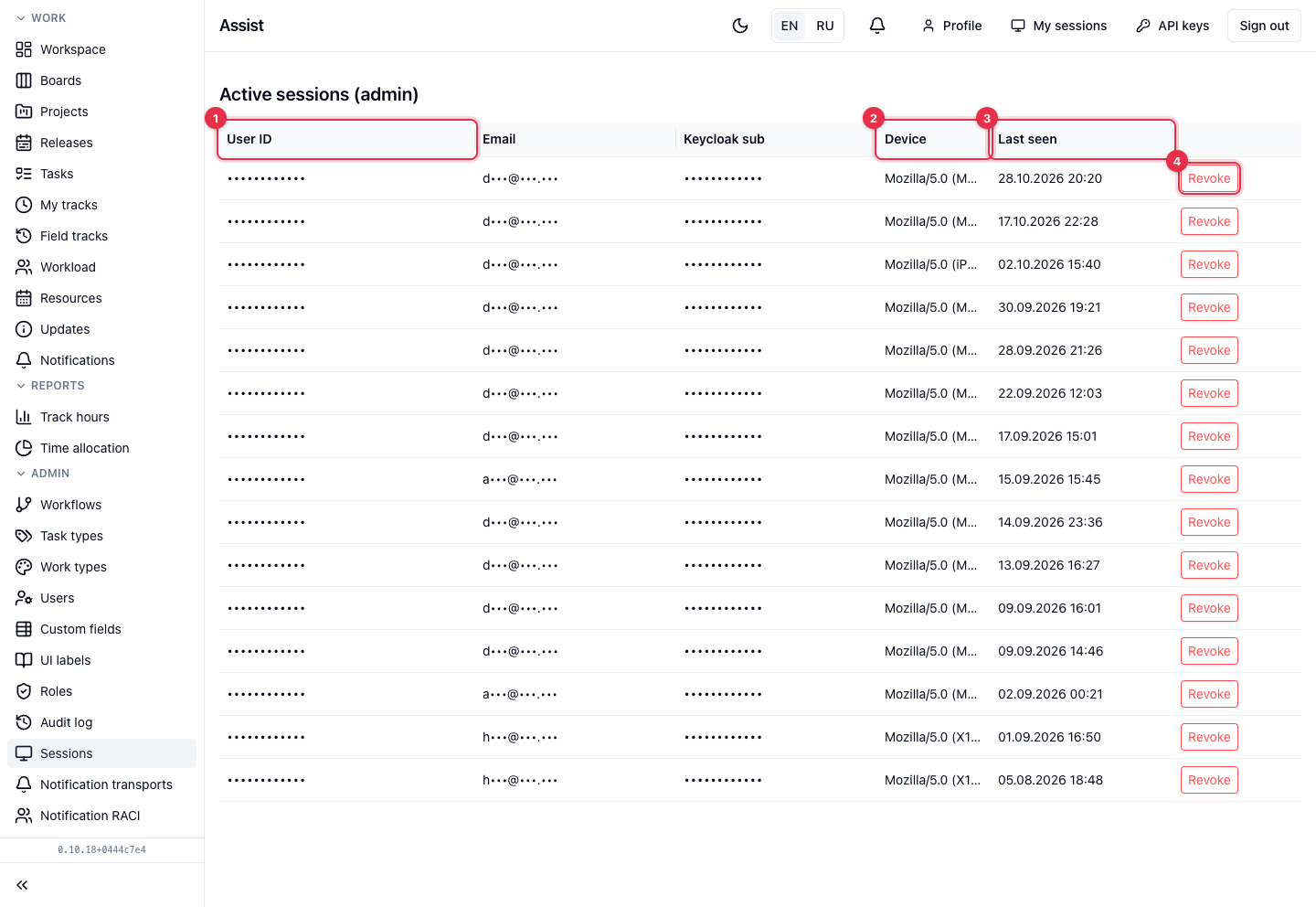
- Open Admin → Sessions.
- Find the rows with the employee's email.
- Click Revoke and confirm. The person is thrown out of the cabinet.
Step 6. Close the sign-in in Keycloak
Disable or delete the employee's account in Keycloak. Assist stores only the profile and the role; the password is in Keycloak. Without this step, the person can get a new session.
Step 7. Revoke keys and webhooks
- Click API keys in the header. If your role has the permission to manage others' keys, the list shows all users' keys. Revoke the employee's keys.
- If their integrations used a key or a webhook, create a replacement on behalf of another employee.
Step 8. Deletion (only if truly necessary)
The Delete button in the user card deletes the record after confirmation. You cannot delete yourself. Use deletion only for mistakenly created records.
How to check the result
- The user card has the status “Disabled”.
- There are no rows of theirs in the session list.
- They have no tasks in progress.
- The account in Keycloak is disabled.
Typical mistakes
| Situation | Cause | Solution |
|---|---|---|
| The person still signs in | Not disabled in Keycloak | Disable the account |
| A release was left without an assignee | Not handed over | Assign an assignee |
| The employee's data disappeared | The user was deleted instead of disabled | For departed employees use only disabling |