Integrations: AI assistant, API, and webhook
Goal. Connect Assist to other programs: ask an AI helper for data, create tasks and log time from scripts, and receive events in your systems.
Who does it. The employee who needs the connection. Working with others' keys requires administrator permissions.
What you need before starting. Define what you need to do:
| Task | Method |
|---|---|
| Ask an AI helper about projects, tasks, hours | MCP (read-only) |
| Create tasks, log time, change data programmatically | REST API |
| Receive events in your system | Webhook |
The developer reference: “API and integrations”.
Part 1. Create an API key
A key is needed for MCP and the REST API.
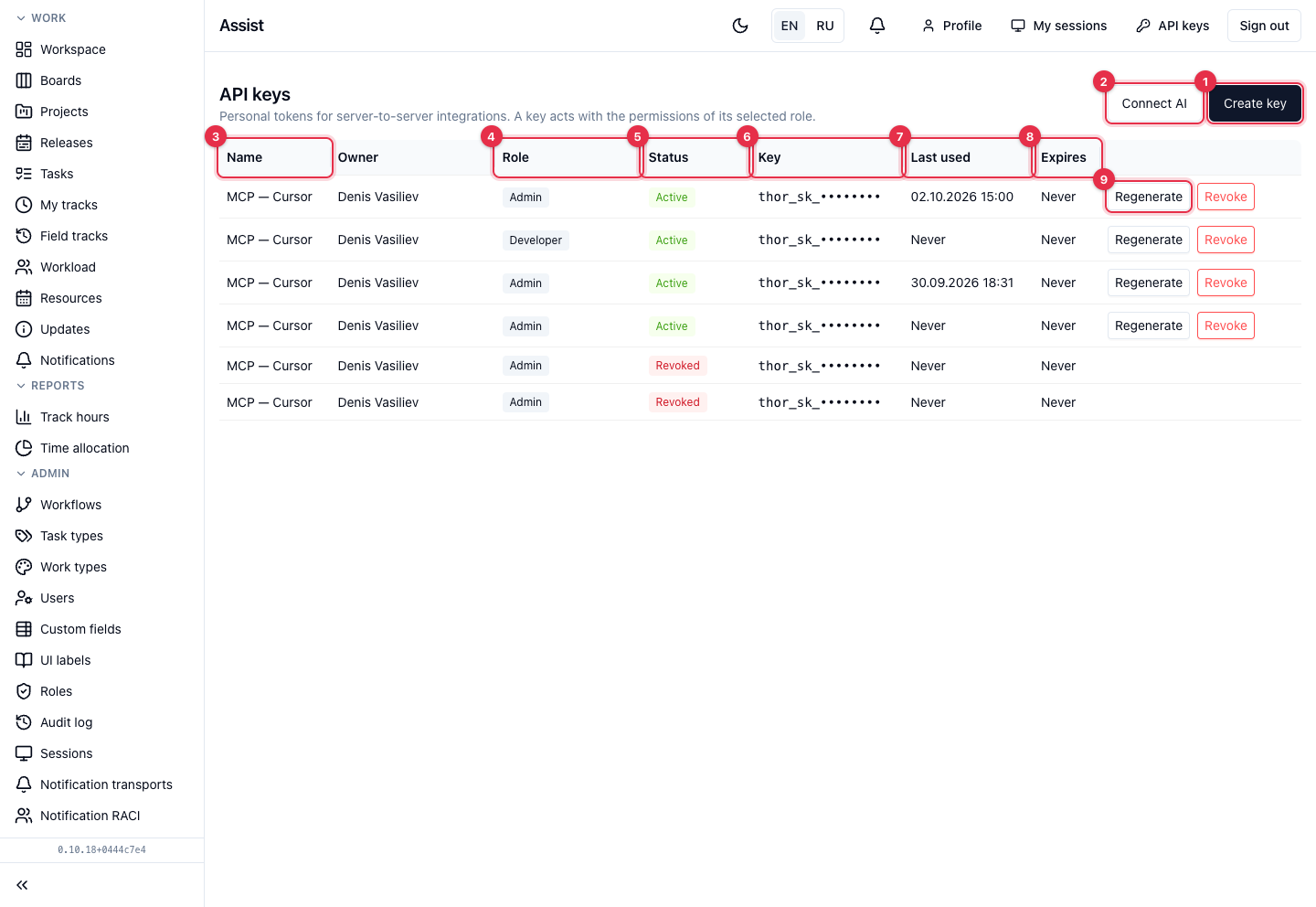
- Click API keys in the cabinet header.
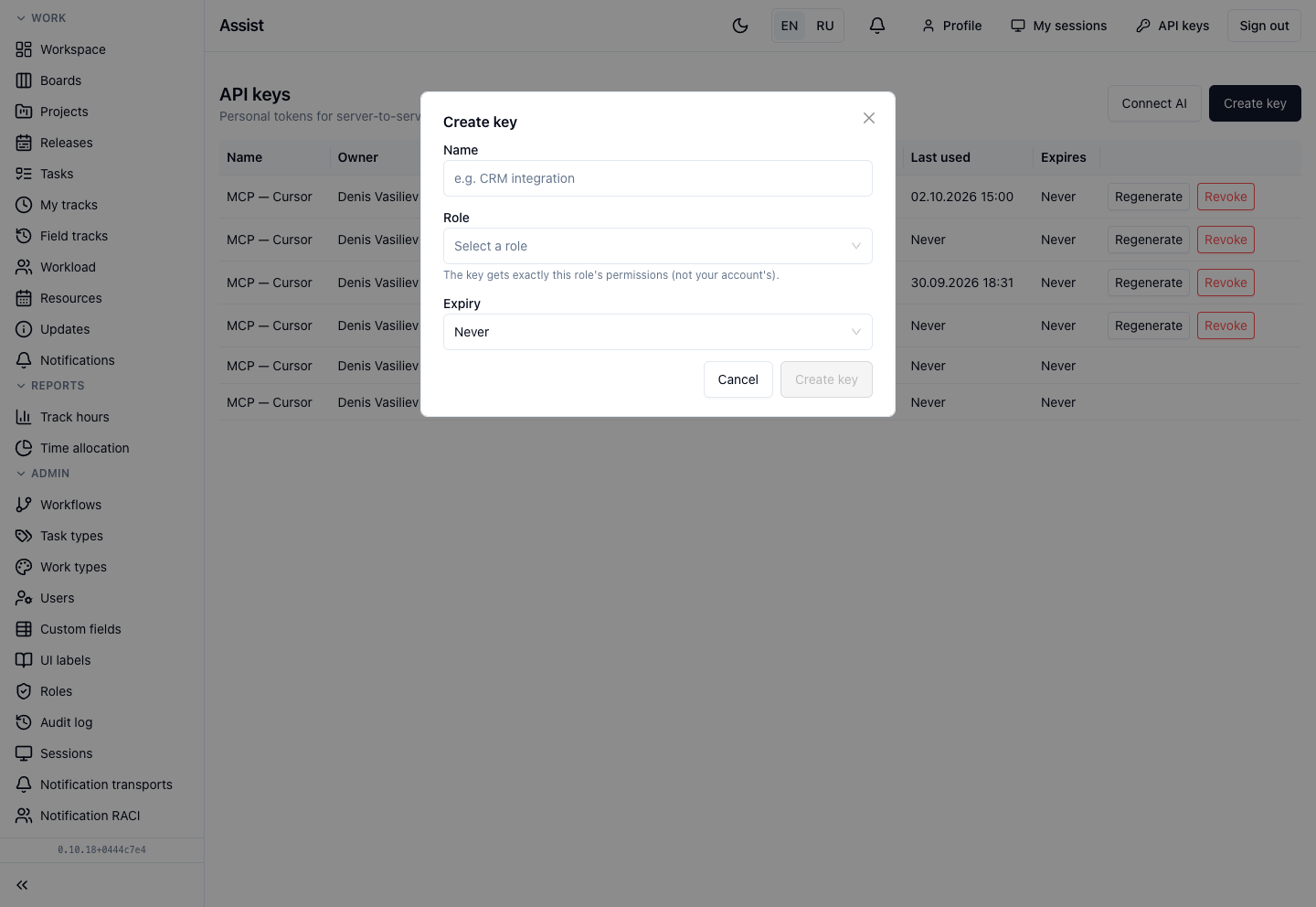
- Click Create key.
- Enter a Name, for example “CRM integration”.
- Choose a Role. The key gets the permissions of exactly this role. You can choose your own role or a role with lower priority.
- Choose the Expiry: “Never”, 30, 90, or 365 days.
- Click Create key.
- Copy the
thor_sk_…token and keep it in a safe place. It will not be shown a second time.
A token is like a password. Do not send it in messengers and do not store it in a repository. Give the key a role with the minimum needed permissions and create a separate key for each integration.
Part 2. Connect an AI assistant (MCP)
MCP works read-only: the assistant cannot create or change anything.
- On the “API keys” page, click Connect AI.
- Choose a role. The assistant will see exactly what this role sees.
- The cabinet creates a key and shows the Connect an AI assistant (MCP) window with the tabs Cursor, Claude Code, Codex, Other harness, and Check (curl).
- Click Copy and paste the configuration into your AI client's settings.
- Check the connection on the “Check (curl)” tab.
The key in the window is shown once.
Examples of questions to the assistant:
- “Which tasks of project RGM are in progress now and whose?”
- “How many hours went to release 2.4 this week?”
- “Who is responsible for the payment system integration?”
For accurate answers, fill in the participants' “Areas of responsibility” in the project settings: “Project. Settings”.
Part 3. Work through the REST API
Principles:
- Address:
https://<cabinet-address>/api. - The
Authorization: Bearer thor_sk_…header. - Permissions are determined by the key's role. If permissions are lacking, the API returns 403.
- For changing requests, add
Idempotency-Keyso that a repeat does not create a duplicate. - Limit: 180 requests per minute.
Example: create a task.
curl -X POST "https://<cabinet-address>/api/projects/<PROJECT_ID>/tasks" \
  -H "Authorization: Bearer thor_sk_..." \
  -H "Content-Type: application/json" \
  -H "Idempotency-Key: crm-import-001" \
  -d '{"title": "Task from CRM"}'
Other methods and examples: “API and integrations”.
Part 4. Connect a webhook
- Open Profile → Notification channels, the Your webhooks block.
- Enter a Webhook name and a Webhook URL. The address must be public and start with
https://. - Click Create webhook.
- The cabinet shows the secret once. Copy it and click “I copied the secret”.
- Turn on the Webhook channel for the needed events on the Notification settings tab: “Notification setup”.
In your system, check the X-Assist-Signature header: sha256= and the HMAC-SHA256 of the request body with your secret. An example of verification: “API and integrations”.
Part 5. Regenerating and revoking keys
- Regenerate: a new token; the old one stops working at once. Update the token in integrations.
- Revoke: the key stops working forever.
- Keys can be created, regenerated, and revoked only in the interface.
- The number of active keys is limited: the cabinet reports when the limit is reached.
How to check the result
- The assistant answers a question about projects.
- A test
GET /api/merequest returns your profile and the key's permissions. - In “API keys”, the key has a value in the “Last used” column.
Typical mistakes
| Situation | Cause | Solution |
|---|---|---|
| 401 | No key or the key is invalid | Check the token and expiry |
| 403 | The key lacks permissions | Choose another role or ask the administrator |
| 404 | The record is outside the role's scope | Check the role's scope |
| 429 | The limit is exceeded | Wait, see retry-after |
| A webhook rejects the address | The address is private or not HTTPS | Use a public HTTPS address |