Notifications. Your settings
Purpose. Decide two things: what to be told about and where to send the messages.
Who sees it. Each user configures their own notifications.
How to open. The Profile button in the header, the Notification settings and Notification channels tabs. The profile page: “Profile”.
What to be told about
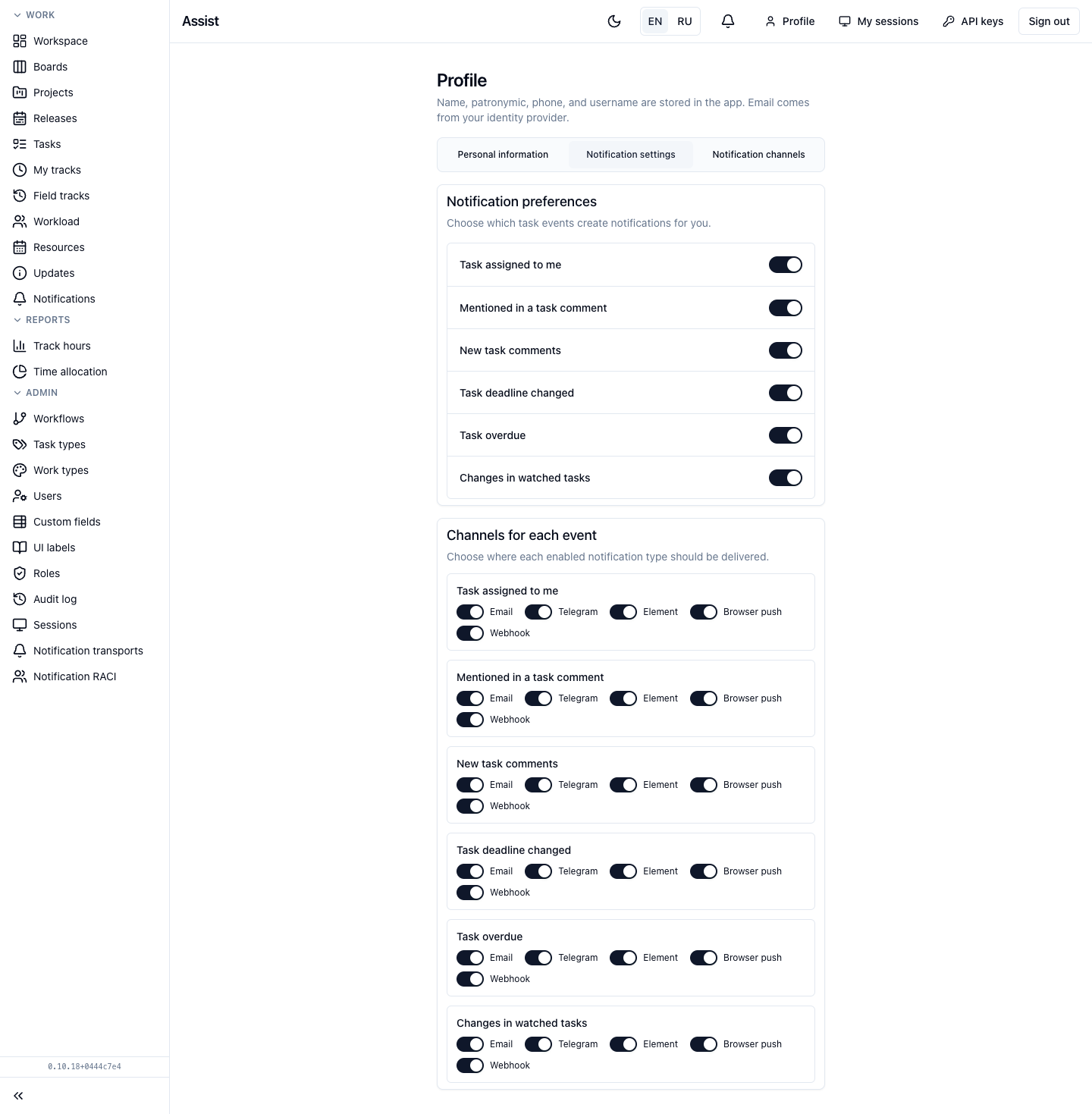
The Notification settings tab consists of two blocks.
Notification preferences — event switches:
- “Task assigned to me”;
- “Mentioned in a task comment”;
- “New task comments”;
- “Task deadline changed”;
- “Task overdue”;
- “Changes in watched tasks”.
Channels for each event. For each enabled event, choose where to deliver it: Email, Telegram, Element, browser push, or Webhook. Important events (assignment) can be received everywhere, secondary ones (comments) only in the cabinet. If the channel you need is absent, connect it first on the neighboring tab.
Where to send
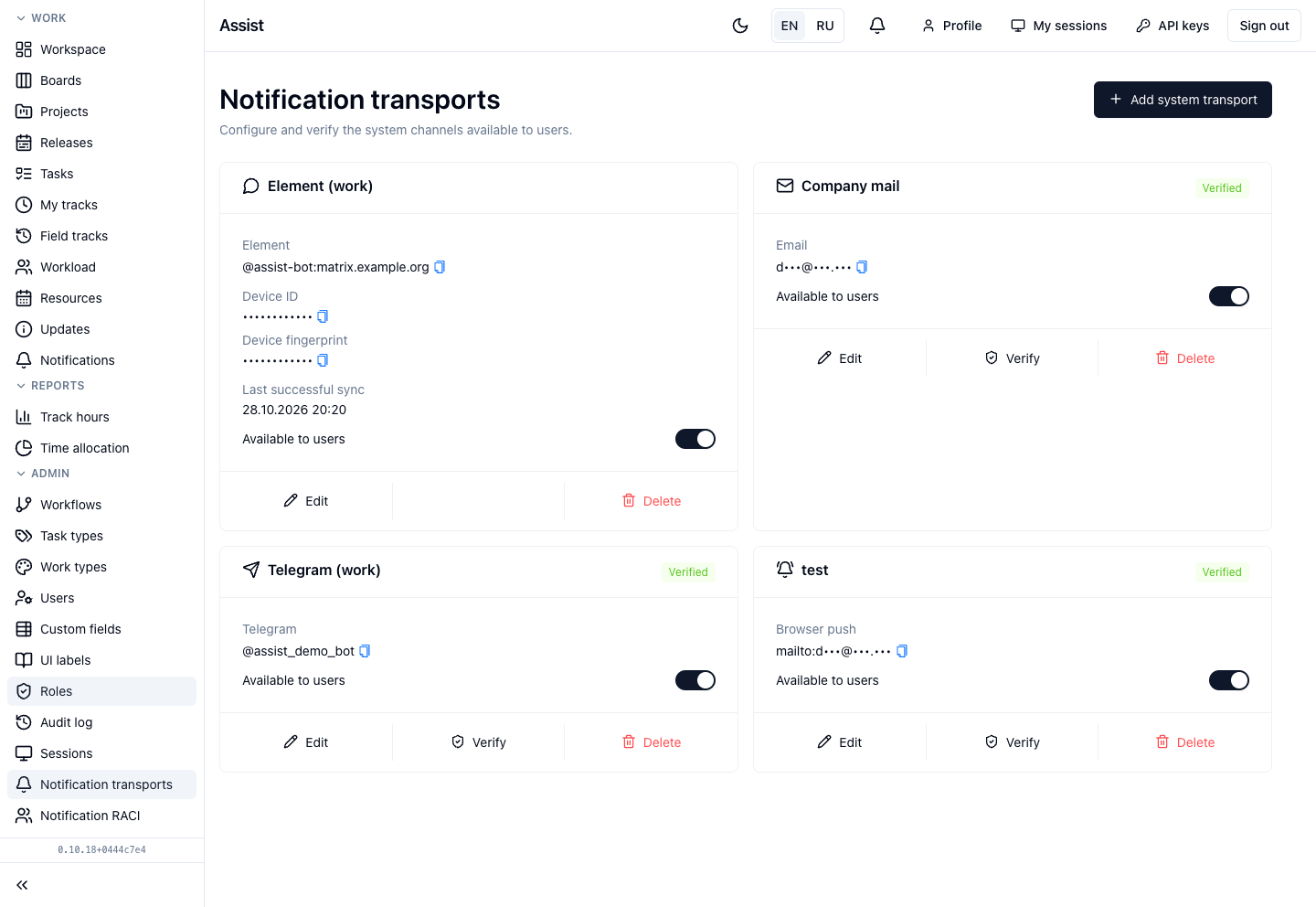
The Notification channels tab shows the channels the administrator opened in “Notification transports”. If it is empty, it says “No system channels are configured”: ask the administrator to add channels.
| Channel | How to connect |
|---|---|
| If the mail transport is configured, it is shown as connected, and emails go to your address from Keycloak | |
| Telegram | Click Get Telegram link, open the bot by the link, and confirm. The connection completes by itself |
| Element | Click Get pairing code, start an encrypted private chat with the Assist bot, and send the code in one message. The code is valid for 15 minutes. Only encrypted rooms are accepted |
| Browser push | Click Enable push and allow notifications in the browser |
A connected channel can be turned off with the switch or Deleted. If the last delivery ended with an error, a warning appears next to the channel.
Webhook
In the Your webhooks block you can send events to any of your addresses.
- Enter a Webhook name and a Webhook URL. The address must be public and start with
https://. Private and local addresses are rejected. - Click Create webhook.
- The cabinet shows the secret once. Copy it and click “I copied the secret”: it cannot be shown a second time.
Assist sends one HTTPS POST per event. To verify authenticity, use the X-Assist-Signature header: sha256= and the HMAC-SHA256 of the exact request body with your secret. The Webhook contract block expands the method, headers, and body format. A webhook can be edited, paused, and deleted.
If a notification did not arrive
- Open “Notifications” and look at the message's Delivery history: the state for each channel.
- Check that the event is on and a channel is selected for it.
- Make sure the channel is connected and not turned off.
- If nothing helped, contact the administrator: the transport may need checking.