Time allocation
Purpose. Answer the question “which projects did each employee's time go to”. Employees are in rows, projects in columns, hours or percentages in cells.
Who sees it. The same roles as for the “Track hours” report.
How to open. Menu Reports → Time allocation.
What is on the screen
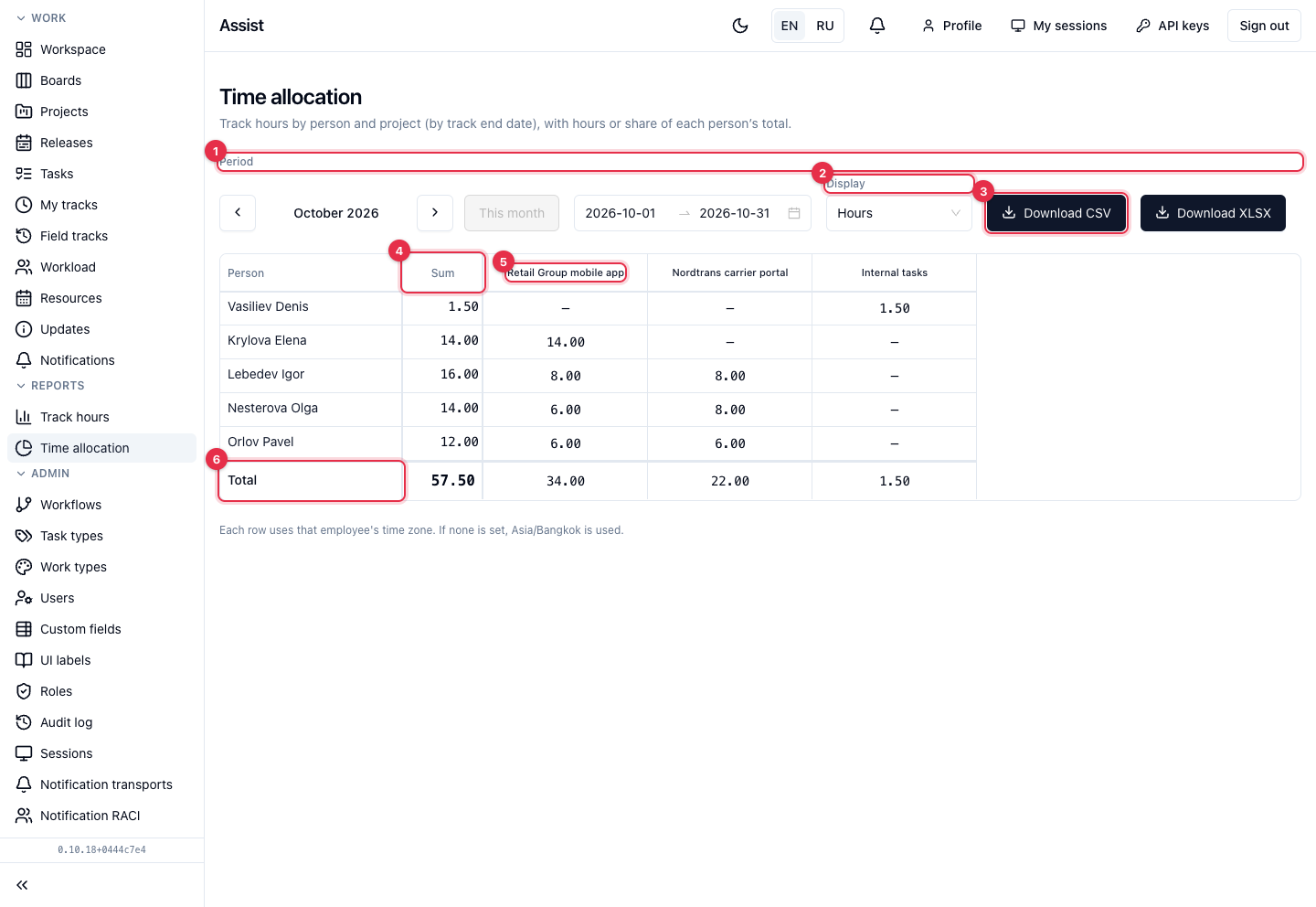
- Period: a month with arrows or a range of dates.
- Display: Hours or Percent. In percent, a cell is the share of the employee's total time for the period, so a row adds up to 100%.
- Download CSV and Download XLSX.
- The Sum column — total hours of the employee for the period.
- Project columns. A dash means nothing is logged on the project.
- The Total row — how many hours went to each project.
What you can do
- Understand how a person splits time. Look at the employee's row.
- Find the most costly project. Look at the “Total” row.
- Choose a mode. For client settlements — Hours, for load analysis — Percent.
As in the “Track hours” report, a track's date is determined by its end, and days are counted in the employee's time zone.