Resources. Plan–fact
Purpose. Show the plan and the fact in one table. Each employee has two rows: Plan and Fact. The Total column sums up the month, the day columns show discrepancies.
Who sees it. Roles with permission for the “Resources” section.
How to open. Menu Work → Resources, the Plan–fact tab.
What is on the screen
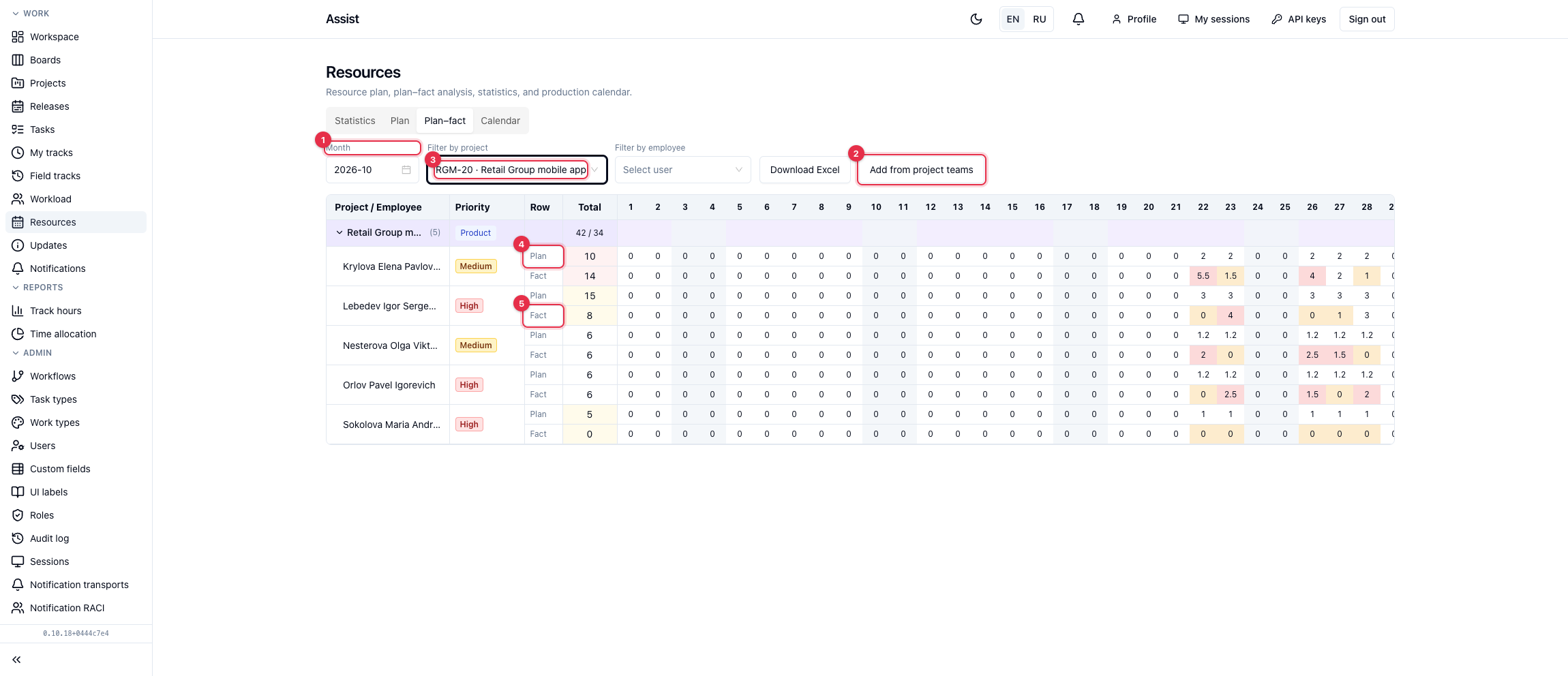
- Filters Month, by project, by employee. Download Excel exports the table.
- Add from project teams creates plan rows for team members if they do not exist yet.
- A project row. In “Total”, separated by a slash, the sum of plan and fact, for example “260 / 34”.
- The Plan row — planned hours.
- The Fact row — hours logged by tracks on this project.
What the colors mean
Fact cells are highlighted relative to the plan. A caption appears on hover.
| Color | Caption | When |
|---|---|---|
| No highlight | On plan | The fact is within the plan |
| Amber | Underload | The fact is below the plan by more than 20% |
| Red | Overspend | The fact is above the plan by more than 10% |
Day cells and the monthly total are highlighted.
What you can do
- Find underload. Amber rows: people log less than planned. Perhaps they do not log time or work on another project.
- Find overspend. Red: a person spends noticeably more than planned. Revisit estimates or redistribute people.
- Check a past month. Choose a month and compare totals by project.
If there are no plan rows for a month, the page says “No plan rows for this month”. Start with the “Plan” tab.