Workload
Purpose. Answer the question “what are people busy with now and when will they have time”. Choose employees, and the cabinet shows their tasks with deadlines. It is useful to a manager when planning: to understand whom to give a new task without opening projects one by one.
Who sees it. Roles with permission for the “Employee workload” page.
How to open. Menu Work → Workload.
While nobody is selected, the page shows a hint: “Select one or more employees to view their workload”.
“Gantt” tab
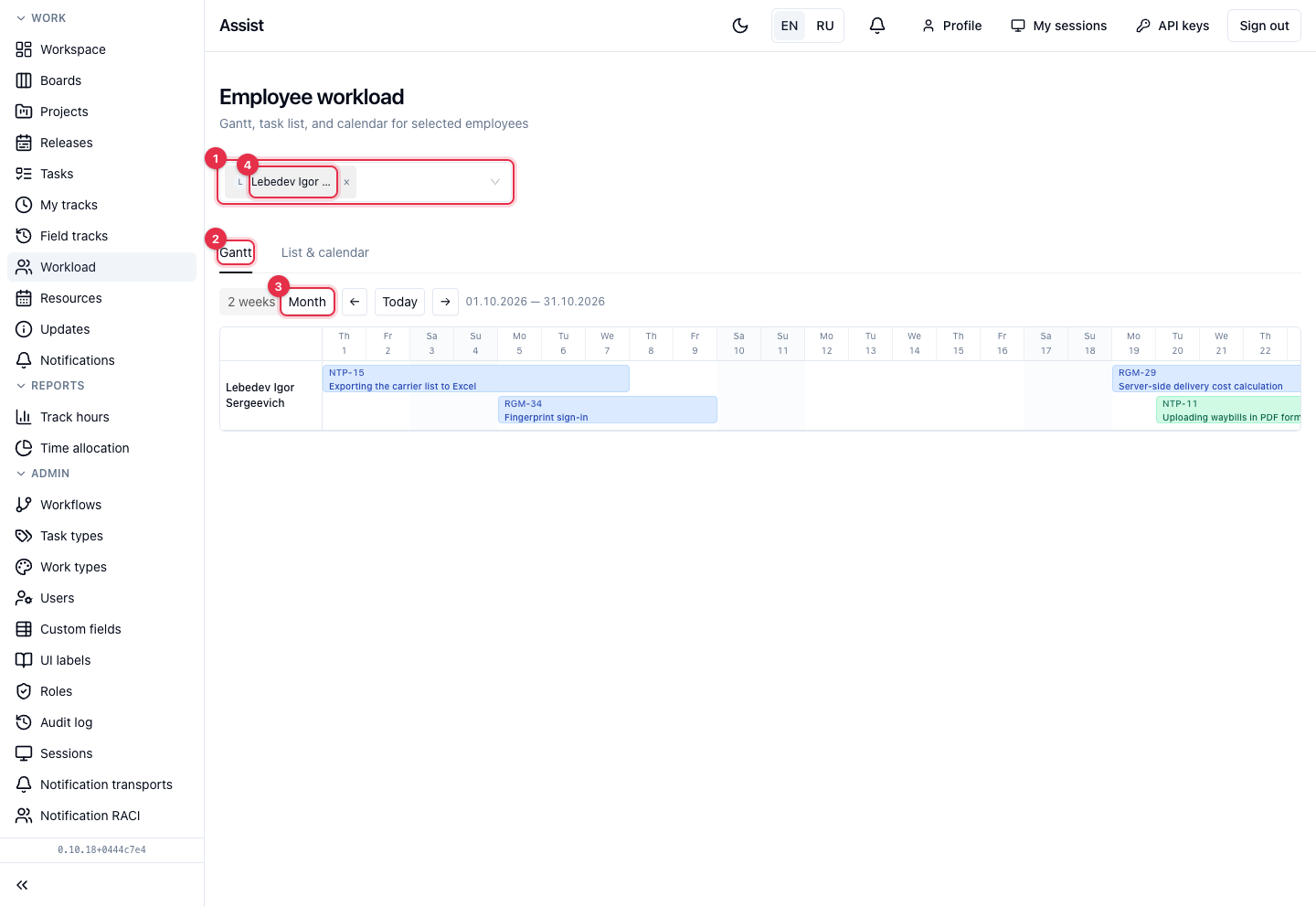
- Employee selection. You can add any number of people, each with their own row.
- The Gantt tab: tasks as horizontal bars from the start date to the end date.
- Scale: 2 weeks or Month. The arrows move the period, Today returns to the current date. The date range is written next to it.
- An employee row. Concurrent tasks lie one under another: you can see where a person works on several tasks at once.
If the selected people have no tasks with deadlines in the period, the chart says: “No dated tasks in the selected period”.
“List & calendar” tab
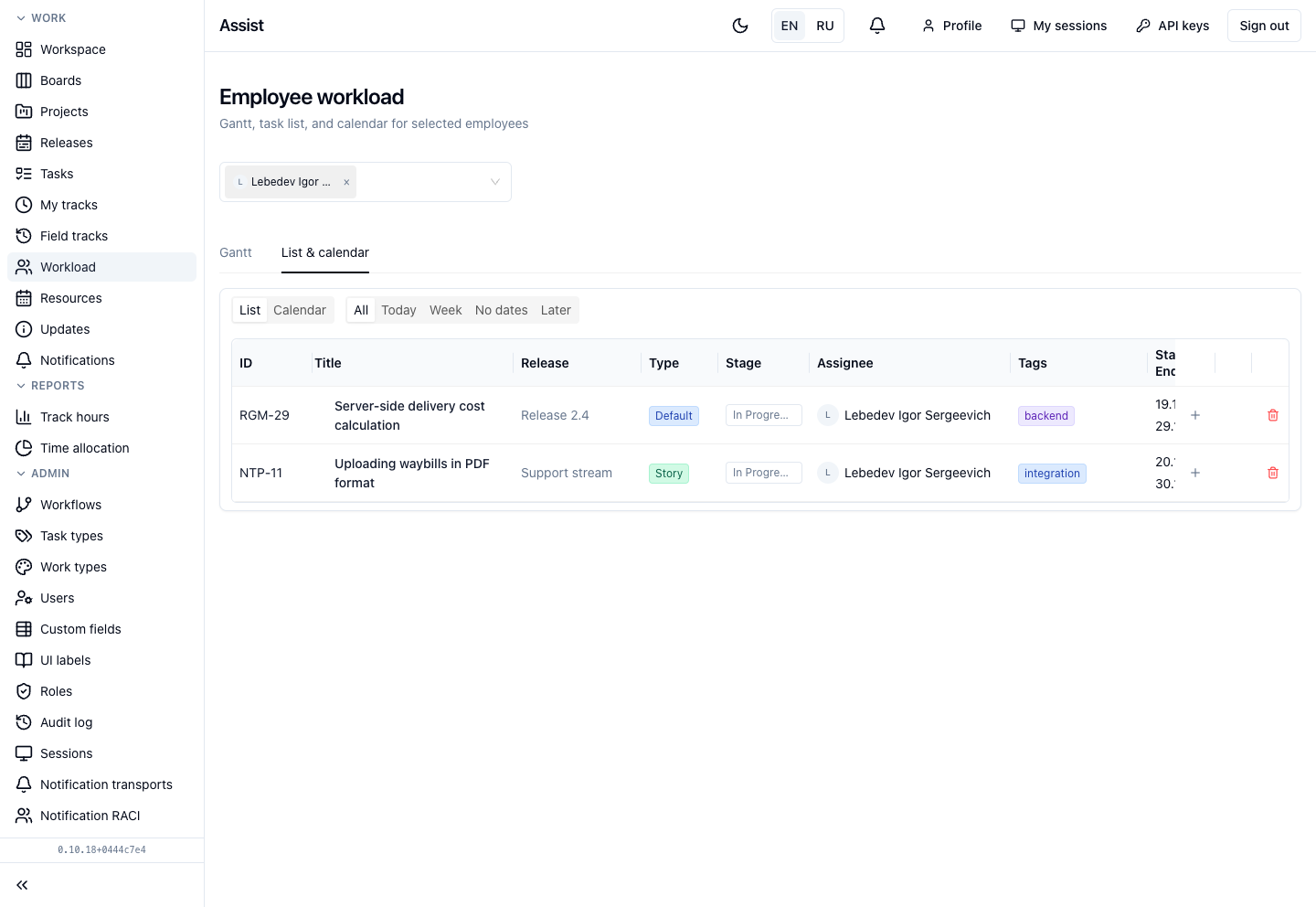
The same tasks as a table or a calendar. The List / Calendar switch changes the view. The slices All, Today, Week, No dates, Later work as on the “My work” page. In the list you can change the assignee or add a subtask.
What you can do
- Select employees.
- On the Gantt chart, find overload (parallel tasks) and free windows.
- Open a task and move it or change the assignee.
How this differs from “Resources”
“Workload” shows the deadlines of specific tasks. How many hours a day a person should and really gives to projects is seen on the “Resources” page.