Custom fields
Purpose. Add your own fields to Assist entities without developers: for example, “Contract number” on a project or “Environment” on a task. A field appears in cards, the creation form, filters, and role permissions. The page title is “Custom fields”.
Who sees it. The administrator with permission for the “Fields (constructor)” page.
How to open. Menu Admin → Custom fields.
What is on the screen
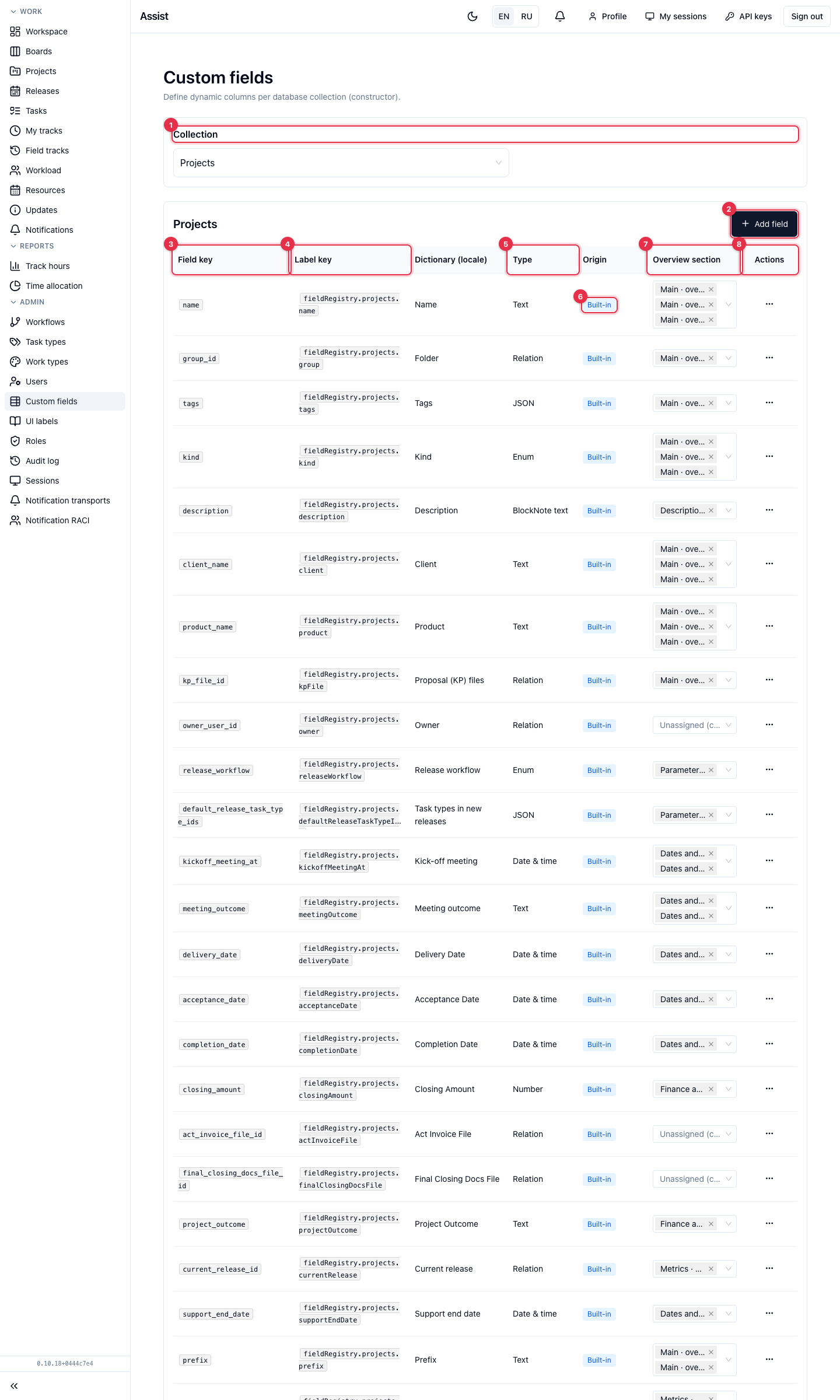
- Collection: projects, releases, tasks, tags, users, roles, workflows, task types, tracks, work types, sessions.
- Add field opens the form.
- Field key — a service name in snake_case. Role permissions and integrations see the field by it.
- Label key and Dictionary (locale): where the on-screen name comes from. See “UI label dictionary”.
- Type: how the field looks and what can be entered into it.
- The Built-in or Custom label. For built-in fields, the label and placement in blocks are available, but not all the actions of custom ones.
- Overview section: the card block where the field is shown. Changed right in the table.
- The “…” menu in a row: Edit, Rename key, Delete.
How to create a field
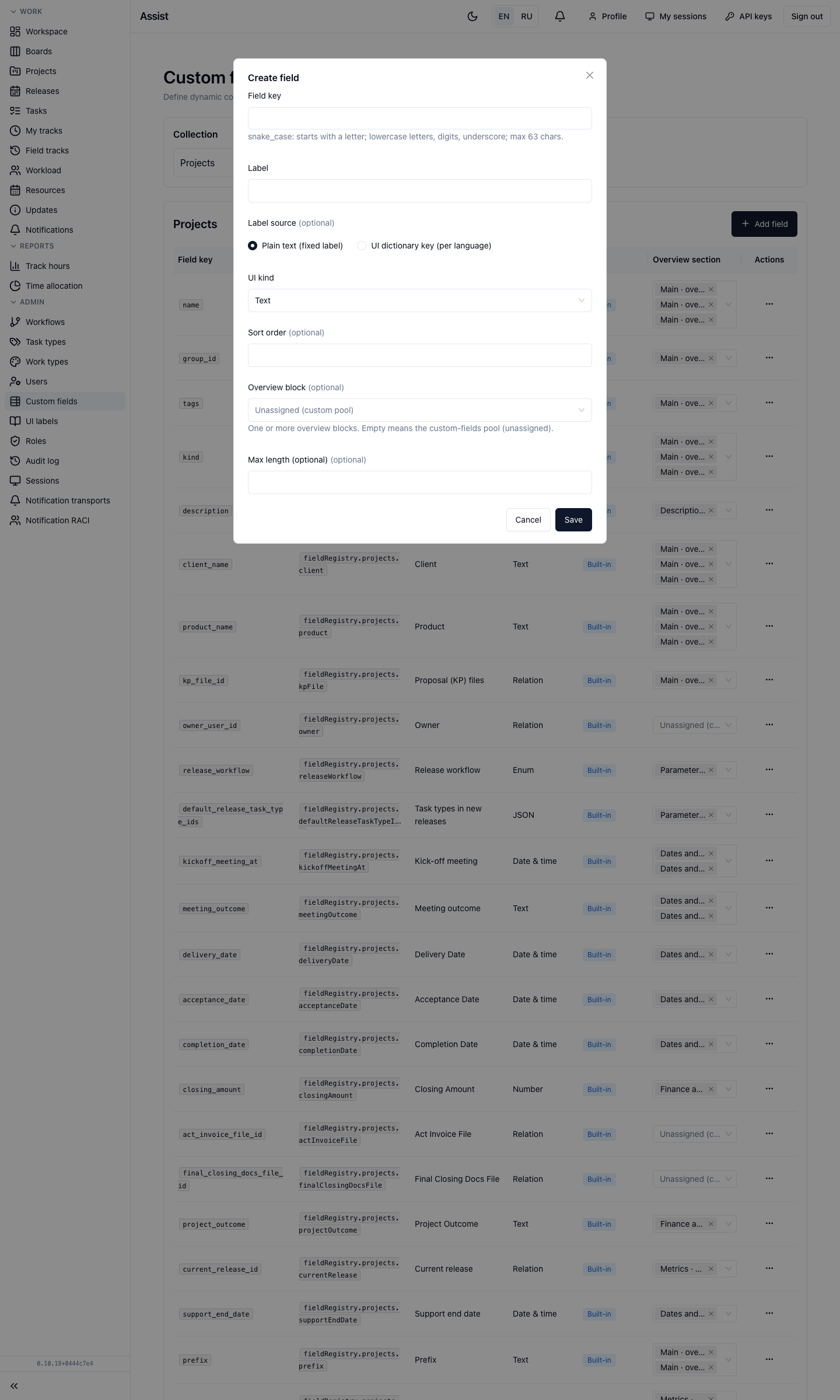
- Click Add field.
- Field key: starting with a letter; lowercase Latin letters, digits, underscore; up to 63 characters. Later it can be renamed by a separate action.
- Label: the name for people.
- Label source: fixed text or a dictionary key (needed if the name must differ by language).
- UI kind (field type):
| Type | What it is for |
|---|---|
| Text | A short string, the length can be limited |
| Multiline text | A long description |
| BlockNote text | Text with formatting, like a task description |
| Date and time | A date; turn off “Show time” if only the day is needed |
| Number | Integer or fractional (precision and number of digits) |
| Yes / no | A switch |
| File | File upload |
| Relation | A link to a record of another collection: one or several |
| Enumeration | A list of values with label colors; values can be archived |
| JSON | Arbitrary structured data |
- Sort order: the place among other fields.
- Overview block: one or several card blocks. If empty, the field goes to “Additional fields”.
- Save.
Step by step: “Custom fields”.
Trackable: value history
Numeric and yes/no fields of a task, as well as editable dates of tasks, releases, and projects, have a Trackable checkbox. If turned on, each change of the value is recorded in history and is visible in “Field tracks”.
Card blocks
The project, release, and task card is divided into blocks: “Main”, “Dates”, “Metrics”, and others. At the bottom of the field table are the Overview blocks: they can be created, renamed, and deleted. For a block you set the place on the page (after status, before team, after team, before actions, a single column) and display conditions: always, only if a field is filled, only if a field equals a value. For example, the block about the commercial proposal is shown only for projects of a certain type.
Renaming and deleting
- Rename key. Role permissions with this key are updated automatically.
- Delete. The column and all its data are deleted irreversibly. To confirm, enter the field key. First make sure the field is not used anywhere.
Permissions
Which roles see and change a specific field is set on the “Fields” tab of the role editor.