Project. Overview
Purpose. Information about the project itself: stage, owner, client, product, team. There are no tasks here: for them there is the “Scope” tab.
Who sees it. Roles with permission for the project's “Overview” tab. Participants with the permission to edit projects can change values. If there is no pencil next to a field, the role has no permission to change it.
How to open. Open a project and choose the Overview tab.
What is on the screen
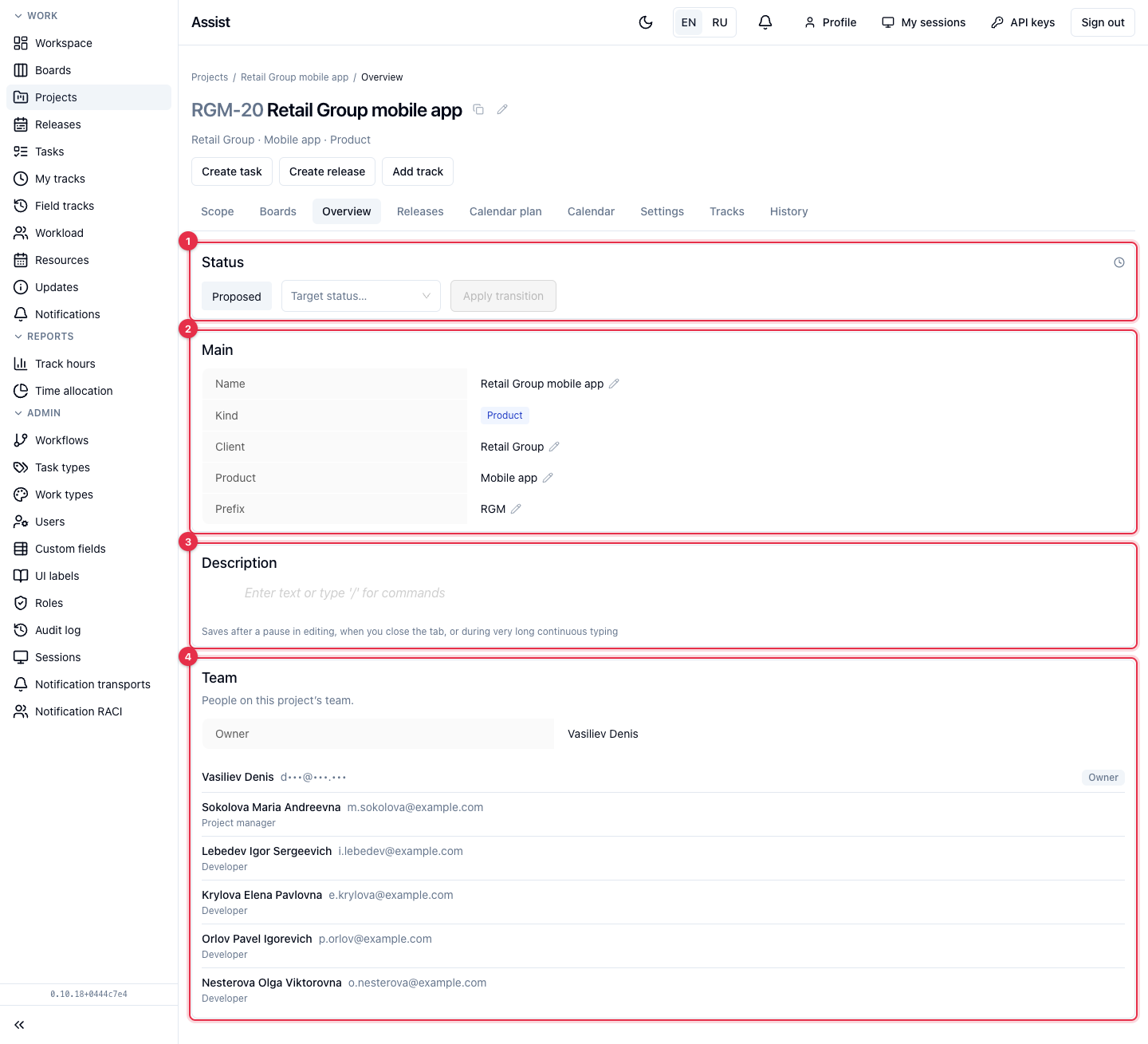
- Status. The current project stage. To move the project, choose a target status and click Apply transition. If the transition has requirements (a gate), fields to fill in appear under the list, and the button becomes active when everything is ready. The clock icon on the right shows the stage deadline if it is set in the workflow. The stage description expands under its name.
- Main. Name, type, client, product, prefix. The pencil next to a field changes the value. Changes are saved immediately.
- Description. Free text. It is saved automatically when you stop typing, switch the tab, or close the page.
- Team. The owner and members with role labels. The owner cannot be removed. The team composition is edited on the “Settings” tab.
Additional blocks
The set of blocks depends on the project stage and on the field constructor settings. At the delivery stages, blocks with stage data appear: kickoff meeting, commercial proposal preparation, development entry, acceptance and closing, support. Dates and amounts are entered there and documents are attached. The administrator's own fields appear here too. The list of stages: “Stages and transitions”.
What you can do
Move a project through stages
- Choose a target status.
- Fill in the fields the cabinet shows.
- Click Apply transition.
Create a support project
When a project is completed, a Create support project button appears on the page. It creates a linked project for support after delivery.
Why check the overview
Before creating tasks, make sure the client, product, and prefix are correct: the prefix is part of each task number. After tasks are created it can still be changed, but numbers in emails and chats may already have diverged.