Notification transports
Purpose. A transport is a channel through which Assist sends notifications: email (SMTP), a Telegram bot, an encrypted Element chat, or browser push. The administrator configures transports once for the company, then employees connect their accounts in the profile.
Who sees it. The administrator. Permission for the “Transports” collection is required.
How to open. Menu Admin → Notification transports.
What is on the screen
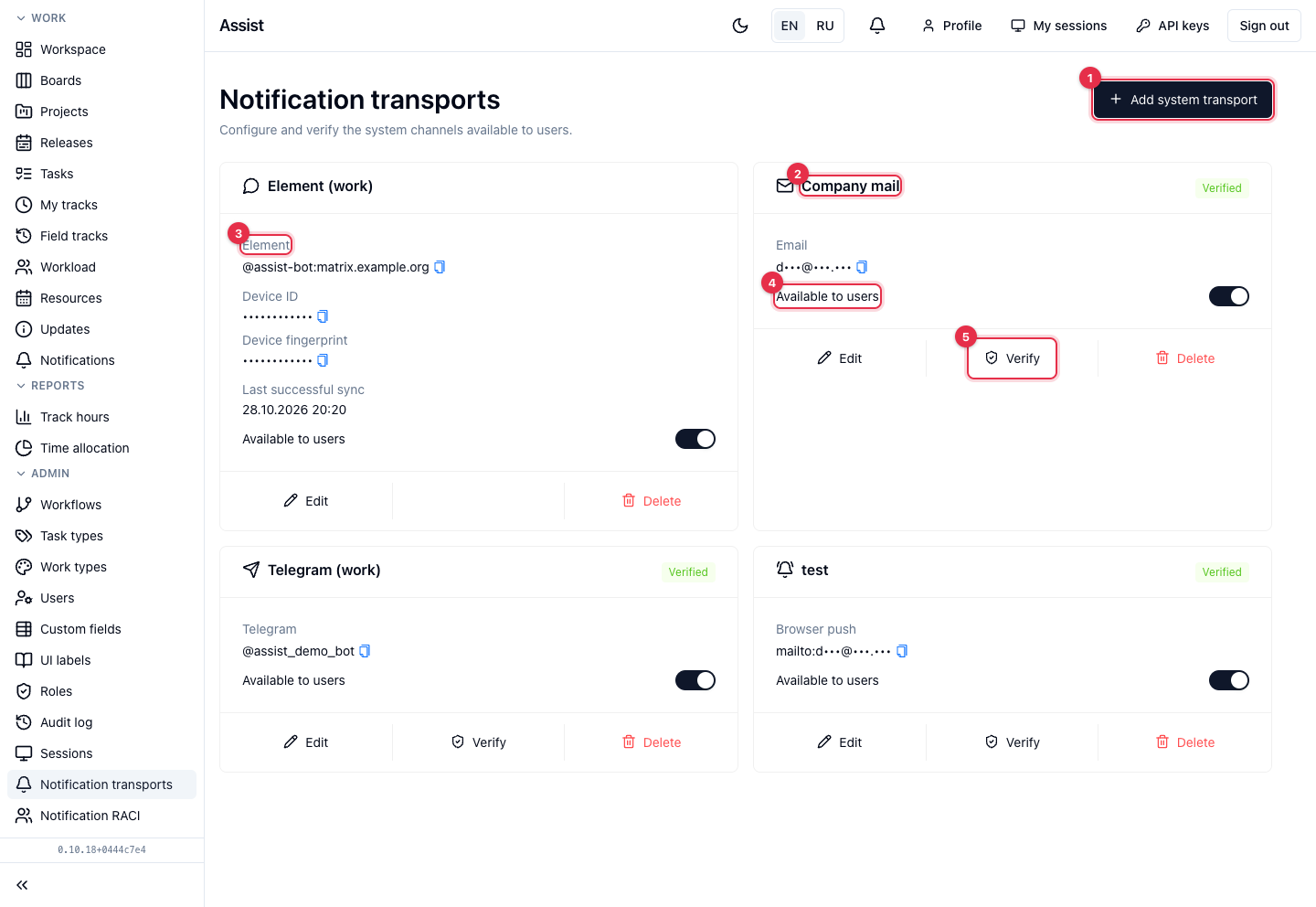
- Add system transport opens the form for a new channel.
- A transport card. The title has the name and state: “Verified”, “Needs attention”, “Disabled”. For Element the state describes encryption: “Initializing E2EE”, “E2EE ready”, “Re-authentication required”, “Recovery required”, “E2EE error”.
- The channel's main data: sender address, bot name, Element identifier. Secrets (passwords, tokens, keys) are never shown.
- The Available to users switch opens the channel for connection in profiles. Turn it off to hide the channel temporarily.
- Edit, Verify, Delete. Verification sends a test request and reports what is wrong (wrong password, closed port, wrong token). Deletion asks for confirmation: users connected through it stop receiving notifications.
How to add a transport
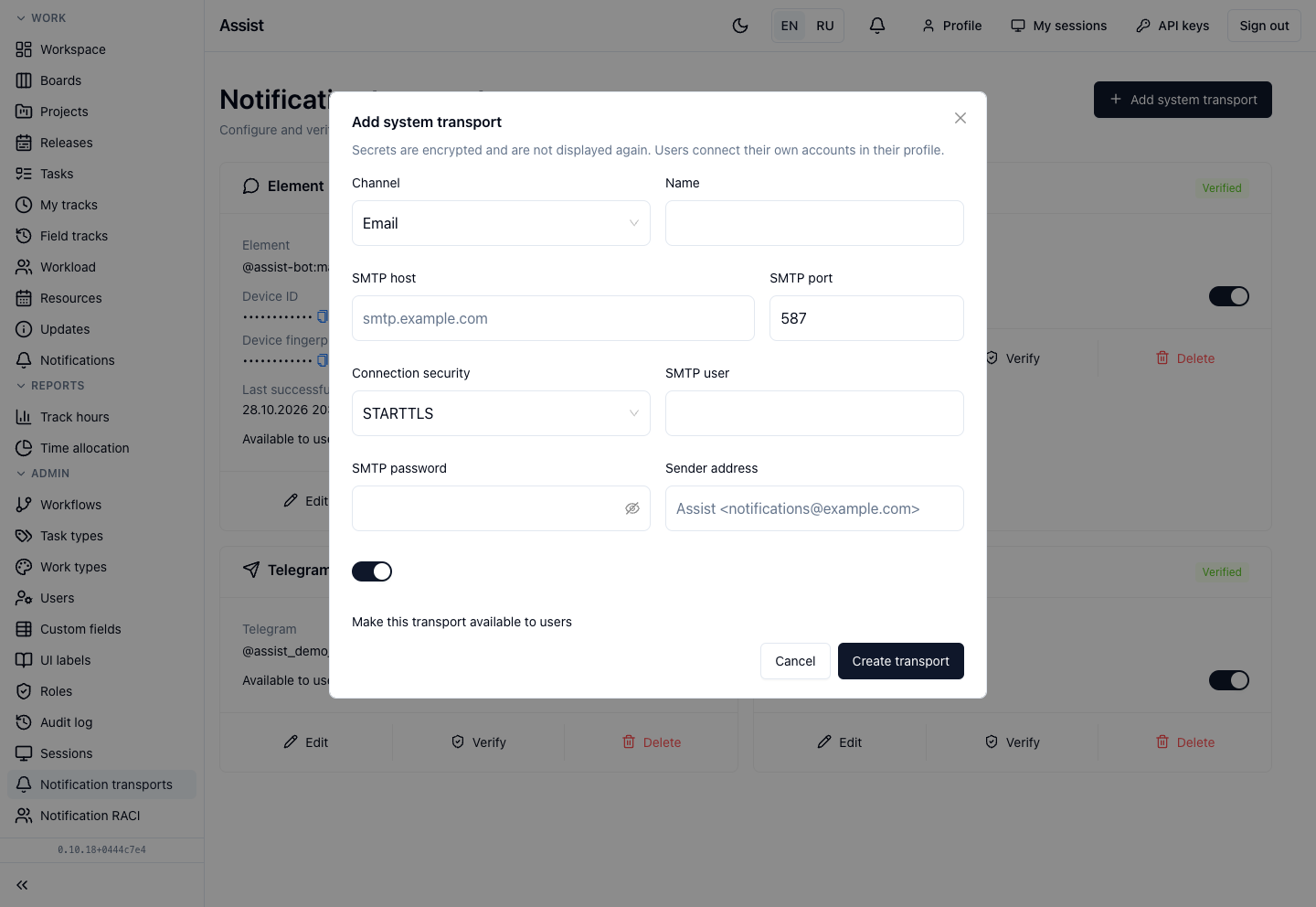
- Click Add system transport.
- Choose the channel and enter a name.
- Fill in the channel fields (below).
- Save, then click Verify.
- Turn on Available to users.
Email
- SMTP host and SMTP port.
- Connection security: “None”, “STARTTLS”, or “TLS”.
- SMTP user and SMTP password.
- Sender address.
Telegram
Only the Telegram bot token is needed. The bot name is determined on saving. Users connect through a one-time link to the bot.
Element (Matrix)
A protected channel: only encrypted rooms are accepted. Setup takes four steps: Server and Matrix ID, One-time credentials, Initialization, Ready.
- Specify the Element server address and the bot user in the format
@assist:example.com. - Enter the one-time Matrix password and the one-time recovery key. They are passed once to the local Matrix worker and are not stored anywhere.
- Click Initialize E2EE. The cabinet creates the “Assist Notifications” device and restores the encryption state.
When everything is ready, the card shows the device ID and fingerprint and the last sync time. If encryption is lost, the “Sign in again”, “Recover E2EE”, or “Retry” buttons bring the channel back.
Browser push (Web Push)
- VAPID subject — a
mailto:address or an HTTPS link. - Public and private VAPID keys. The Generate VAPID keys button generates a pair: copy the keys and save the form.
Secrets
Secret values are encrypted and are not displayed after saving. When editing, leave a secret field empty to keep the current value.
See also
- Notification RACI — who events go to.
- Your notification settings.
- Initial setup by the administrator.