Consolidated boards
Purpose. Show tasks, releases, or projects as columns. Boards are needed when you want to see several projects at once: for example, all tasks in progress for a team or all releases awaiting acceptance.
Who sees it. Everyone who has access to the “Boards” collection. Only roles with the corresponding permission can create and delete boards. Those who have the permission to edit tasks can move cards.
How to open. Menu Work → Boards.
A single project's board and a single release's board live inside them, on the “Boards” tab of a project and the “Board” tab of a release. They work the same way.
Board list
The table has three columns: Name, Cards (what lies on the board), and Actions.
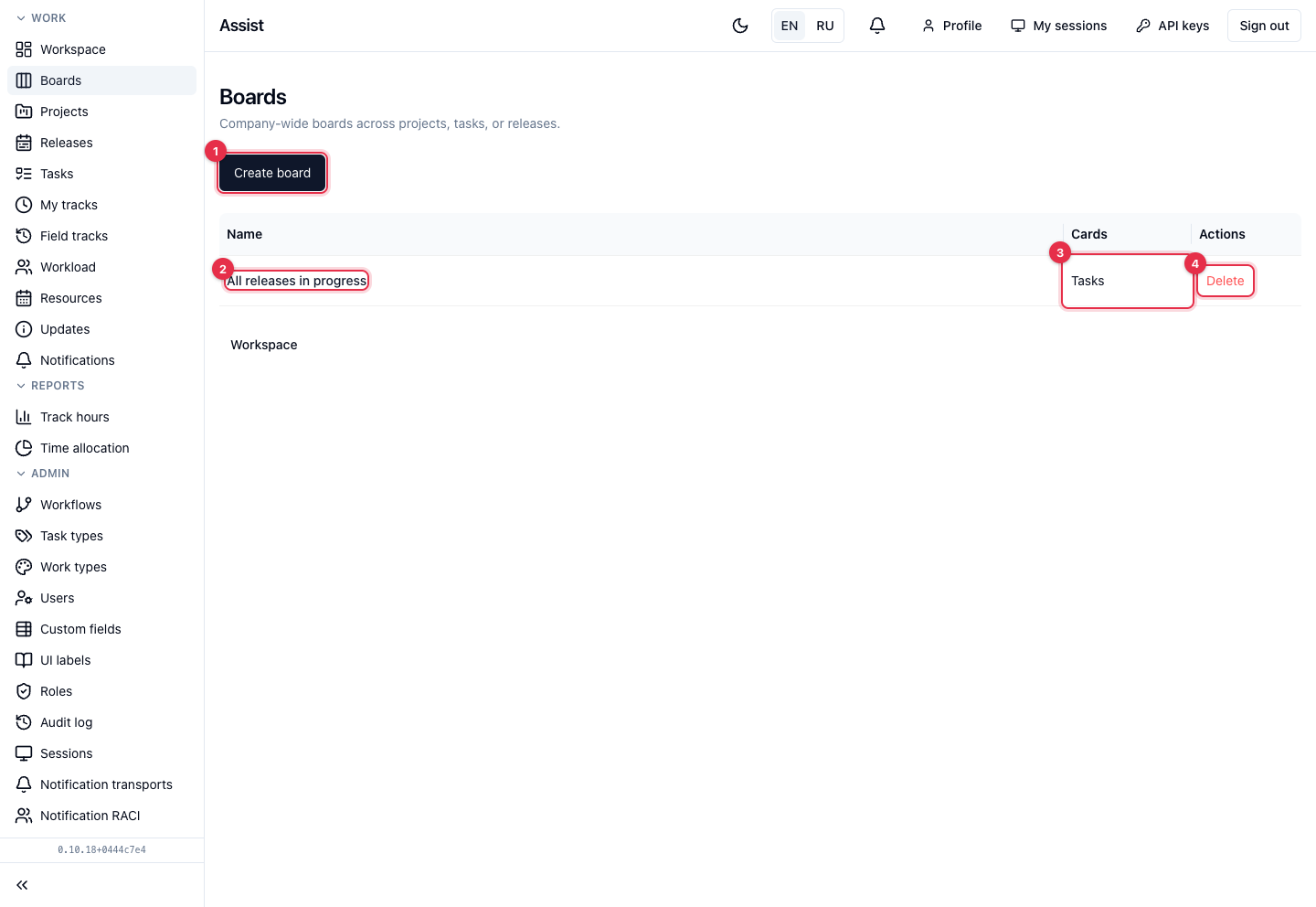
- The Create board button starts the wizard.
- The board name. Click to open.
- The type of cards on the board.
- Deleting the board. The cabinet asks for confirmation.
The Workspace link under the table returns to the “My work” page: your personal board is there.
How to create a board
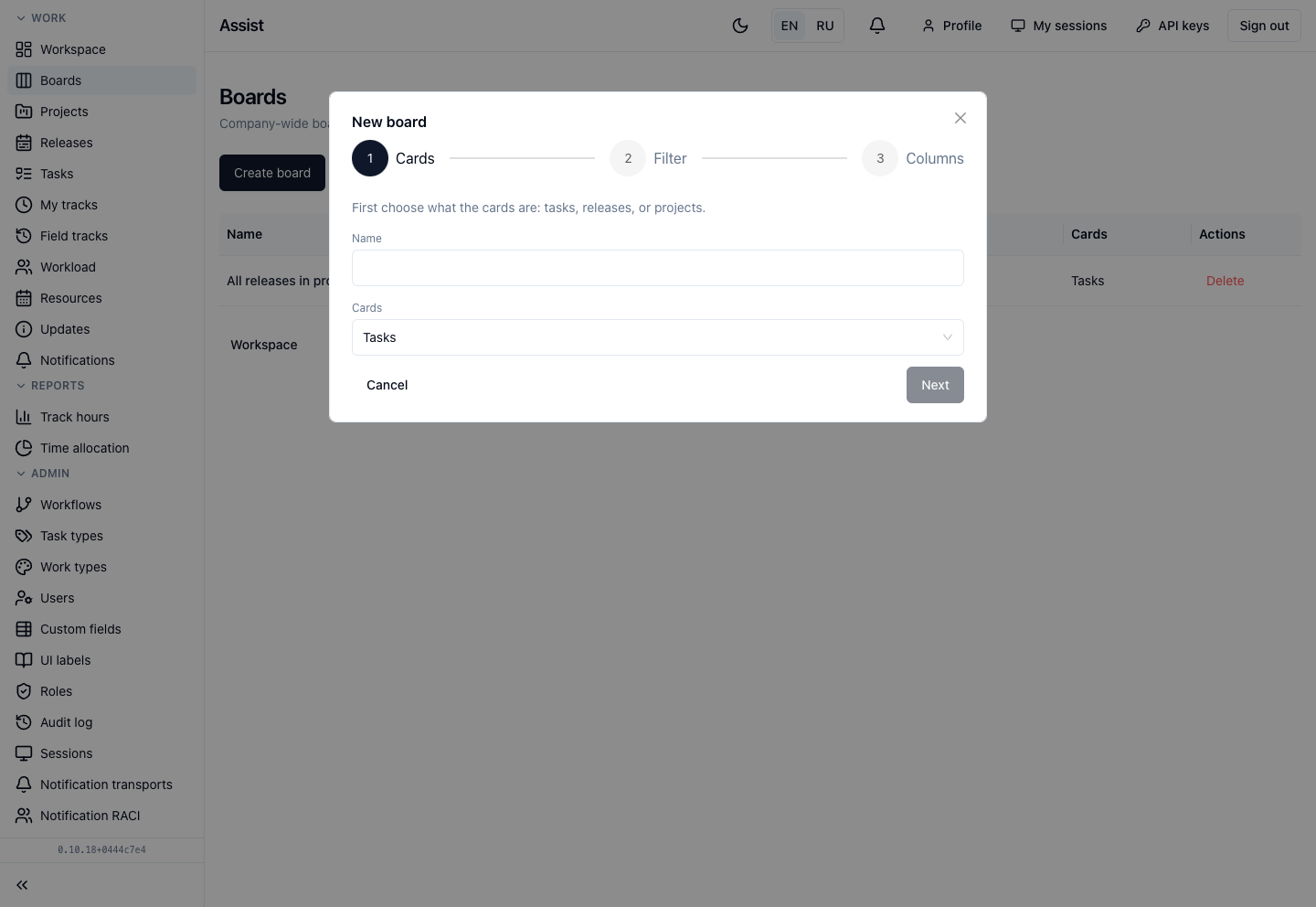
The wizard has three steps: Cards, Filter, Columns.
- Click Create board.
- Cards. Enter the board name and choose what will lie on it: tasks, releases, or projects.
- Filter. Keep the slice you need, for example the tasks of one project or type. You can add several conditions and combine them with “all” (AND) or “any” (OR). Conditions are built on fields: title, type, project, release, status, assignee, tag, parent task.
- Columns. Choose the field that columns are built on. By default it is the workflow status. You can choose task type, assignee, tag, release, or your own list field. You can also enable lanes (swimlanes) by another field.
- Confirm the creation.
When columns are built on statuses, several statuses can be folded into one column: mark which workflow statuses the column includes.
What a board looks like
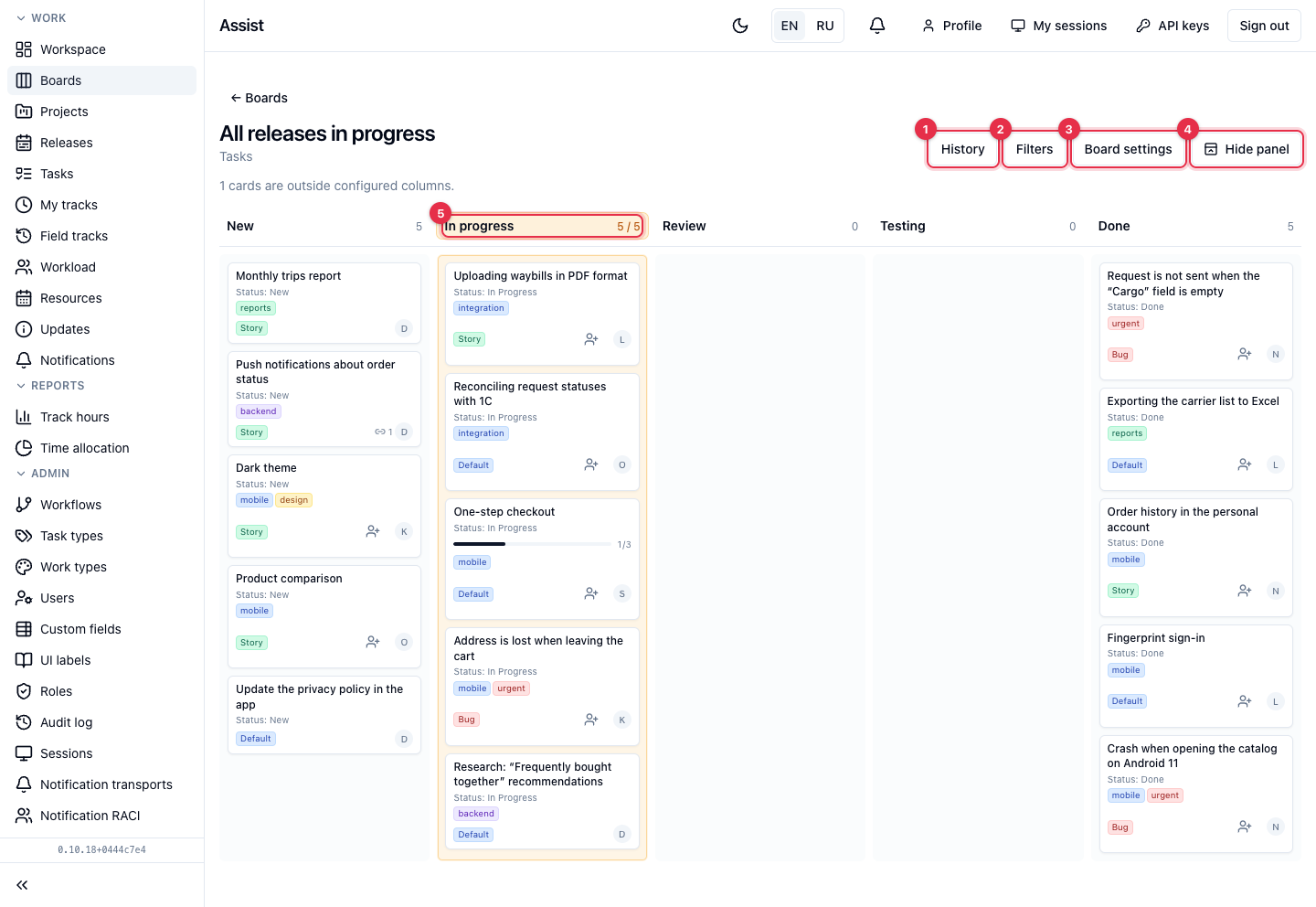
- History — the board event log: creation, settings changes, a column exceeding its limit.
- Filters — card selection conditions on top of those set at creation.
- Board settings — name, column field, lanes, columns and limits, fields on a card.
- Hide panel — collapse the panel with these buttons. The choice is remembered.
- A column with a limit: next to the name there is the number of cards and the limit, for example “5 / 5”. When the limit is reached, the column is highlighted.
Card limit (WIP)
In the settings, you can set a WIP limit for each column: how many cards are acceptable in it. The limit blocks nothing: cards can still be moved. An excess is recorded in the board history and signals that too many tasks are in progress at the same time.
How to move a card
- Drag the card to another column.
- Then one of three situations is possible:
- the column includes several statuses: the cabinet asks you to choose the right one;
- data is missing for the transition (assignee, estimate): the cabinet opens a window where you can fill in the fields;
- the transition is forbidden by the workflow or you lack permission: the card returns to its place and the cabinet states the reason.
A card on the board
A card shows the title, stage, tags, type, and assignee. If a task has subtasks, a progress bar and a counter such as “1/3” are shown (how many subtasks are at the final stage). If there are related tasks, a link icon and a number appear next to it. Click a card to open a window with the main fields. The Open full page link goes to the task card.
Frequently asked questions
A card does not move. You lack permission to edit tasks, or the workflow does not allow the transition: “Stages and transitions”.
There is no “Create board” button. The role has no permission to create boards.