Project. Boards
Purpose. Show the tasks of one project as columns. Unlike consolidated boards, which cover the whole company, only this project's tasks are here.
Who sees it. Roles with permission for the project's “Boards” tab.
How to open. Open a project and choose the Boards tab.
What is on the screen
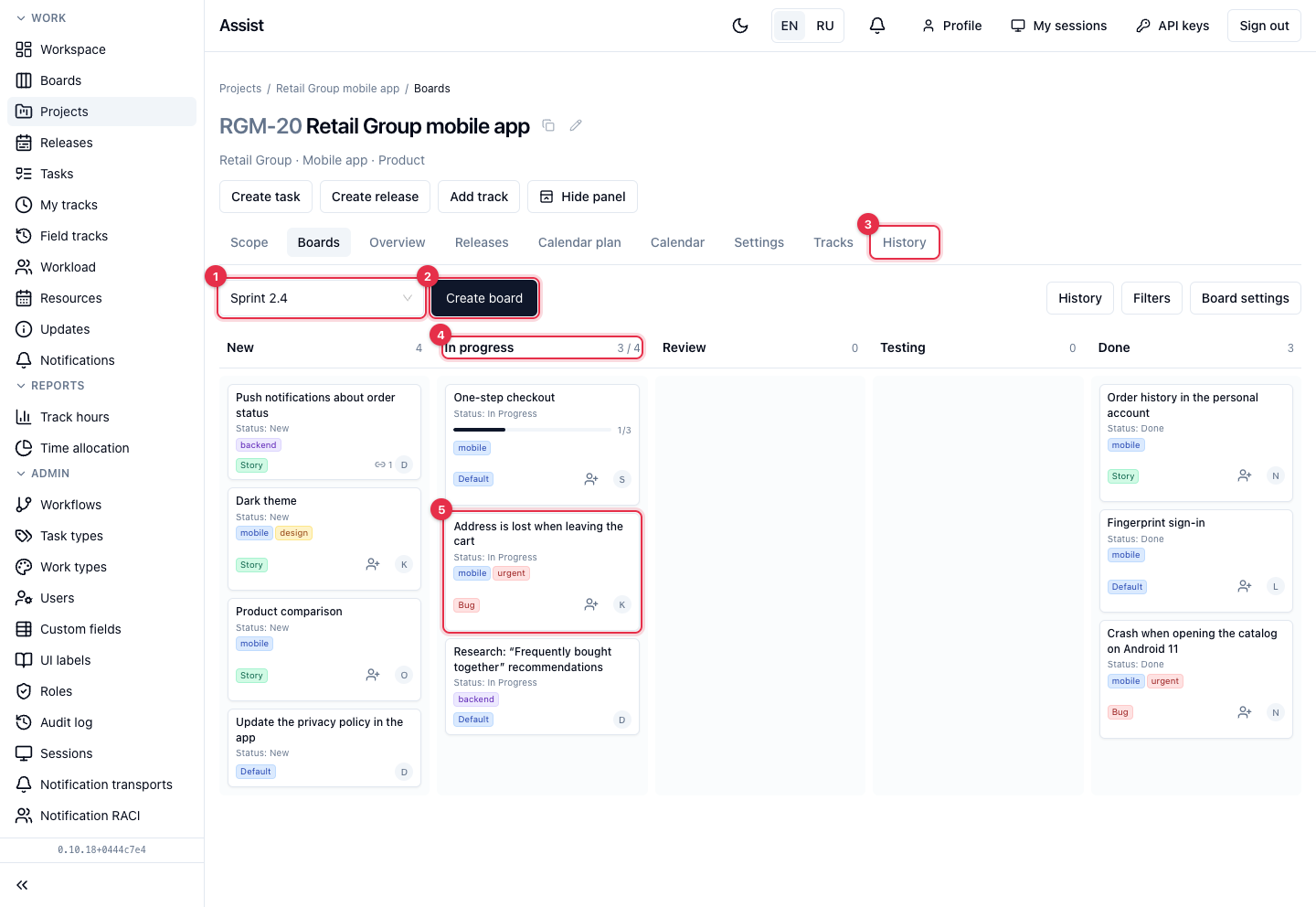
- Board selection. A project can have several boards, for example “Sprint 2.4”.
- Create board starts the wizard (cards, filter, columns), the same as on the consolidated boards page.
- History, Filters, Board settings — the control panel. It can be collapsed with the Hide panel button in the project header.
- A column. Next to the name there is the number of cards, and with a WIP limit set, the limit too, for example “4 / 5”.
- A task card: title, stage, tags, type, assignee. The bar on a card shows how many subtasks are closed.
What you can do
Move a card
- Drag the card to the column you need.
- If the column includes several stages, choose the right one.
- If the transition needs data (assignee, estimate, dates), fill it in the window that opens.
- If the transition is forbidden by the workflow or you have no permission to edit tasks, the card returns to its place.
Open a task
Click a card to open a window with its fields, or go to the full card.
Configure the board
In Board settings, change the name, the column field (stage, type, assignee, tag, release), lanes, the composition and order of columns, WIP limits, and the set of fields on a card. More: “Consolidated boards”.