Resources. Statistics
Purpose. A quick picture for a period: how much is planned, how much is spent, and where the discrepancies are.
Who sees it. Roles with permission for the “Resources” section.
How to open. Menu Work → Resources (the first tab).
What is on the screen
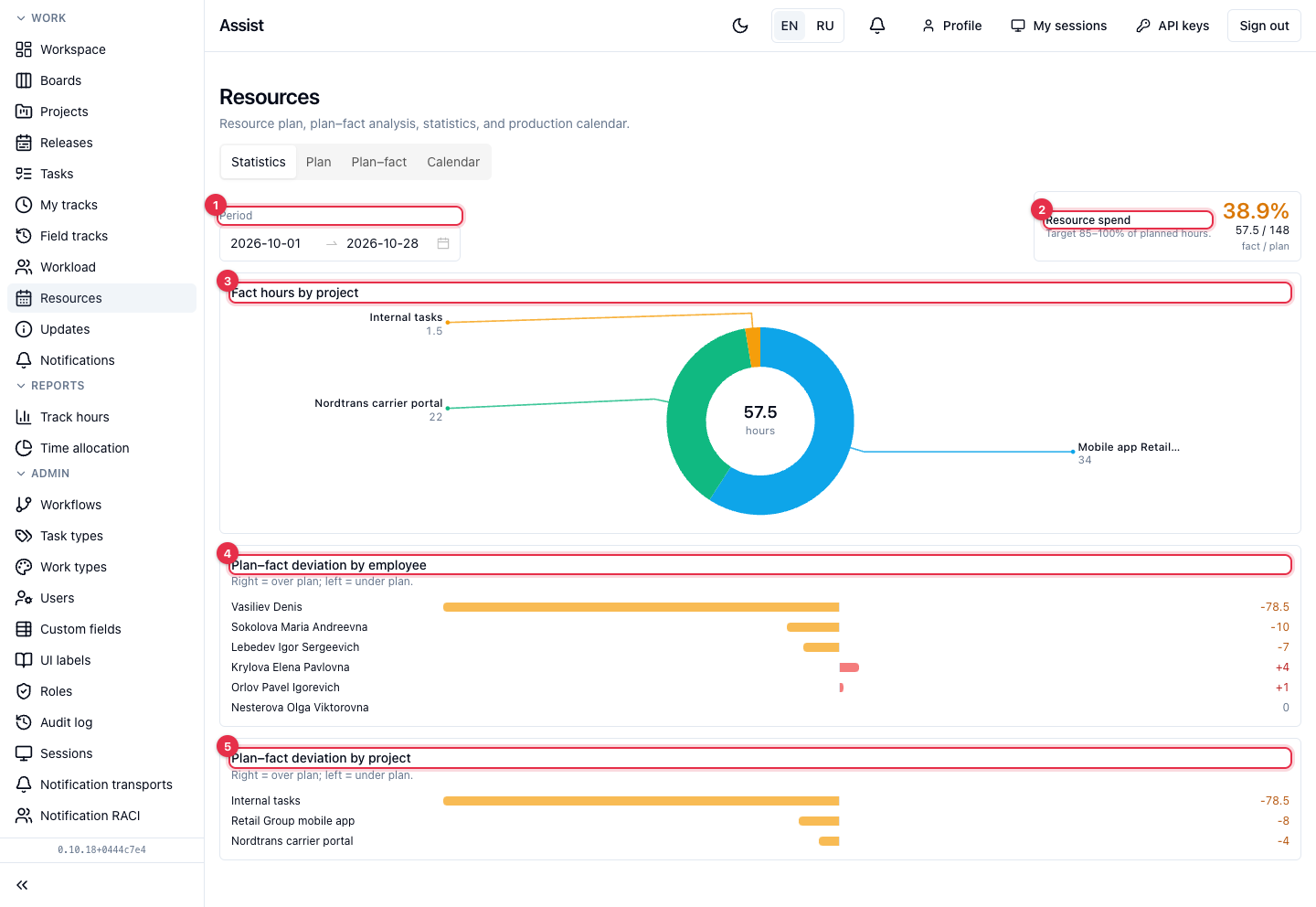
- Period. By default from the first day of the current month to today. Choose other dates for another range.
- Resource spend. The main indicator: the share of the plan that the fact makes up. Under the number “fact / plan” in hours. The target is 85–100% of the plan. Lower means people are underloaded, higher means work goes beyond the plan.
- Fact hours by project. A chart of how logged hours are distributed across projects.
- Plan–fact deviation by employee. A bar to the right is above the plan, to the left is below the plan. The number on the right is the difference in hours.
- Plan–fact deviation by project. The same by project.
If there are no planned hours, the page says “No planned hours in period”. If there is no data at all: “No data for this period”.
How to read deviations
Say 60 hours are planned for an employee and 14 are logged. The deviation is minus 46: the bar goes left. The plan is not met: either time is not logged or the work goes slower. If more than the plan is logged, the bar goes right.
What you can do
- Choose a period.
- Find the longest deviation bars.
- For details by days and people, open the “Plan–fact” tab.