Project. Scope
Purpose. The project manager's workplace: all the project's tasks, including subtasks and tasks without a release. Here tasks are created, assigned, sorted, and found.
Who sees it. Roles with permission for the “Scope” tab. The table shows only available tasks: a role may open all tasks, tasks of projects where you are on the team, or only your own.
How to open. Open a project from the list: Scope opens as the first tab.
In the project header above the tabs there are common buttons: Create task, Create release, Add track. They are available on all project tabs.
What is on the screen
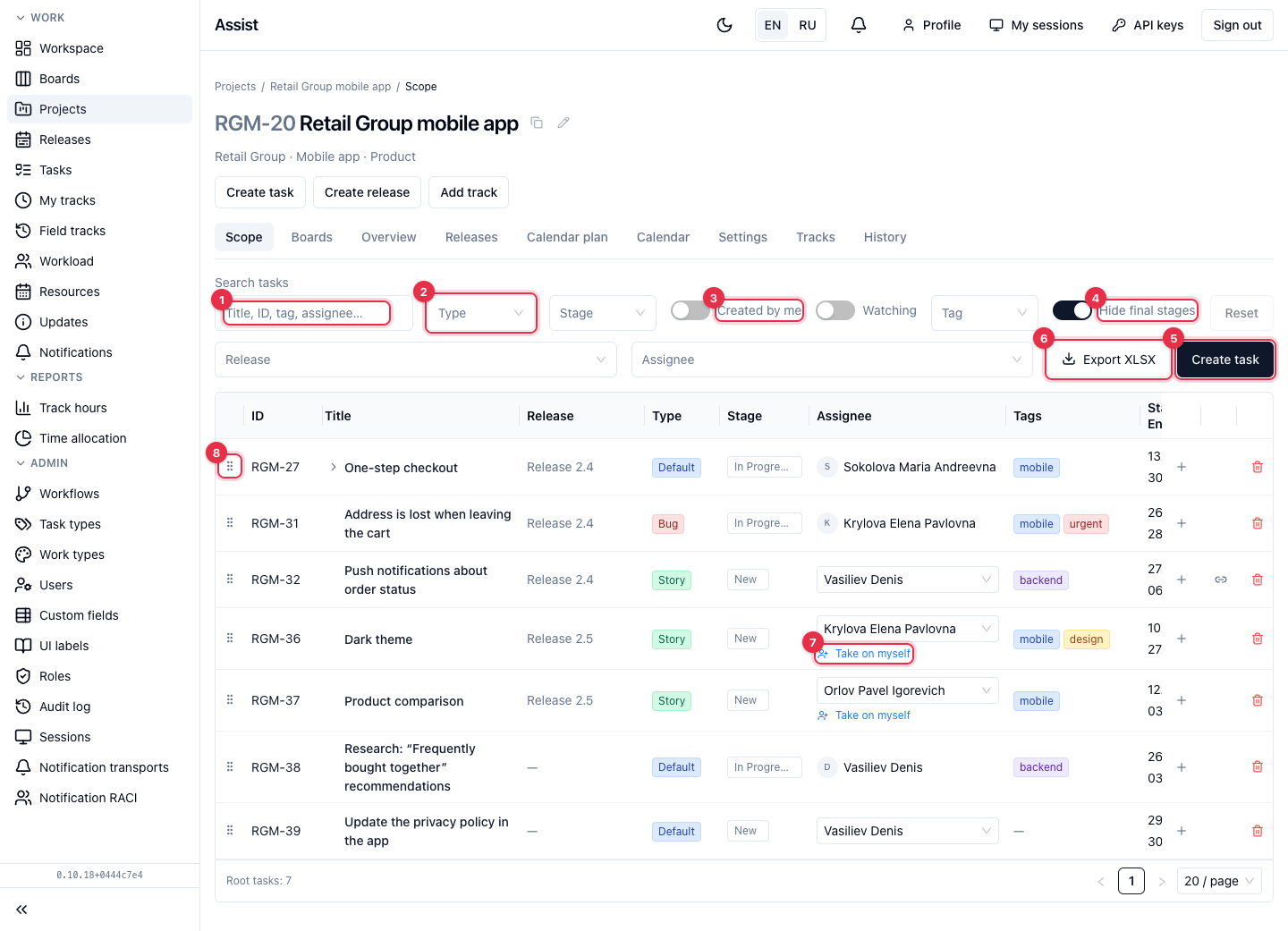
- Search tasks: title, number, tag, assignee.
- Filters by Type, Stage, Release, Assignee, Tag.
- The Created by me and Watching switches keep tasks you created or watch.
- Hide final stages hides tasks at final stages. If a root task is completed, its whole tree is hidden, including subtasks that are still in progress. Turn the switch off to see them.
- Create task opens the new task form.
- Export XLSX downloads the table to Excel with the filters applied.
- The Assignee column: if a task is not assigned to anyone, there is a Take on myself link under the field.
- The dotted icon to the left of the key is for changing the order of tasks.
Table columns
Task key (project prefix and number), title, release, type, stage, assignee, tags, start and end dates, estimate. The arrow to the left of the title expands subtasks. The bottom shows the number of root tasks in the project.
On the right of a row there are three icons:
- “plus” adds a subtask;
- the link shows related tasks and opens a panel with them;
- the trash can deletes the task after confirmation.
What you can do
Create a task or a subtask
- For a root task, click Create task.
- For a subtask, click “plus” in the parent's row: the subtask gets the parent's release.
Change the order
- Drag a task by the dotted icon above or below other tasks of the same level.
- The order is saved for everyone. With filters on, rearranging affects only visible tasks.
Assign an assignee
In the Assignee column choose a person from the list or click Take on myself.
Export to Excel
Click Export XLSX.
Frequently asked questions
Some task is missing. Turn off “Hide final stages” and check the filters.