Project. Calendar plan
Purpose. Collect a project's releases and the tasks inside them in one table, to check deadlines, estimates, and actual time without opening each release.
Who sees it. Roles with permission for the “Calendar plan” tab. The view is needed by the project manager. For daily work, an assignee needs only the scope.
How to open. Open a project and choose the Calendar plan tab.
What is on the screen
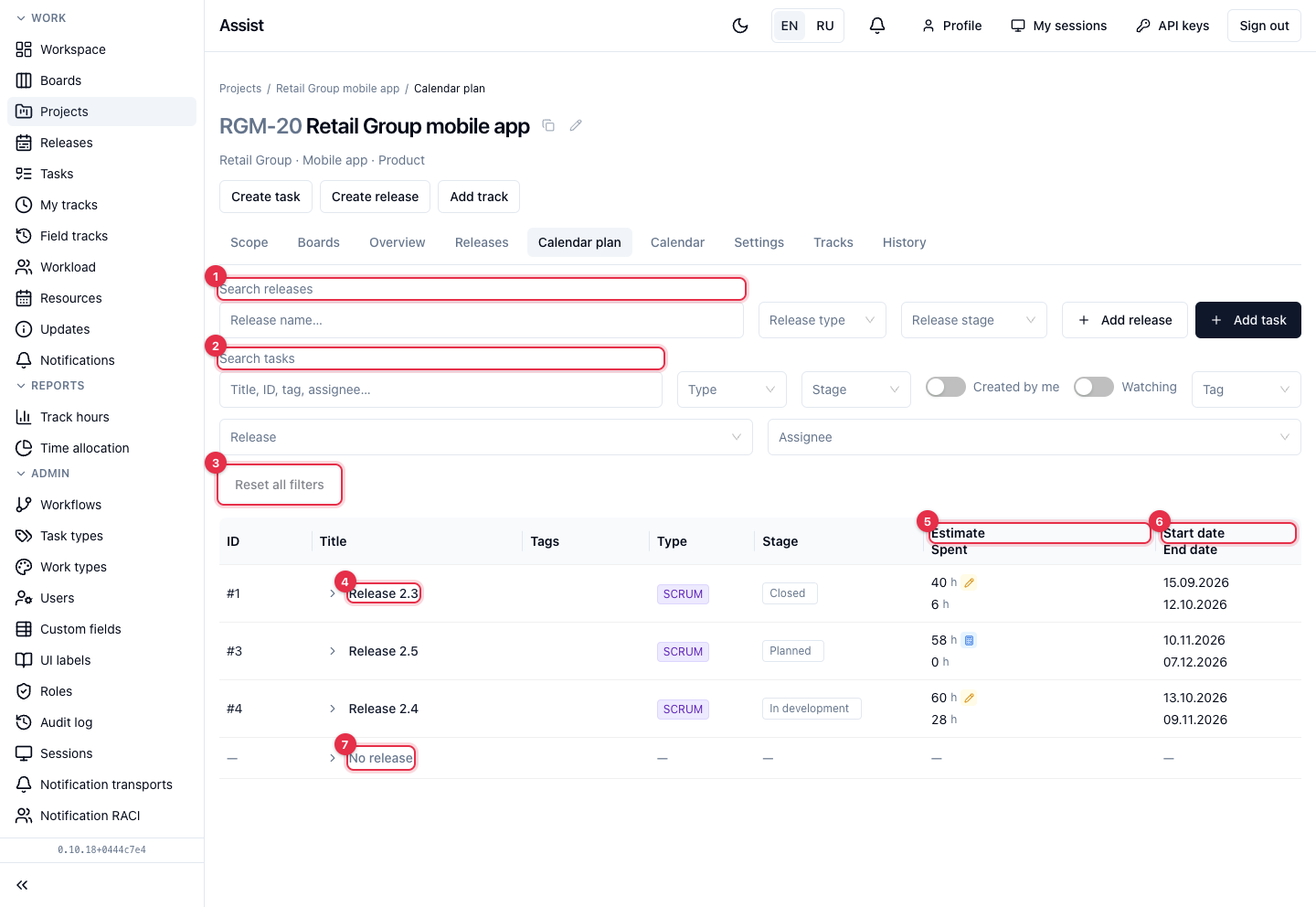
- The Search releases block: name, Release type, Release stage. Next to it, Add release.
- The Search tasks block: name, number, tag, assignee, Type, Stage, Release. The Created by me and Watching switches keep only your tasks. Next to it, Add task.
- Reset all filters returns the full view.
- A release row. The arrow on the left expands the release's tasks and their subtasks.
- Estimate / Spent: planned and actual hours. For a release this is the sum of its tasks unless set manually.
- Start date / End date of a release or a task.
- The last row No release collects tasks not linked to any release.
What you can do
Check that a release fits its deadline
Expand a release and see which tasks' dates go beyond the release's end and whose estimate exceeds the remaining time.
Find tasks without dates
Expand a release or the No release row: tasks without dates have dashes in the date column.
Assess risk
Compare Estimate and Spent: if spent is already close to the estimate while many tasks are in progress, the release is at risk.
See also
- Project. Calendar — the same dates as a grid by days.
- Resources. Calendar — working days and holidays.