Project. Calendar
Purpose. Show what is planned in a project for the selected period. Each task and release is laid out as a bar from its start date to its end date: it is immediately visible where deadlines overlap.
Who sees it. Roles with permission for the project's “Calendar” tab.
How to open. Open a project and choose the Calendar tab.
What is on the screen
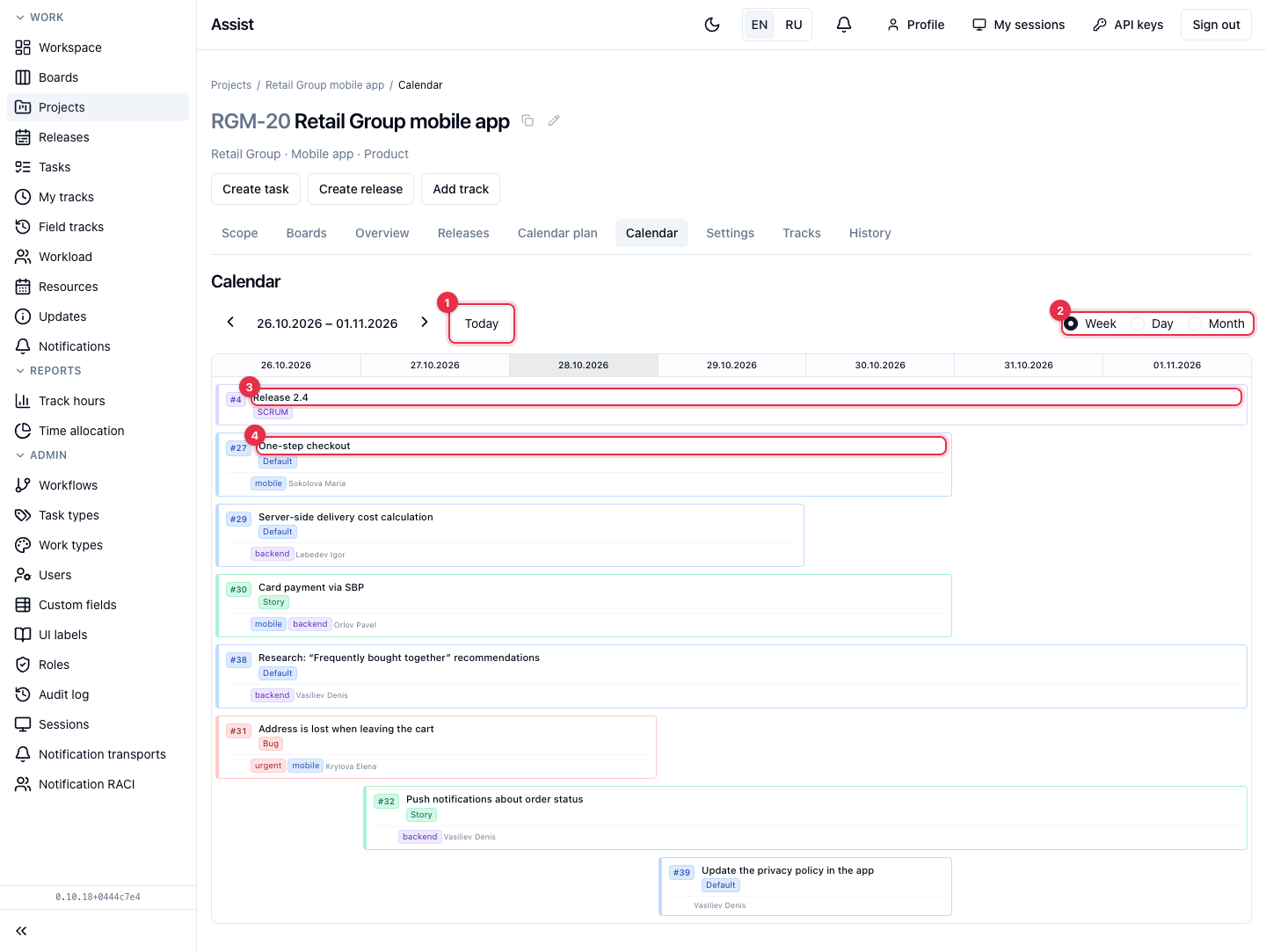
- The arrows and the Today button switch the period. The title shows the date range, for example “26.10.2026 – 01.11.2026”.
- Scale switch: Week, Day, Month.
- A release bar with a label of the number and type, for example “SCRUM”.
- A task bar. The color and label show the type (Bug, Story, Default). Under the name there are tags and the assignee's last name.
What you can do
- Choose the scale and the period.
- Find overlapping bars: this is how overload by deadlines is visible.
- Click a task bar to open its card.
If nothing is planned for a day, the calendar says: “Nothing scheduled on this calendar day”. If there are no releases and tasks with dates for the whole period: “No releases or scheduled tasks overlap this period”.
What gets into the calendar
Only releases and tasks that have dates. Tasks without deadlines are not visible here: find them in the calendar plan, where dashes stand in the date column.
The calendar does not mark working and non-working days. Look them up in the production calendar.