Project. Tracks
Purpose. Show all hours logged by the team on the project's tasks (in releases and without a release). It answers the question “where did the time go”.
Who sees it. Roles with permission for the project's “Tracks” tab. Others' tracks are visible with the permission. If not all rows are visible, the role limits visibility to your projects' records or your own. If the tab sends you to the main page, the role has no permission for it.
How to open. Open a project and choose the Tracks tab.
What is on the screen
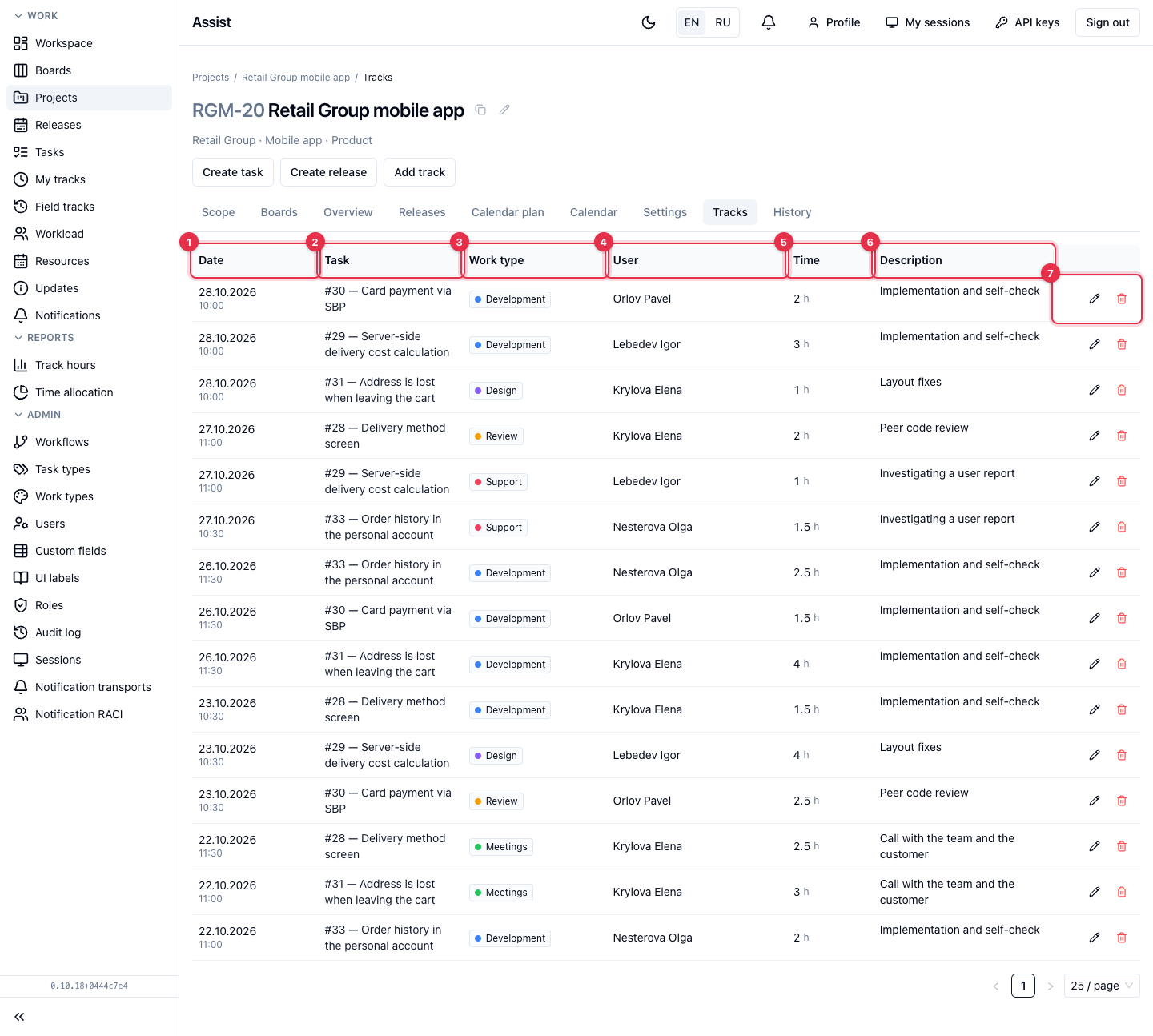
- Date and start time of a track.
- Task: key and title. Click to open the card.
- Work type: “Development”, “Design”, “Review”, “Meetings”, “Support”. Each type has its own color.
- User who logged the time.
- Time in hours.
- Description — what was done.
- The pencil opens an entry for editing, the trash can deletes it.
At the bottom the page size is switched.
What you can do
Add a track
- Click Add track in the project header.
- Fill in the form: “Time tracking”.
Correct an entry
- Click the pencil in the row.
- Change the fields (for example, choose another task) and save.
Hour logging rules
- The start of a track is no older than 7 days, unless the role has the permission to log retroactively.
- The end is not in the future.
- The description is required.
- Two of three values are enough: start, end, duration.
The full list: “Rules and limits”.
See also
- My tracks — your hours across all projects.
- Track hours — totals by people and days.
- Release. Tracks.