Project. History
Purpose. A common project event feed in chronological order: comments, time tracking, changes.
Who sees it. Roles with permission for the project's “History” tab. If the tab is missing, the role has no permission for it.
How to open. Open a project and choose the History tab.
What is on the screen
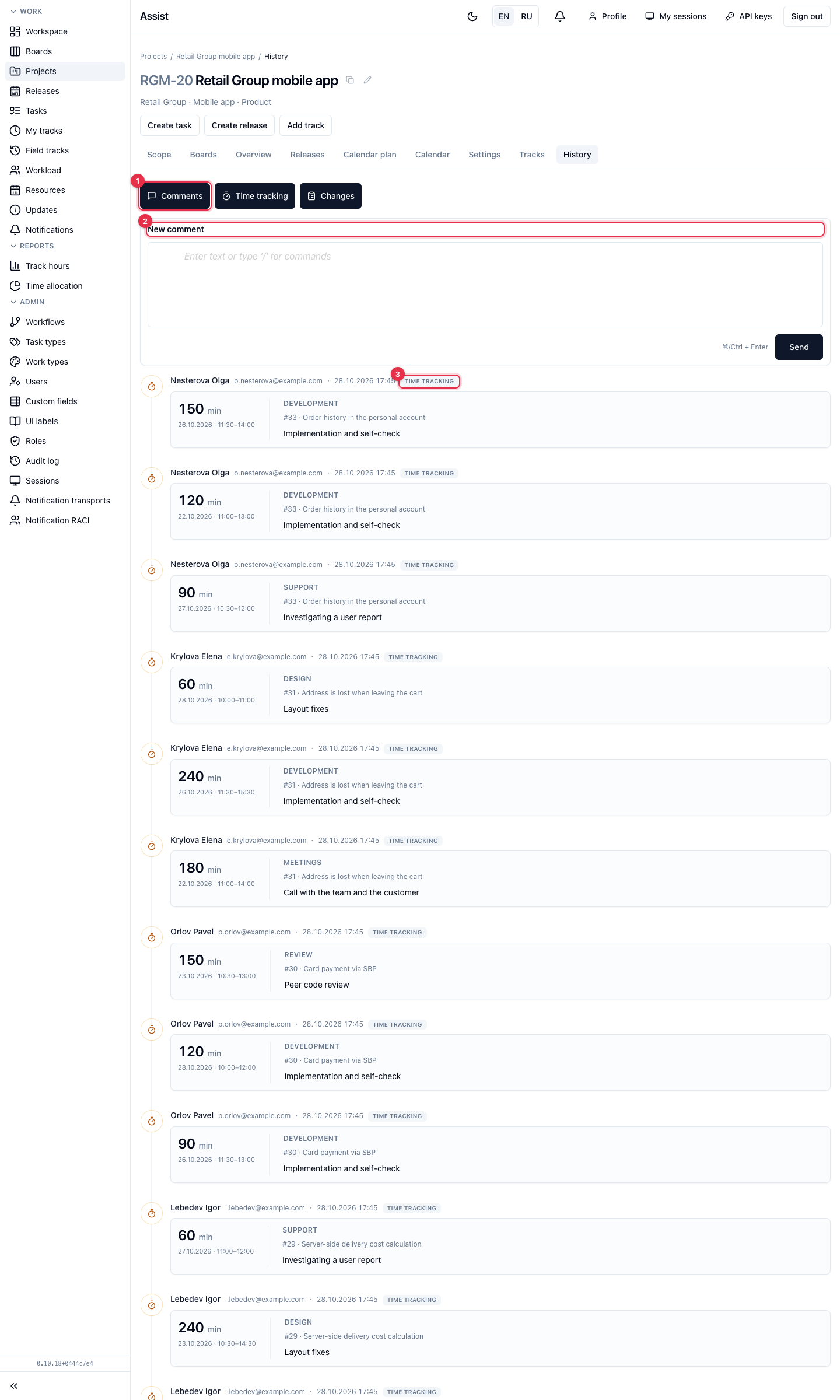
- Three switches at the top: Comments, Time tracking, Changes. If you turn all three off, the feed is empty and the cabinet reminds you to leave at least one source.
- New comment. A field for a message to the team. Sending: the Send button or ⌘/Ctrl + Enter.
- A “Time tracking” entry: who logged how much and when, on which task, and with what description.
- A “Changes” entry: which fields changed. A stage change is shown as “Status: was → became”.
What you can do
Write a comment
- Enter text in the “New comment” field.
- Click Send.
Reply, edit, delete
- Reply: click under a comment, and the message is attached to the original.
- Edit and Delete: available for your own messages. Before deletion the cabinet asks for confirmation, and the action is irreversible.
A comment on a project's tab belongs to the project. Task comments are written on the “History” tab of the task card.