Roles
Purpose. A role is a set of permissions. It determines which menu items and tabs you see, whether you can create and delete records, and whose records are available. Each person has one role; new users get the default role.
Who sees it. The administrator: permission for the “Roles” page is required.
How to open. Menu Admin → Roles.
Role list

- New role: a name and a key (Latin letters, for example
qa-lead) are needed. - The name and key. Click a role to open its permissions.
- Labels: Highest priority (Admin only), System (shipped with the product), Default (the role of new users).
- The up and down arrows change priority. The higher a role, the “senior” it is. Admin is always on top.
- Make default assigns the default role.
- Duplicate creates a copy: the fastest way to get a similar role.
- Delete is available only for non-system roles. Users with a deleted role lose access until another is assigned. The cabinet warns about this.
Why priority
Priority protects against privilege escalation. A person cannot assign an API key a role “senior” to their own, and manages others' keys only with equal or higher priority. The default order: Admin, Manager, Developer.
Role editor
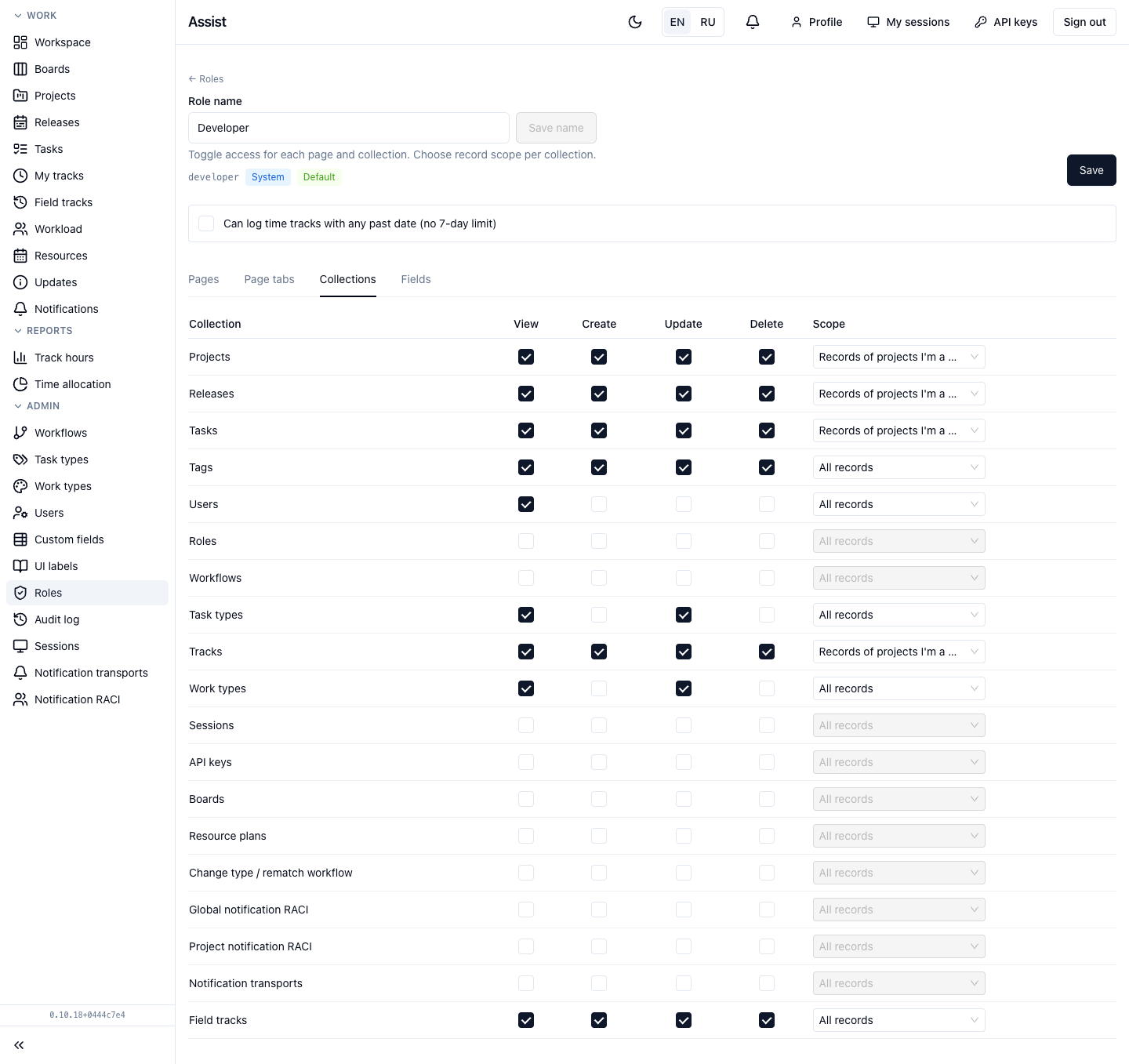
Click a role to open the editor. At the top you can rename the role with the Save name button and enable the “Can create tracks retroactively” option: without it you cannot log time older than seven days.
Permissions are collected on four tabs.
Pages
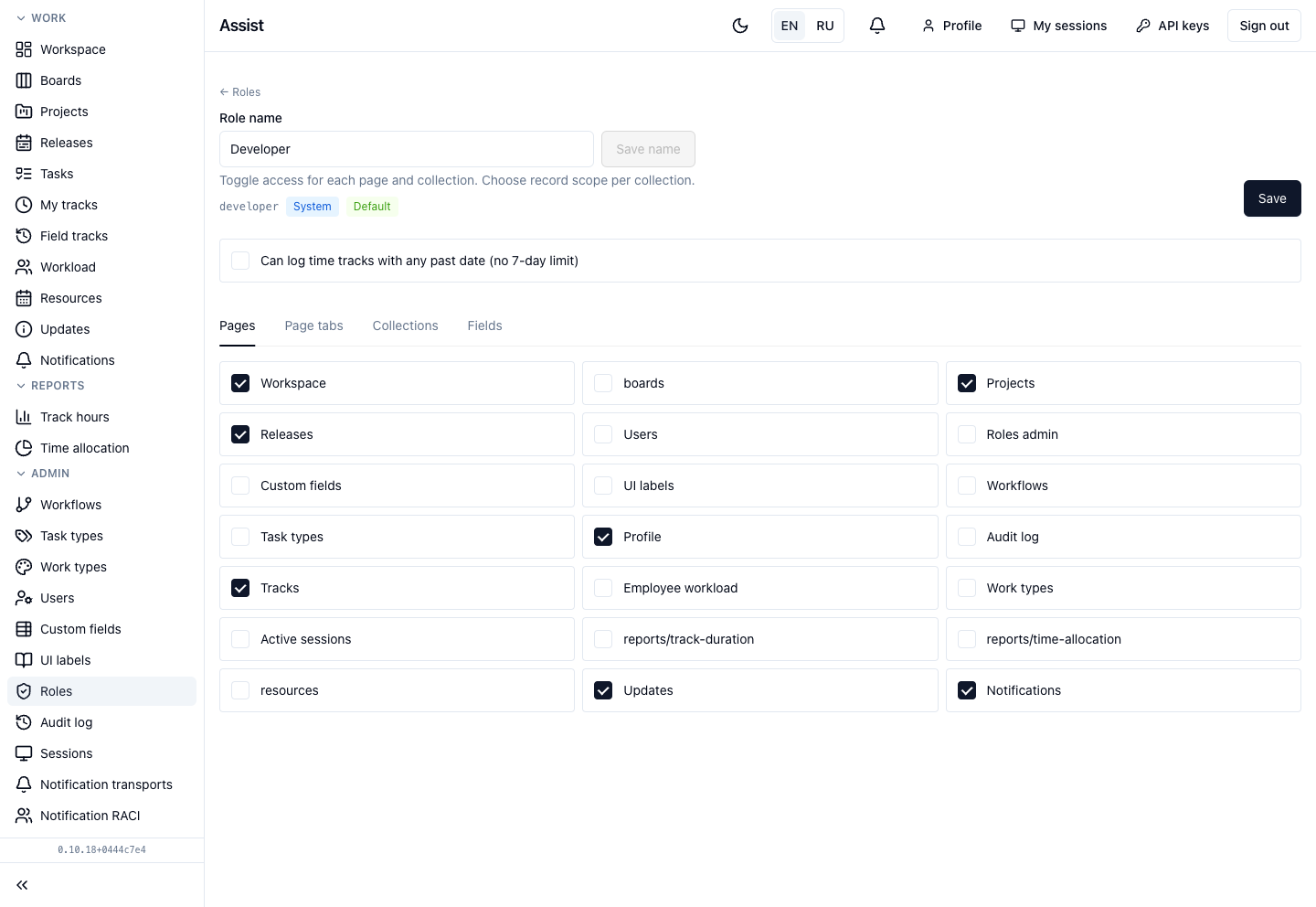
Which menu items are open to the role: “Projects”, “Releases”, “Users”, “Workflows”, “Audit log”, “Employee workload”, “Resources”, “Updates”, “Notifications”, and others. Uncheck a box, and the item disappears from the role's menu.
Page tabs
Which tabs are visible inside a task, project, and release: “Overview”, “Scope”, “Board”, “Settings”, “History”, “Tracks”. For example, you can hide a project's “Tracks” tab from assignees.
Collections
For each collection (projects, releases, tasks, tags, users, roles, workflows, task types, tracks, work types, sessions, API keys, boards, resource plans, task type change, notification RACI, transports, field tracks), mark the actions: View, Create, Update, Delete. The Scope column defines the available records:
| Scope | What is visible |
|---|---|
| All records | All records of the collection |
| Only project-related | Records of projects where the person is on the team |
| Only own | Records the person created or is assigned to |
Fields
Permissions on individual fields. An empty matrix means “no restrictions”. As soon as at least one field is marked, an allow-list mode is enabled for the collection: only marked fields are available. Custom fields are marked with the “Custom” tag. To see them, the permission to view the collection is needed.
What you can do
Create a role based on an existing one
- Click Duplicate on a similar role.
- Open the copy, enter a name, and click Save name.
- Adjust the permissions on the tabs and click Save.
Save permissions
The Save button writes the whole set of permissions at once and replaces the previous one. Check the matrix before saving.
If you accidentally remove your own role's permission for the “Roles” page, you will lose access to the editor.
How a person sees it
The menu is built from the role's permissions. No permission for a section: no menu item, and the page does not open by a direct link either. Permissions apply on the next page load. See “Roles and access” and the “Permission matrix”.