Users
Purpose. A directory of people who have access to the cabinet. Here roles are assigned, those who left are disabled, and new ones are added. Logins and passwords live in Keycloak; Assist stores only the profile and the role.
Who sees it. The administrator: permission for the “Users” page is required.
How to open. Menu Admin → Users.
List
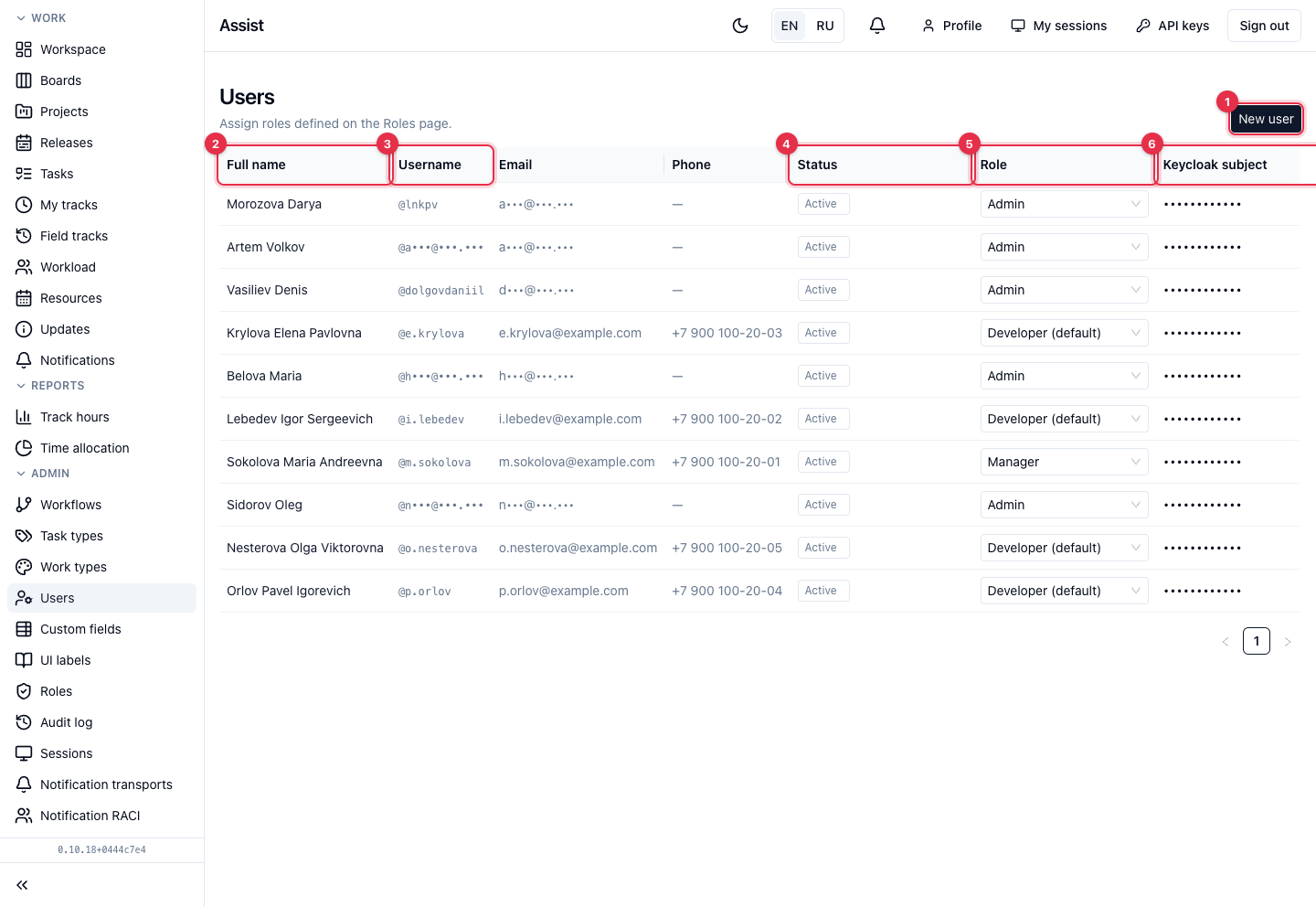
- New user opens the add form.
- Full name: click to open the card.
- Username, Email, Phone.
- Status: “Active” or “Disabled”.
- Role is changed right in the list: choose another role and save. The default role is marked “default”.
- Keycloak subject — a service identifier in Keycloak. For people who have not signed in yet, there is a pre-registration label.
How to add a person
- Create the person's account in Keycloak (done by the sign-in system administrator).
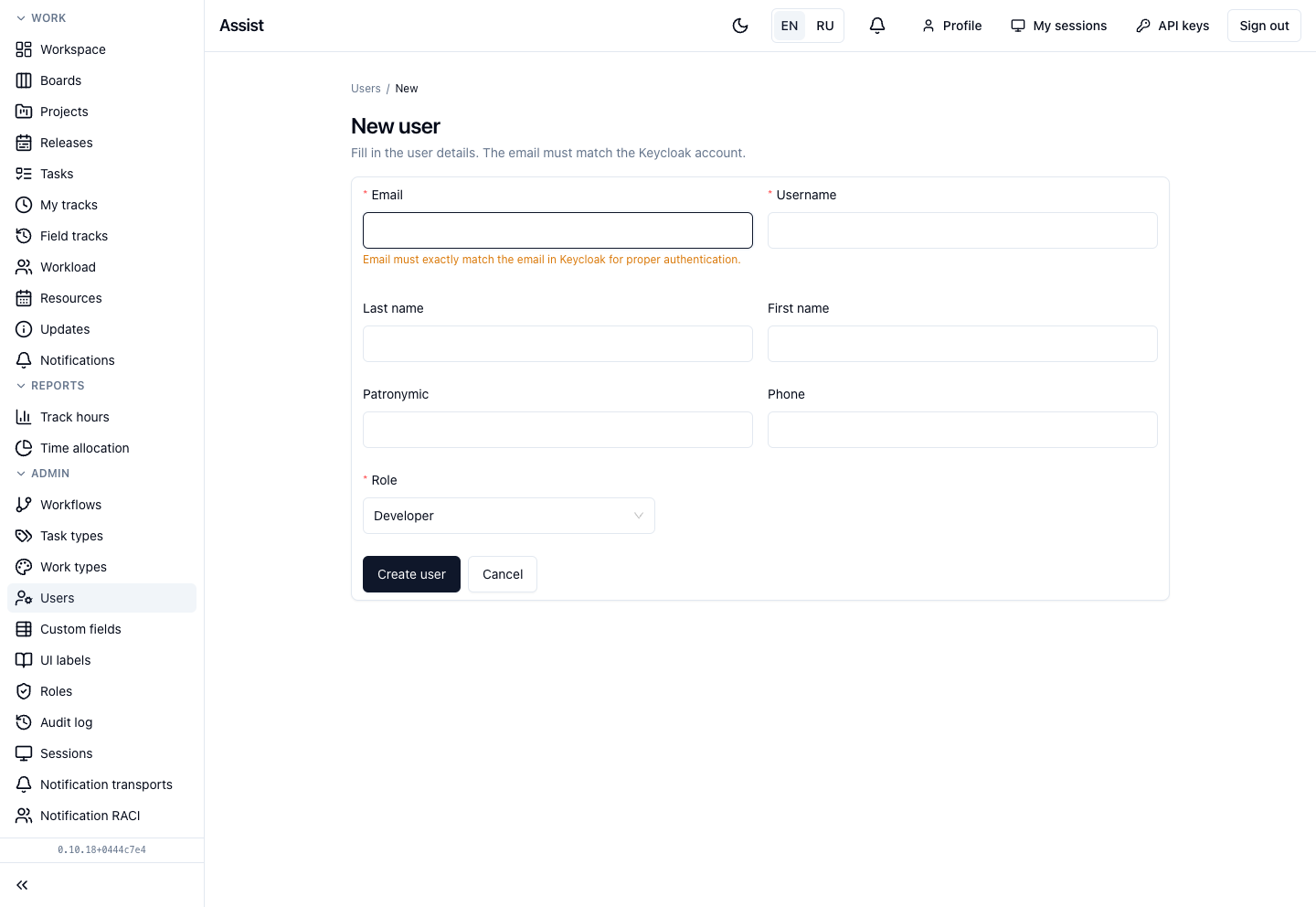
- In Assist, click New user.
- Fill in Email and Username. The email must match Keycloak character for character: Assist links sign-in to the card by it. Username: Latin letters, digits, dot, underscore, hyphen; no “@” or spaces.
- Optionally specify last name, first name, patronymic, and phone.
- Choose a Role. If you do not know which, leave the default role; it can be changed later.
- Click Create user.
When the person signs in through Keycloak, Assist finds them by email and gives them the role's permissions. If they sign in before you create the card, the cabinet creates the record itself with the default role, and you can change the role in the list.
User card
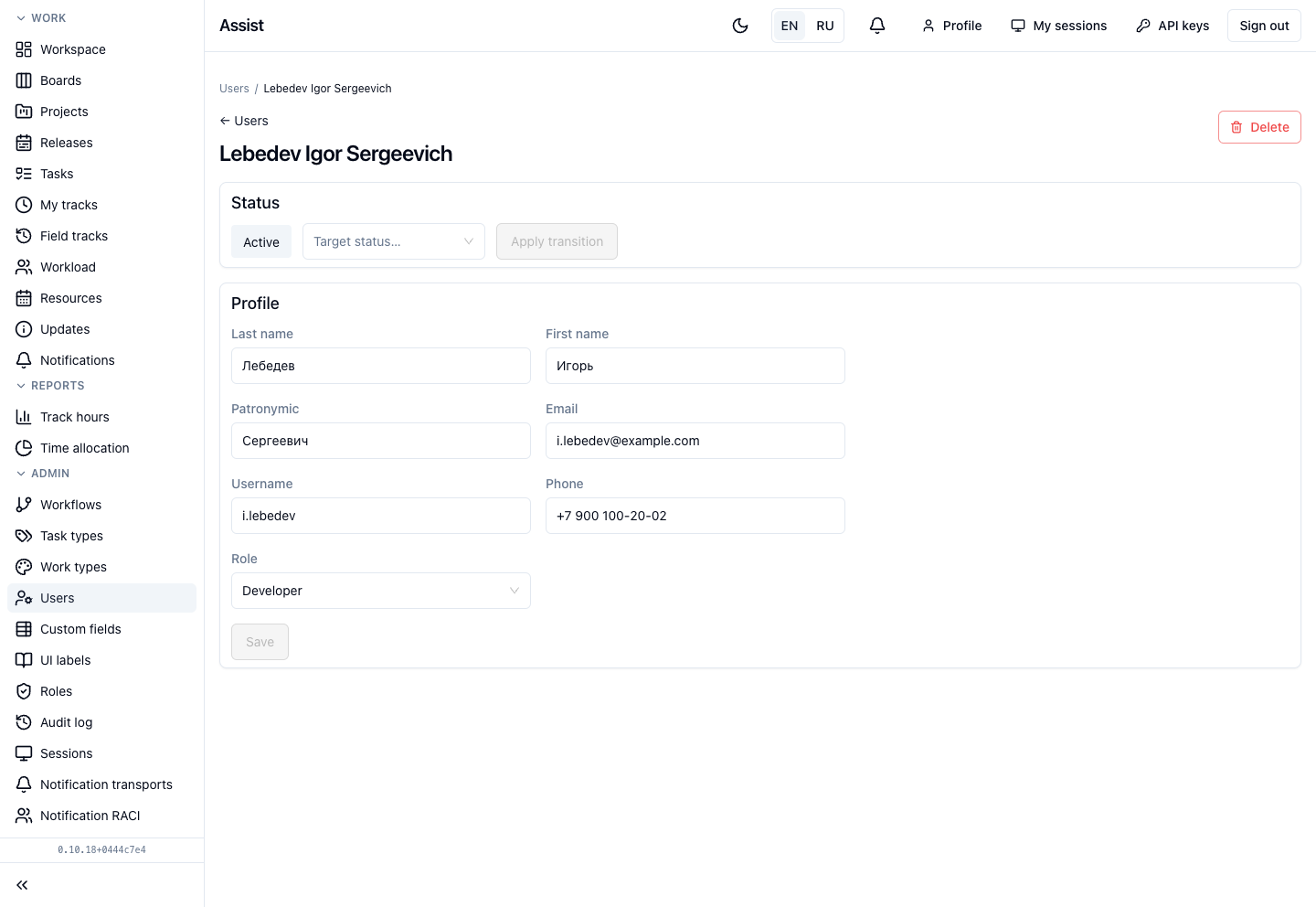
- Status: “Active” or “Disabled”. To disable, choose the target status and click Apply transition. Disabled people cannot be chosen as assignees.
- Profile: last name, first name, patronymic, email, username, phone, role. Save is active only after an edit.
- Rate: with the permission for rates, a block appears with the rate type (hourly or fixed) and the cost of an hour.
- Delete: deletes the person after confirmation. You cannot delete yourself.
Each person changes their own name, phone, and username in the “Profile”.